Google Home and Nest Slow to Respond: How to Fix
In this guide, we will show you the steps to fix the issue of Google Home and Nest being slow to respond to commands. Ever since the Silicon Valley giants stepped into the home automation domain, it has made a popular name for itself, all thanks to its impressive device lineup. be it the smart speakers, smart displays, streaming devices, or Nest speakers, each of them has managed to carve out a rich fanbase for itself.
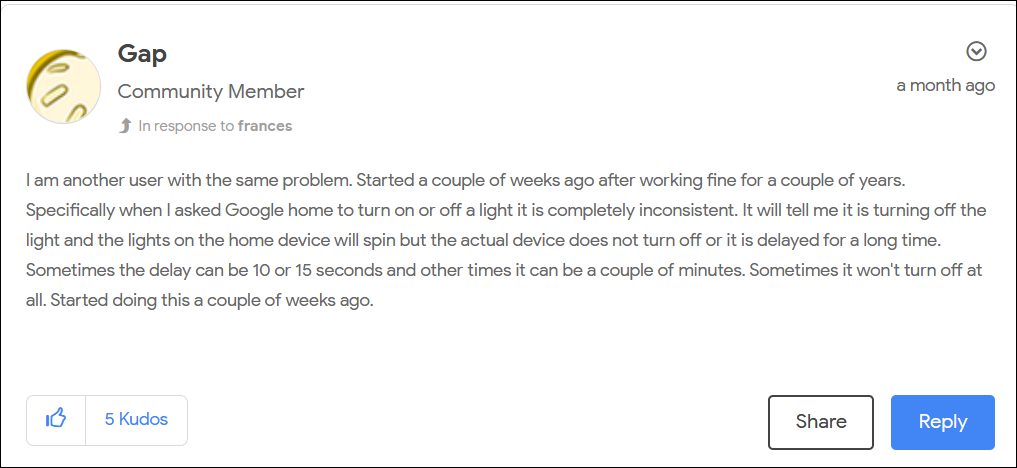
If we talk about the latter, then its ability to stream and listen to music, set up reminders, make calls, and control other smart home devices have made it stand out from the crowds. However, as of now, not many are able to make full use of one of its most important functionalities- the ability to control other smart devices via commands. Whenever a user issues a command for a particular task, then Nest ends up taking up to 15 seconds to successfully execute it.
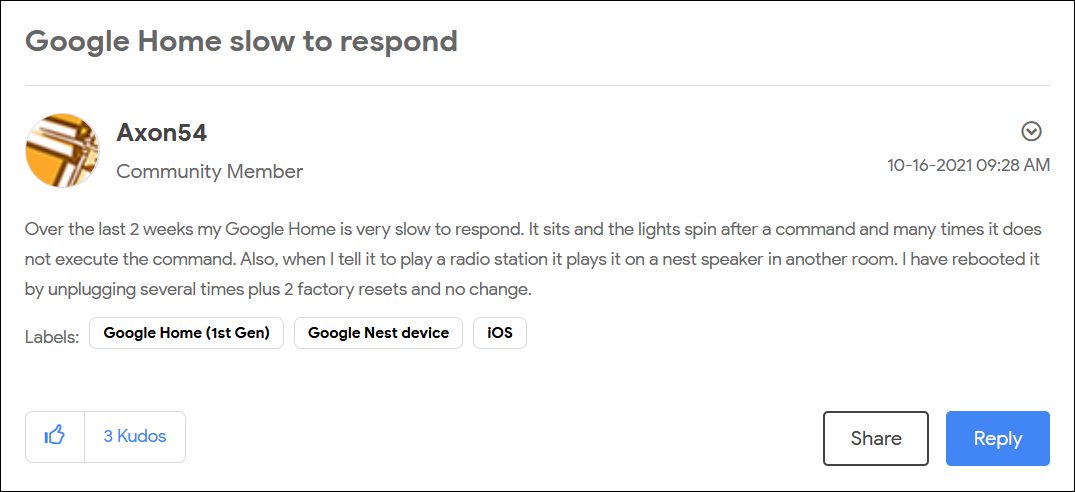
In some instances, the situation is even worse and the device just forgets to even execute the said task. So you’ll keep on waiting for close to 15 seconds for the action to be executed, but in the end, nothing fruitful would come out. And this is among the most infuriating usage experience that one could have. With that said, there does exist a handy tweak that has been known to fix this issue of Google Home and Nest being slow to respond to commands. So without any further ado, let’s check it out.
How to Fix Google Home and Nest Slow to Respond

To rectify this issue, you will have to make a switch from the default DNS provided by your ISP (Internet Service Provider) over to a custom DNS, such as the one from Google or Cloudflare. But what exactly is a DNS? Well, Domain Name Server is a type of Internet Phonebook that beholds the IP Address of all the websites.
So whenever you type in a URL into the web browser, the latter straightaway refers to this book to find out the associated IP. This is needed because browsers don’t deal with plain text URLs, rather it requires the IP Address associated with that IP. Now that you are aware of the DNS and its functionality, let’s check out the steps to change the DNS in Google Nest and hence fix its slow response.
Change DNS of Google Nest
- To begin with, launch the Google Home app on your device
- Then tap on the WiFi icon and go to its Settings menu.
- After that, go to Advanced Networking.
- Then select DNS. As of now, it will be set to Automatic, change it to Manual.
- Now type in the following values (these are the values for Google DNS): Primary Server: 8.8.8.8 Secondary Server: 8.8.4.4
- Finally, hit the Save button and the issue stands rectified.
- Fix Google Nest Hub/Max Won’t Turn on, Stuck on G Logo
- Google Chromecast not working on 5GHz Wi-Fi: How to Fix
- How to Turn off Google Assistant Voice Feedback
- Voice Commands not working in Android Auto after OK Google

- Uriel 3 years ago Reply Turn off the secondary language! This has helped MANY.
- Calvert 3 years ago Reply 1) To begin with, launch the Google Home app on your device 2) Then tap on the WiFi icon and go to its Settings menu. 3) After that, go to Advanced Networking. My question is where is the WiFi icon in the Google Home app ? There is none.
(Cancel Reply)
Δ
