Google Messages RCS Compress Photo: How to Fix
In this guide, we will show you a couple of methods to fix the issue of Google Messages RCS compressing photos. The Rich Text Communication feature is Google’s response to bridge the gap between the much talked about green and blue bubbles aka an iMessage-like ecosystem for Android [apart from publicity shaming Apple to adopt the same].
However, it should get its priorities straight first by making sure that the features work atleast in the Android OS before it makes a plunge to the other side of the fence. For instance, one of the major talking points of RCS is the ability to send high-quality photos. Unfortunately, though, that doesn’t seem to be the case.
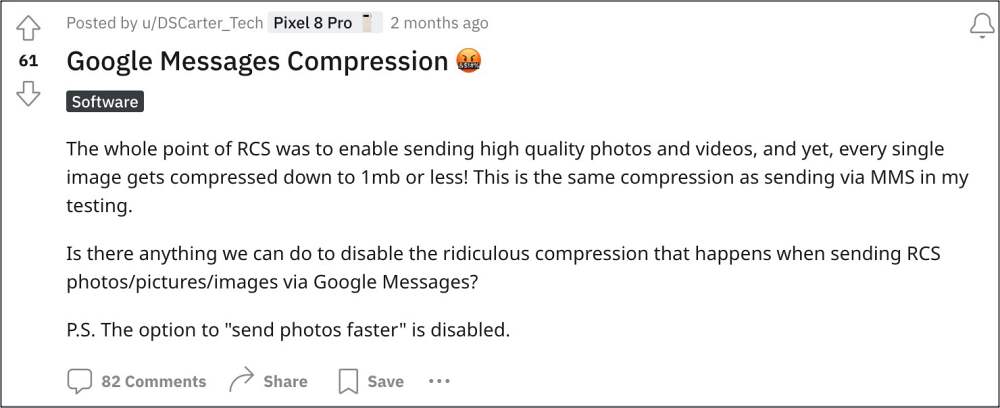
Many users have found out that the Google Messages RCS tends to compress the photo to 1MB or less, thereby completely ruining the image details, resolution, and overall quality. This tends to contradict the very pillars on which this foundation was laid. Moroever, users are even questioning the need for this feature in the first place,
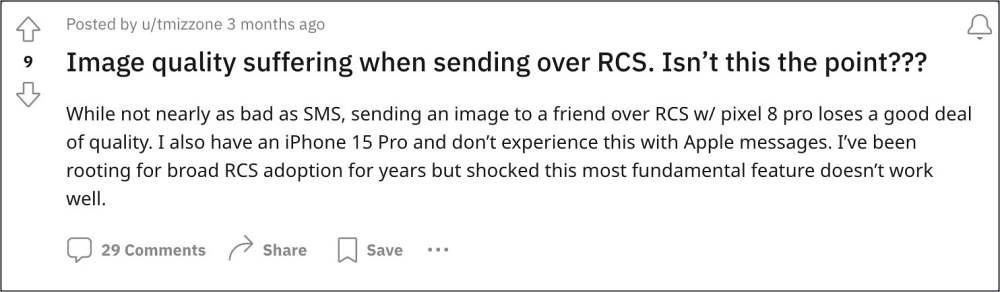
This is because we already have the MMS feature which could easily get this job done [and doesn’t have any cross-OS compatibility fiasco either]. Among all those glooms though, there does exist a couple of nifty workaround that might help you address this issue wherein Google Messages RCS tends to compress the photos. So without further ado, let’s check them out.
- Fix Google Messages RCS Compress Photo FIX 1: Send Photos as Files FIX 2: Use Built-In Camera
Fix Google Messages RCS Compress Photo
It is recommended that you try out each of the below-mentioned workarounds and then see which one spells out success. So with that in mind, let’s get started.
FIX 1: Send Photos as Files
One way of bypassing this limitation is by sending the photos as documents or files. Here’s how:
- Launch Google Messages and tap on the plus icon left of the text field.
- Then scroll to the bottom and tap on Attach a File.
- Now choose the desired image and it will be attached. Finally, hit Send.
FIX 2: Use Built-In Camera
You could also use the built-in camera to get this job done. However, it comes with one obvious and major drawback you cannot send the photos that are already present in the gallery. In other words, if you are planning to click and send the photo right away, then only this method might come in handy. With that said, here’s how to put it to the test:
- Launch Google Messages and tap on the camera icon left of the text field.
- A small camera will be visible at the bottom left. You may expand it as well.
- Then capture the photo and hit Attach. Finally, hit the Send button.
- Disable RCS and Save Battery on your Pixel 7 Pro!
- Cannot Send RCS Messages via Google Messages [Fix]
- Fix Google Messages RCS not working in Galaxy S22 series
- RCS Message not working on Rooted Android: How to Fix

(Cancel Reply)
Δ
