Google Nest Camera & Doorbell No Push Notifications [Fix]
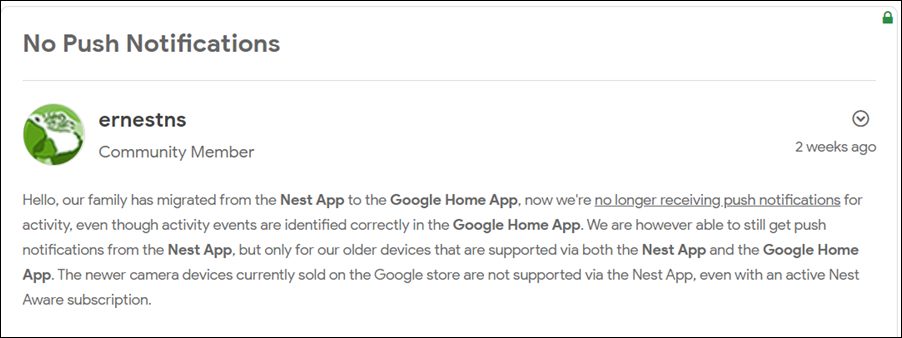
However, inspite of all the goodies attached, it isn’t free from its fair share of issues either. Recently, users were complaining about the ‘ Can’t connect to assisting device ’ error. While the dust surrounding that was yet to settle down, it seems a new issue has already made its way. As of now, various users have voiced their concern that they are not getting any push notifications on their Google Nest Camera and/or Doorbell. If you are also in the same boat, then this guide will make you aware of a nifty workaround to resolve it. Follow along.
- Fix Google Nest Camera & Doorbell No Push Notifications FIX 1: Restart Google Nest Camera/Doorbell FIX 2: Toggle Notifications FIX 3: Disable Do Not Disturb FIX 4: Send Devices to New Home
Fix Google Nest Camera & Doorbell No Push Notifications
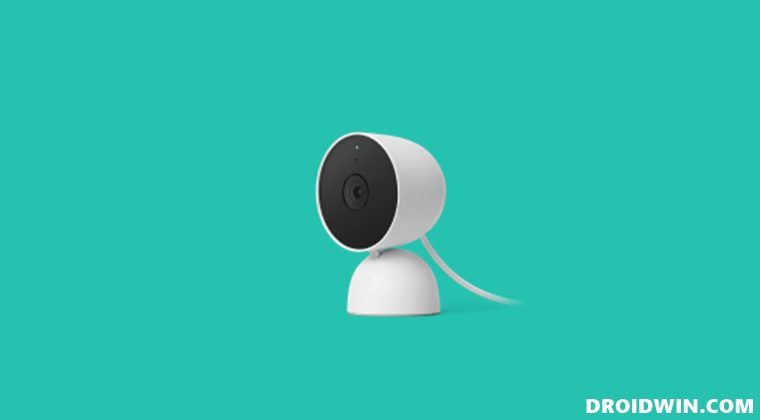
It is recommended that you try out each of the below-mentioned workarounds and then see which one spells out success for you. So with that in mind, let’s get started.
FIX 1: Restart Google Nest Camera/Doorbell
First and foremost, you should consider restarting the affected device. This will refresh all its underlying settings and this, in turn, might rectify the concerned issue.
- So press the reset button present on the back of your device for around 5 seconds to reboot your camera.
- As far as the Doorbell is concerned, press and hold the reset pin hole on the back of the device for around 5 seconds.
- Now check if it fixes the no push notification issue in Google Nest Camera & Doorbell.
FIX 2: Toggle Notifications
- First off, disable and then re-enable the toggle next to Push Notifications a couple of times.
- Likewise, you should also enable the notification for all the ‘Zones’ accordingly.
- Once that is done, go to Settings > Apps > Select Google Home app from the list.
- Then enable the toggle next to all the notification prompts.
- Check if it fixes the no push notification issue in Google Nest Camera & Doorbell.
FIX 3: Disable Do Not Disturb
You should also double-check that the DND feature has been turned off. because if it is enabled then you wouldn’t be getting any prompts or alerts.
- So launch the Google Home app and tap on your device.
- Then go to Settings > Notifications & digital wellbeing > Do not disturb.
- Finally, disable the toggle next to Do not disturb.
- check if it fixes the no push notification issue in Google Nest Camera & Doorbell.
FIX 4: Send Devices to New Home
Another nifty workaround that worked out for many involves removing your device from the current home profile, creating a new profile, and then setting up your device inside this new home. While it is no doubt a lengthy process, but if it works out in your favor, then it will be worth the time spent.
- Launch the Home app, select your Nest device, and tap on the Settings icon situated at the top.
- After that, tap on Remove Device > Remove in the confirmation dialog box.
- Now go back to the app’s home page and tap on the plus icon situated at the top right.
- Then select Create New Home, tap on Continue, and proceed with the on-screen instructions to set it up.
- Your device should now be visible in this new profile, tap on it to pair it.
- Once complete, it should fix the issue of being unable to set timer, alarms, and reminders in Google Nest.
- However, if your device is not visible in the new profile, then tap on the plus icon and select Set up Device.
- Then select New Device and your Nest device will now be visible.
- Set it up and the underlying issue would now have been resolved.
That’s it. These were the various methods to fix the no push notification issue in Google Nest Camera & Doorbell. As far as the official stance on this matter is concerned, the developers are yet to acknowledge this issue, let alone give out any ETA for the rollout of a fix. As and when any of these two things happen, we will update this guide accordingly. In the meantime, the aforementioned workaround is your best bet.
- Google Home and Nest Slow to Respond: How to Fix
- Fix Google Nest Hub/Max Won’t Turn on, Stuck on G Logo
- Unable to Set Timer, Alarms, and Reminders in Google Nest: How to Fix
- Google Home/Nest “Could not communicate with your Google Home” [Fix]

(Cancel Reply)
Δ
