Google Phone Visual Voicemail Disappeared: How to Bring It Back!
In this guide, we will show you the steps to fix the issue of Visual Voicemail having disappeared from the Google Phone app. This app from the Silicon Valley giant beholds quite a few nifty features. Spam Protection, caller ID coverage, Call Screen, and Visual Voicemail are just some of them. Talking about the latter one, it allows you to check your voicemail without even the need to call that number. Likewise, you could easily display, view, and listen to the voicemail messages along with the date, time, and length of that message.
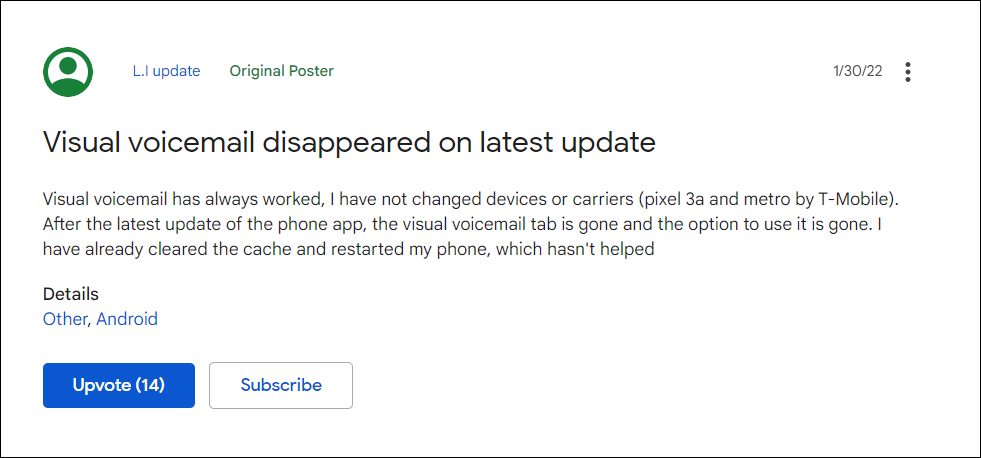
However, not many users are able to make full use of this functionality. A slew of complaints is lined up where users have voiced their concern that the Visual Voicemail feature has suddenly disappeared from the Google Phone app. Along with that, all the settings and saved transcripts are also gone , without any trace as such. So if you are also getting bugged with this issue, then this guide will make you aware of the detailed steps to fix the issue of Visual Voicemail having disappeared from the Google Phone app. Follow along.
How to Fix Google Phone Visual Voicemail Disappeared
The reason behind the disappearance of this feature is an update that has recently been rolled out to the Phone app. So to rectify this bug you will have to downgrade the app to the earlier stable build. Apart from that, you will also have to disable the automatic Play Store update for this app, otherwise, Play Store will update this app and hence would nullify this fix. So refer to the below instruction steps and implement this fix right away.
- To begin with, head over to Settings > Apps > See All Apps and select the Phone app from the list.
- Now Scroll to the end and tap on App Details. It will take you to the Phone’s Play Store’s page.
- Tap on the overflow icon situated at the top right and uncheck Enable Auto-Update
- After that, go back to the app’s settings page and tap on the overflow icon situated at the top right.
- Then select Uninstall Updates followed by OK in the confirmation dialog box that appears.
- The Phone app will now be downgraded to the earlier stable build and with that, the issue would be resolved.
- Google Phone App Missing from Hidden Space in OxygenOS 12 [Fixed]
- Fix Google Phone: Call recording will be suspended if your phone runs out of storage
- Cannot Set up Google 2 Step Verification using Phone Number [Fixed]
- How to Enable Google Call Screening on any Android Phone

(Cancel Reply)
Δ
