Google Pixel 6/Pro Proximity Sensor Not Working: How to Fix
In this guide, we will show you the steps to fix the issue of the proximity sensor not working in Pixel 6/Pro. The sixth iteration of the Pixel series seems to be a perfect example of so near yet so fear. On the brighter side, you will be blessed with quite a few goodies. These include the massive five years of software support (OS+ security patch), fastest Android upgrades, a new optimized in-house Tensor chipset, best in class camera, and an improved hardware redesign (finally).
On the flip side though, it is also facing quite a few bugs and issues. These include the issues with the in-display fingerprint , mobile network connectivity issues , battery percent being stuck at 0% , Assistant dialing up random contacts , and the list goes on. And now, there has now been another unwanted addition to this list. Various users have voiced their concern across Google Support Forum that the proximity sensor is not working along the expected lines in their Pixel 6/Pro device.
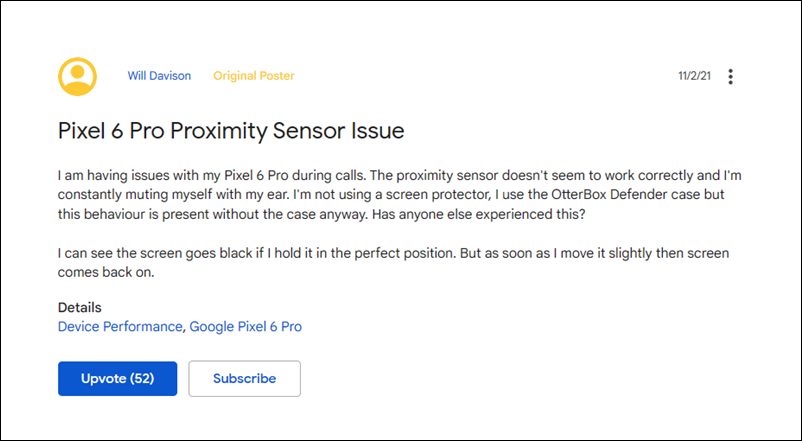
One of the major roles of the proximity sensor is to turn off your phone’s display during a call so as to prevent any mistouches. Along the same lines, as soon as you take the phone away, it will light up the display so that you could choose from ending the call, muting it, doing a conference call, among others. However, in the latest Pixel series, the proximity sensor seems to be failing in both these aspects. Neither does it turn off the display when the phone is in your proximity, nor will it light up the screen when you take the phone away from yourself.
In the former case, users are mistakenly ending or muting calls via accidental touches. Whereas in the latter scenario, users have to press the Power button to light up the display and then hit the End Call button. Both these cases are quite infuriating and troublesome, to say the least. Fortunately, there does exist a workaround that does seem to fix the issue of the proximity sensor not working in Pixel 6/Pro. And this guide shall make you aware of just that. So without further ado, let’s get started.
How to Fix Google Pixel 6/Pro Proximity Sensor Not Working
At the time of writing, the only workaround that has managed to spell out success for various users is the clearing of the Phone’s app data. So proceed ahead with the below instruction steps to give it a try.
- To begin with, head over to the Settings menu on your device.
- Then go to Apps > See All Apps and select the Phone app from the list.
- After that, go to its Storage and Cache section and tap on Clear Storage.
- Finally, tap OK in the confirmation dialog box to complete the process.
So these were the steps to fix the issue of the proximity sensor not working in Pixel 6/Pro. Let alone rectifying this problem, Google hasn’t even acknowledged this issue yet. And that isn’t a surprise considering the fact that these sensors and the Pixel lineup never really went hand-in-hand.
For context, you could track this issue all the way back to the first Pixel devices as well! Anyways, if the Silicon Valley giants do release a patch that would rectify this senor issue, we will update this guide accordingly. In the meantime, you could drop in your queries below.

(Cancel Reply)
Δ
Pixel 6 Fingerprint Sensor Not Working: How to Fix
In this guide, we will show you various methods to fix the Pixel 6 fingerprint sensor not working issue. The latest offerings from the Silicon Valley giant have bought in a plethora of new goodies. Right out of the box, you will notice a completely revamped design, which was literally the need of the hour for this series. Then there are quite a few nifty camera tweaks as well which is generally along the expected lines for this lineup.
Apart from that, you will now also be getting three years of OS upgrades and five years of security patches. Moreover, the sixth iteration has welcomed an in-display fingerprint scanner, which is a first for any Pixel device. However, as opposed to other flagships that have straightaway opted for the 3D ultrasonic scanner, Google decided to stick with the old 2D optical scanner. And this isn’t proving to be the right decision.
A slew of complaints are getting accrued where users have voiced their concerns that the under-display fingerprint scanner isn’t working along the expected lines. Considering the money being spent on purchasing these flagships, and the issue gets all the more worrisome. Well, if you are also getting bugged with this issue, then fret not. In this guide, we will make you aware of various methods that shall help you fix the Pixel 6 fingerprint sensor not working issue.
- How to Pixel 6 Fingerprint Sensor Not Working Add the Same Fingerprint Twice Give it An Additonal Second Apply Optimal Pressure Use Dry Hands Clean your Screen Use a compatible screen protector Re-Add Your Fingerprint Install Pending Updates Give AI some time! Contact Google
How to Pixel 6 Fingerprint Sensor Not Working
Do note that there’s no universal fix as such. You will have to try out each of the below-mentioned workarounds and see which one works best in your favor. So keeping that in mind, let’s get started.
Add the Same Fingerprint Twice
An old trick out of the books, adding the fingerprint of the same finger twice or thrice will make the job of the scanner a little bit easier in reading those fine prints. So head over to Settings > Security and fill up two-three slots of fingerprints using the same finger. Then check out if it manages to fix the Pixel 6 fingerprint sensor not working issue.
Give it An Additonal Second
Optical under the hood fingerprints are a tad bit slower than the ultrasonic scanner. So bearing that fact in mind, consider giving an additional second to the scanner so that it is able to efficiently scan your prints.
Apply Optimal Pressure
While it isn’t documented anywhere as such, but these in-display fingerprints (especially the 2-D ones) work best when you apply the pressure in an increasing manner. However, the increase should be done gradually and lightly. So try it out and then see if it is able to fix the Pixel 6 fingerprint sensor not working issue.
Use Dry Hands
It’s no hidden secret that the scanner wouldn’t be able to read the fingerprints if your hands are wet. This is because the moisture would end up creating an additional layer between the scanner and your fingerprints, thereby preventing a successful scan. So make sure to remove such roadblocks before proceeding ahead.
Clean your Screen
Not only your hands but the screen should be cleaned as well, especially the bottom half of the screen where the scanner is located. Even the slightest of dust particles are enough to create hurdles in successful scans. So clean your screen via a cloth or fabric and then verify if the Pixel 6 fingerprint sensor not working issue has been fixed or not.
Use a compatible screen protector
Not all screen protectors are created equally! While they might cause any issues in the normal usage of the device, but they sure could cause conflict with the in-display fingerprint scanner. So if you ever plan to replace your Corning Gorilla Glass Victus protection with a third-party one, make sure to go for a tried and trusted name.
Re-Add Your Fingerprint
Since the optical scanner flashes a bright light underneath to read your fingerprints, it might not have been able to register your fine prints correctly during the setup process. So consider removing the registered fingerprint via Settings > Security and then perform a re-scan to re-add your fingerprints. Check if this gives out any favorable results or not.
Install Pending Updates
While the software upgrades might not necessarily add new features to your device, they surely optimize and improve the overall functioning of the OS as well as your device. Along the same lines, they also iron out all the bugs and issues. So make sure to download and install all pending updates via Settings > System > System Update and then verify if it ends up rectifying the issue or not.
Give AI some time!
Well, Artificial Intelligence does take some time to adapt and adjust, after all. So on continued usage of these scanners, they will ultimately learn and optimize themselves according to the use case scenario. So consider letting go of the initial hiccups for a better journey ahead!
Contact Google
If none of the aforementioned tweaks managed to work out in your favor, then you should consider contacting Google and then chalk out the best route forward. We aren’t still implying that it’s a hardware issue, it’s just that contacting the manufacture will give you a clearer picture.
- Scrolling Screenshot Not Working in Android 12: How to Fix
- How to Change Icon Shapes in Android 12?
- Can we change the Lock Screen Clock Size in Android 12
- Bring Back the WiFi toggle in Quick Settings on Android 12
(Cancel Reply)
Δ
