Google Shortcuts Launcher: Launch Hidden Google Apps
While some apps from Google like YouTube, Gmail, and Maps are present in the app drawer and can easily be launched via a single tap, there are a plethora of others that have left no trace whatsoever. Whether it’s the Barcode Scanner, the in-built AOSP Files app, or the Nearby music search, none of them are present in the app drawer.
You can only access them from their designated location. For example, when a song is being played, the Nearby Music will get activated on the lock screen. You can then tap on it to access its settings. But what if you wish to access it when no music is being played? Well, this is where the Google Shortcuts Launcher comes into play.
- What is Google Shortcuts Launcher Assistant Barcode Scanner Chrome Incognito Tab Files (AOSP) Games Launcher Google Finances Google Lens Google Music Search Google Password Manager Google Play Collections Google Quick Share Google Search Google Shopping Google Travels Google Weather
- How to Install Google Shortcuts Launcher Adding Apps to App Drawer Quick Settings Tiles
What is Google Shortcuts Launcher
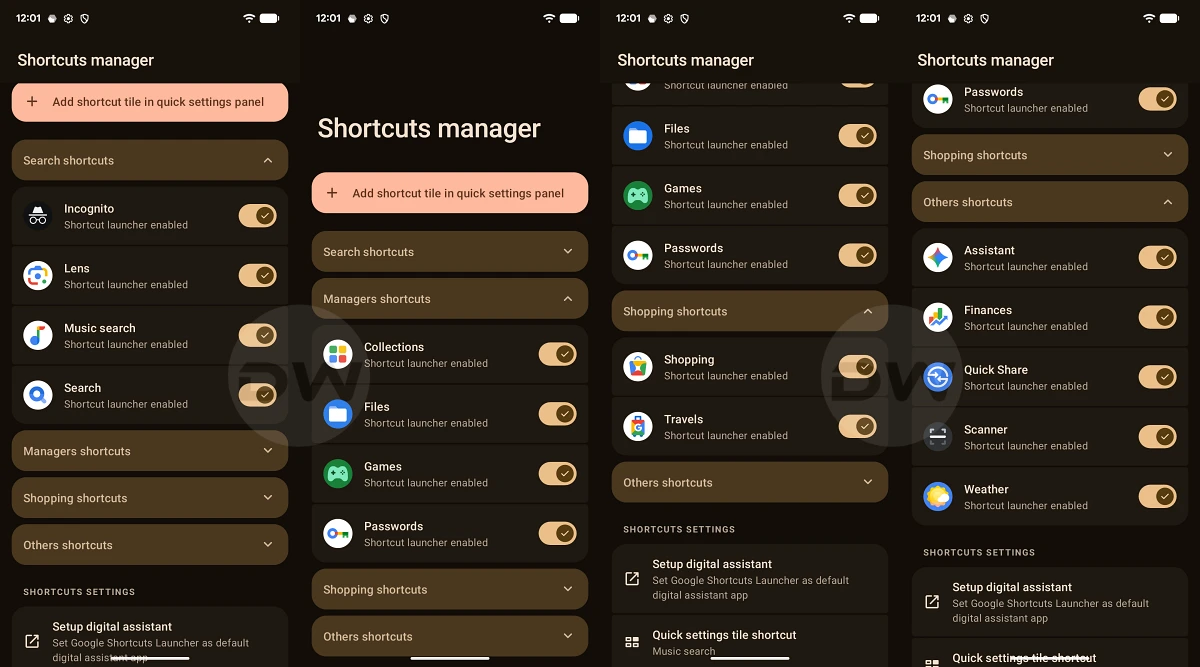
Google Shortcuts Launcher creates a shortcut for various hidden Google apps and shortcuts. Let’s have a look at all those apps and activities that it can invoke:
Assistant
Quickly invoke your device’s voice assistant—such as Gemini, Bixby, or others—to streamline tasks and access smart voice commands.
Android Digital Assistant Service
Barcode Scanner
Instantly scan product barcodes or QR codes using your device’s camera to look up product details, compare prices, or navigate to a relevant website.
Google Play Services
Chrome Incognito Tab
Start an Incognito session in Google Chrome where your activity isn’t saved to browsing history or local storage.
Google Chrome or Brave Browser
Files (AOSP)
Launch the system’s built-in file manager to organize, copy, move, delete, and perform many other operations easily.
AOSP File Manager
Games Launcher
A folder that displays all your installed games alongside recommendations from Google Play Games.
Google Play Games or Device Game Launcher/Turbo/Center/etc…
Google Finances
Track your stocks, monitor market trends, and manage your investment portfolio with quick access to personalized financial news and data.
Web browser
Google Lens
Use your camera to search for objects, translate text, scan QR codes, copy content, and explore the world with powerful visual recognition features.
Google App
Google Music Search
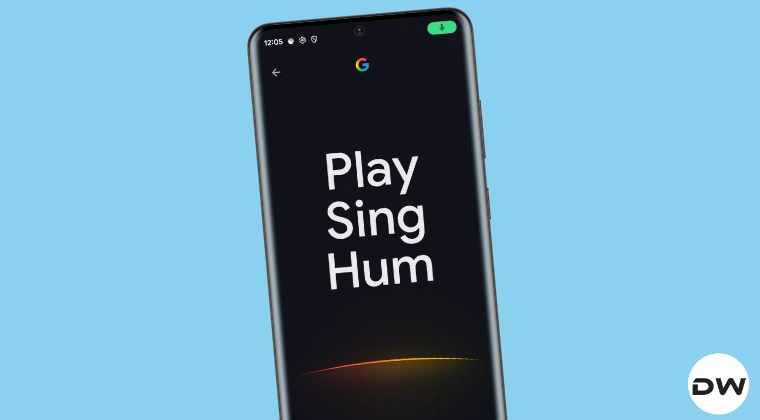
Identify music playing nearby with a single tap.
Google App
Google Password Manager
Securely access your saved credentials to manage passwords, monitor their security with Password Checkup, and view your Passkeys.
(ROOT) Google Play Services or Web Browser
Google Play Collections
Organize your apps by theme and show personalized recommendations, helping you discover new content and pick up where you left off in games, videos, music, and more.
Google Play Store
Google Quick Share
Send and receive photos, files, and more between nearby Android devices and compatible Windows PCs—securely and wirelessly.
Google Play Services
Google Search
Perform quick searches on Google using the keyboard or voice input directly from your launcher.
Google App
Google Shopping
Search for products, compare prices across various retailers, find local stores, and manage your shopping lists and saved items.
Web Browser
Google Travels
Plan, manage, and track your trips with ease. Quickly view flight details, hotel reservations, local activities, and personalized travel recommendations.
Web Browser
Google Weather
Access real-time local weather updates along with a full weekly forecast.
Google App or Web Browser
How to Install Google Shortcuts Launcher
Adding Apps to App Drawer
- Download and install the app from its GitHub page . Then launch it.
- All the shortcuts will now have their app in the app drawer.
- You can turn off the toggle next to the shortcut whose app you don’t want in the app drawer.
- Moreover, before launching any app from the app drawer, make sure to close Google Shortcuts Launcher from the Recents screen.
Quick Settings Tiles
- You can also create a Quick Settings shortcut for these apps.
- To do so, tap on Add Shortcut Tile in the Quick Settings panel. You’ll get a prompt, tap Add Tile.
- Then tap on Quick Settings Tile Shortcut and choose the desired shortcut.
- You can only add one shortcut tile at once, something which left me asking for more.
- Search Result Filters not working in Google App: How to Fix
- Enable Gemini toggle and Bottom menu bar in Google App
- Guide to Enable Hidden Features in Various Google Apps
- Google Patches Pixel IMS App | Here’s a New Method to Enable VoLTE

(Cancel Reply)
Δ
