Hide Apps Feature Not Working on Samsung: How to Fix
Recently, I went on a debloating spree and disabled more than 100s of bloatware on my Galaxy device. Everything went fine, or so I thought. Firstly, the wallpaper went back to the default one from a custom one that I had applied before performing the debloating task. Turned out, it was due to the AI Live Wallpaper service being disabled [this consumes more than 300MB of RAM, but I guess I was left with no choice but to re-enable it].

Then, a week later, I was trying to hide an app on my device, but the service was nowhere to be found. I straightaway realised the issue- it has to be one of the bloatwares that I had recently disabled. Turns out that is indeed the case. So I did some research and finally managed to catch the culprit, enabling which brought back the Hide Apps functionality on my Samsung device. And in this guide, we will make you aware of that culprit. So without any further ado, let’s get started.
- Fix: Hide Apps Feature Not Working on Samsung ADB Commands Third-Party App
Fix: Hide Apps Feature Not Working on Samsung
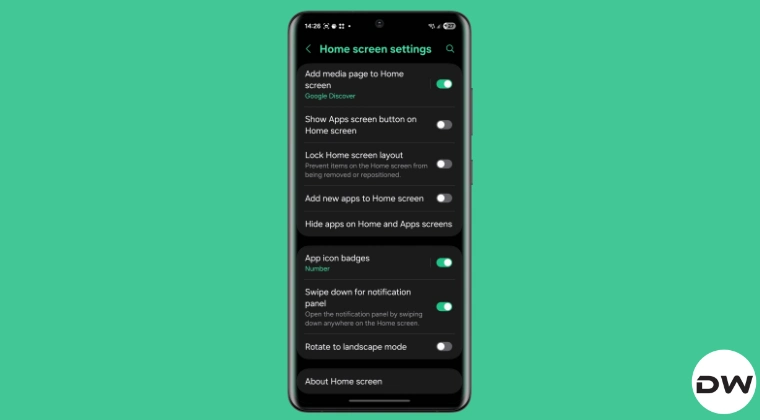
To rectify this problem, you’ll have to re-enable the Personal Data Intelligence/Personal Data Engine/Samsung Smart Suggestions service [the app package name is the same for all three]. You can either do so via ADB Commands or a third-party app like Canta. We have given the steps for both- try out the one that is in sync with your requirement.
ADB Commands
- Download and extract Android SDK Platform Tools on your PC.
- Then enable USB Debugging and connect your device to the PC.
- Now open Command Prompt inside platform-tools and type in: adb shell pm enable com.samsung.android.smartsuggestions OR adb shell pm enable –user 0 com.samsung.android.smartsuggestions
Third-Party App
- Download and install the Canta app on your device.
- Then, download, install, and set up Shizuku as well.
- Next up, launch Canta and head to the Disabled tab.
- Then, enable the Personal Data Intelligence service.
- Debloat/Remove Bloatware from Samsung Devices via ADB
- Best Battery Saving Tips for Samsung Devices Running One UI 7/6
- How to Install Pixel AOSP Theme on Samsung One UI
- Why is Samsung Default Video Player Missing from the app drawer

(Cancel Reply)
Δ
