How to access and transfer files in Data OBB folder Android 13/14/15
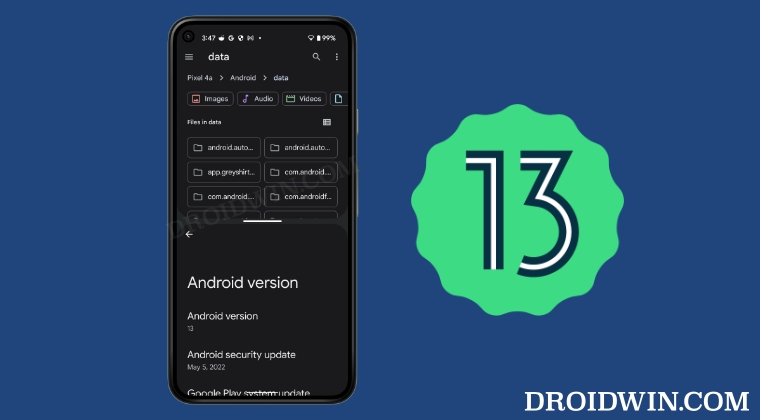
In this guide, we will show you the steps to access the Data and OBB folder in Android 13 and transfer files in them. Back in Android 11, Google introduced Scoop Storage which prevented File Managers from being able to access the Data and OBB folders. However, the app developers managed to quickly find a loophole and hence made it possible to gain entry to these folders.
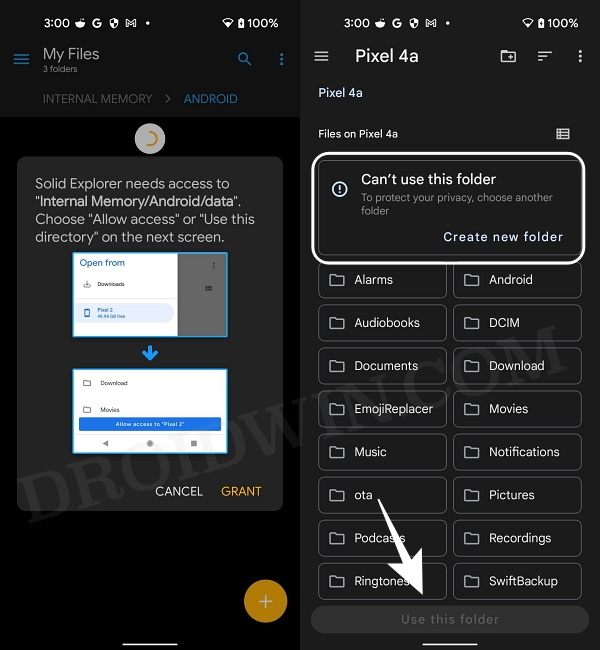
However, Google quickly got hold of that loophole and unfortunately in Android 13, it has been patched. As a result of which, you wouldn’t be able to access the Data and OBB folders on your device running Android 13. When you try to do so, the File Manager will ask you to grant it access to the said folder. But when you tap in Grant, it will notify you that it cannot use that folder and even the Use this folder button will be greyed out.
But, as you might be aware, restrictions don’t last for long in this open-source ecosystem! There is still another loophole present in Android 13 using which you could easily bypass this restriction and gain access to the Data and OBB folder. And in this guide, we will show you how to do just that. So without further ado, let’s get started on this intriguing journey. [Also attached is the video at the end of this guide, do check it out as well].
- How to Access Data and OBB folder in Android 13
- How to Transfer Files in Data and OBB folder in Android 13
- New Method to Access and Transfer Files in Data OBB Directory
How to Access Data and OBB folder in Android 13

You might not be aware of this, but every Android device comes with a hidden File Explorer. But you cannot launch it the normal way as it isn’t present in the app drawer. So will be invoking it using a third-party app and then carrying out the rest of the tweak using that hidden file explorer.
- First off, temporarily disable the file manager app that came preinstalled on your device [such as the Files by Google app on Pixel devices].
- If you don’t do so, then it wouldn’t let the hidden file manager do its job. So head over to Settings > Apps > See All Apps.
- Then the preinstalled file manager app and tap on Disable > Disable in the confirmation prompt.
- Once done, download the Files app from Pay Store [it is the app that will invoke the hidden File Manager app].
- Now launch it and it will straightaway launch the hidden file File Manager app.
- You will now be able to access the Android/data and the Android/obb folder without any issues!
How to Transfer Files in Data and OBB folder in Android 13
While accessing the data and obb folder in Android 13 proved to be a cakewalk, the same cannot be said for transferring files in these folders. But thanks to another interesting workaround, you could now easily get this job done pretty easily. Let’s check out how this could be achieved:
- To begin with, launch the hidden file explorer on your device using the steps listed above.
- Then tap on the overflow icon situated at the top right and select New Window.
- Now go to the Recents screen and you should see two instances of the file explorer app.
- Long press on one of its icons and select Split top. Then select the second instance of that app.
- Both versions of the hidden file explorer app should be right in front of you.
- So go to Android/data or Android/obb directory in the “upper” file explorer.
- On the other hand, go to the desired file that you need to transfer from the “lower” file explorer.
- Now long press the file to be transferred from the lower file explorer and then transfer it to the upper File Explorer!
New Method to Access and Transfer Files in Data OBB Directory

There’s a new and easier method through which you could get this job done. In this method, the file explorer will automatically create a multi-window split-screen mode for you. Here’s how:
- Download and install the FV File Manager app from the Play Store.
- Then launch it and tap on Internal Shared Storage.
- Now give it the storage access and again go back to the Home tab.
- Again tap on Internal Shared Storage then go to Android > data folder.
- Then select Files under ‘Open with’ and it will create a split screen mode.
- Now just long press on the desired file at the top and transfer it to the bottom [data folder].
- Likewise, you may transfer the files to the obb folder in a similar manner.
- Allow Restricted Settings missing from Sideloaded Apps in Android 13 [Fix]
- Google Pixel Android 13 Unresponsive UI screen freezes: How to Fix?
- Fix Pixel 6 Pro Excessive Battery Drain on Android 13 [10 Methods]
- Third-Party/Sideloaded Apps crashing in Android 13: How to Fix

- gta 5 app 5 months ago Reply Great post! I found the step-by-step instructions really helpful for accessing files in the OBB folder. It’s frustrating that Android keeps making it harder to manage files, but your guide clarified a lot. Thanks for sharing!
- 19 club Login 5 months ago Reply Thanks for this informative post! I found the step-by-step guide on accessing and transferring files from the Data OBB folder really helpful. It cleared up a lot of confusion I had about accessing these files on Android 13/14/15. I appreciate the tips on using the right file manager apps too!
- btw win 6 months ago Reply This guide was super helpful! I had been struggling to access my OBB files on Android 14, but your step-by-step instructions made it so easy. Thank you for sharing such clear information!
- Anubis 9 months ago Reply None of these methods work on Oppo Find X3 ColorOS 13.1 Google (or Oppo) have patched this out 🙁
- Hashir 9 months ago Reply For some reason after drag and dropping the files only the folder is getting copied and not the stuff inside it,how do I fix (oppo android 13) Sadique Hassan 9 months ago Reply Even the new method, FV File Manager app, is not working mate?
- Raja Lottery 10 months ago Reply Thank you for this detailed guide on accessing the Data OBB folder! I’ve always struggled with transferring files from that location. Your step-by-step instructions made it much clearer. I appreciate the tips on using file managers too!
- Scribd Downloader website 1 year ago Reply Thanks for the detailed guide! It’s really helpful to understand how to access and transfer files in the OBB folder with the latest Android versions. I was struggling with this for a while, and your step-by-step instructions made it much clearer. Keep up the great work!
- Shahal 1 year ago Reply hlo
- Y2-MATE 1 year ago Reply This guide was super helpful! I’ve always struggled with accessing the OBB folder on my Android device. The step-by-step instructions made it so much easier, especially the part about using a file manager. Thank you for sharing this!
- Takudzwa Karombe 2 years ago Reply This works , guaranteed 100% Bro you’re a Genius for real 🫴🔥🔥🔥🔥
- Itumeleng 2 years ago Reply That actually worked thanks
- Nguyễn 2 years ago Reply Can someone share how to delete guys plz help ?
- Befreehuman 2 years ago Reply Dude, ur a genius 😎 works for me in a Tecno Spark 10c with android 12 even with last security update 🥰 Thanks 🤗
- robotnikkkk 2 years ago Reply …..ACTUALLY WORKED!!!!!!!!!….AND I REALLY STARTED PANICKING LIKE A LOT ………..SPLIT SCREEN WORKED THAN EVERYTHING LIKE SAID, A BIT OF TRYING AND OKAY IT’S THERE, HEHEHE …….SONY XPERIA 1 V WITH ANDROID 14……..
- Jochen K. 2 years ago Reply Hi, on my Galaxy A14, it was enough to Force Close the Files app before installing its replacement; now I… –CAN access Android/data both in internal and in external memory, –CAN copy or move stuff OUT, but –CAN’T copy/move stuff INTO either directory. I’ve decided to call this a glass half FULL. serban 2 years ago Reply Use a PC
- Nedd 2 years ago Reply Thanks bruh. As an OPPO user. Split screen didn’t work. So, I used floating window, and it WORKED!
- Tshepo 2 years ago Reply Thanks 🙏
- Bonheur Ebuzoeme 3 years ago Reply Wow! This worked like mad… My God. You’re a genius… God bless
- Chris 3 years ago Reply Hello thanks for this page, but it’s impossible to disable “FILE” application, the button DISABLE is not activate (Android 13 on custom ROM on Redmi note 11 SPES)
- Catastrophy 3 years ago Reply For those using oppo, use the floating screen for the file, and then go back to open the file. It will work.
- LWGShane 3 years ago Reply This doesn’t work at all. File copying/moving fails.
- scott 3 years ago Reply File operation not supported… nothing in this post works.
- Final s23 3 years ago Reply Thanks working for S23
- Mayes 3 years ago Reply Thanks you
- Michael 3 years ago Reply Thanks. The app just does its business without any bug or ads.
- Steve 3 years ago Reply I would really like to disable the ‘stock’ filemanager, unfortunately this option is also greyed out
- Alan 3 years ago Reply God damn it finally! Thank you!
- Dave Booth 3 years ago Reply Absolutely BRILLIANT, Sadique !!! I just bought a Google Pixel 6, updated to android 13 and became extremely frustrated when I couldn’t transfer my backup files for OsmAnd+ Maps over to it’s data folder. SORTED thanks to your very helpful article. 👍👌🤟 Cheers, Dave. Paul fugoogle 2 years ago Reply I have a pixel 6a with a13 and I’ve tried every file manager and method but nothing works. (Solid, fv,cx,files, X-plorer, and a few others I can’t remember. Plus removed updates in files, tried Shizuku and fv file explorer and rish with termux. Also App ops with Shizuku.) This is literally pissing me off and about to go-to apple. I would root but I don’t want to lose my banking app.
- youssef 3 years ago Reply that was very helpful after 1 hour of searching this is the only methods that worked thank you very much
- JoJo 3 years ago Reply ? JoJo 3 years ago Reply Where did my comments go?
- JoJo 3 years ago Reply So if you long press, and then long press and hold on a folder, and then drag, you can move folders. I was even able to delete folders I created earlier trying to bypass this dumb “feature” in android. I got it to “move” but the folder is missing from view. Maybe I need to refresh the app? JoJo 3 years ago Reply Meaning the folder I attempted to “move” by dragging, dissapeared completely. I should’ve made a backup, now I have to re-download. My fault I guess maybe the above steps were made using older android? I thought maybe it’d just stay put, but it moved. It move somewhere a black hole in android… And I don’t see a trash can. How in the world can android just be able to delete your files like that? That can’t be okay.
- JoJo 3 years ago Reply Hello 👋. Thanks for your efforts! I just tried to move folder but when long pressing I can’t drag I can only select move to and it open up the folder automatically with no data folder visible. Gabriel 3 years ago Reply Long press the folder once, it will select it. Long press the already selected folder and you’ll be able to drag it. Sabbath 2 years ago Reply Thanks Gabriel yes the part to select and then long press is not mentioned above 👆.
- Tungvn 3 years ago Reply Wow very detail and accurate post and clip Im doing exactly the save and it work perfectly, im using a53 BTW thank again
- sam beckman 3 years ago Reply does not work anymore patched by guugl on A13
- Apk enjoyer 3 years ago Reply Thank you very much!
- Shaun Dillon 3 years ago Reply This tweak doesn’t seem to be working now, well it doesn’t on my Samsung s22 ultra running the latest android 13, I followed the guide to the letter
- jfjrje 3 years ago Reply doesn’t work anymore, cannot split screen two windows of the same app, the new window will not display Gabriel 3 years ago Reply Do the open new window as it says in tutorial, then force close everything else that’s running in the background (including the browser), so that JUST the 2 Files apps/Windows are open. Then using split screen will work.
- Wonttell 3 years ago Reply For me it only worked with data folder While obb gives a “” error message Using redmi note 10 pro with miui12
- Jason 3 years ago Reply I tried this method step by step and I still couldn’t transfer files out of Android/data. It kept telling me the transfer was unsuccessful. I don’t know if they’ve already patched it or what. I really need to get into that folder and copy some files
- zigzag 3 years ago Reply there’s no disable option and when i freeze the app through lucky patcher it shows app not supported Gabriel 3 years ago Reply You can choose the Uninstall updates instead, it basically reverts the app to factory state and disables it. I did that and it worked.
- Alexander 3 years ago Reply This Method Doesn’t Work on my Reno 8 5G .When I use new window and try to open a split screen it is exiting from split screen and going to full screen. Please find a resolution for this issue.
- Devan 3 years ago Reply File operation not supported… nothing in this post works. Bastet 2 years ago Reply Yup, doesn’t work! My hopes got raised and crushed so quickly I nearly got whiplash 🙁
- FV File mananger 3 years ago Reply FV File mananger https://play.google.com/store/apps/details?id=com.folderv.file Can access Android/data on Android 13 without root or adb Mike 2 years ago Reply Yes FV works, but…Tap the Data folder and it opens a small window with all the folders. You can’t actually open anything in that list! Tap “files” at the bottom of that window and.,.it opens the hidden system file manager. So FV just gets you to the same system file manager as the “Files” app described above. But the first time I used FV that way I then created two managers in split screen. Now every time I open the system manager through FV it “remembers” the split screen set up. The “Files” app doesn’t “remember”. Kely 2 years ago Reply No me da la opcion desactivar yo tengo un samsung A02 CallMeSomeone 3 years ago Reply Yes! Worked a treat, even for someone (me) with non-pro skills.
(Cancel Reply)
Δ
