How to add invitations only from known users in Google Calendar
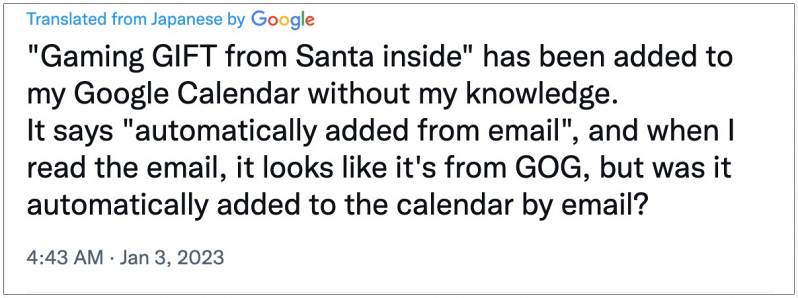
In this guide, we will show you the steps to add invitations only from known users in Google Calendar. So recently I noticed and many other users noticed that an event by the name of “Gaming GIFT from Santa inside” was added to our Google Calendar without any prompt or acceptance from our end. Upon further investing it, it said that the event has been “automatically added from email” and the sender was GOG.
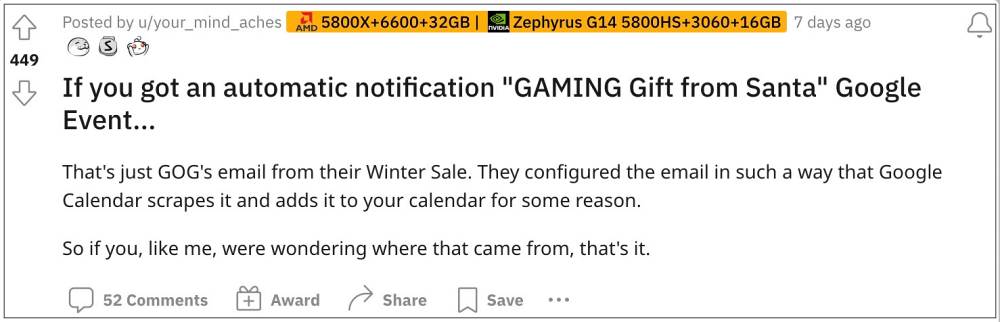
On the other hand, some users reported that the sender was tagged as an “Unknown Organizer” with the email ID [email protected] . All in all, not only is it spamming our event section, but could also prove to be a major risk to privacy concern if the even comes with a phishing or scam link. So to avoid this, your best course of action should be to instruct Google Calendar that it should only add events from known users.
Apart from that, you could also take a more aggressive approach and instruct Google Calendar to add events only when you respond to the invitation in the email. In this guide, we will show you how both these settings could be applied. So without further ado, let’s get started.
How to add invitations only from known users in Google Calendar
- Launch Google Calendar, tap on the hamburger menu, and select Settings.
- Then go to General > Adding Invitations > Add Invitations to my Calendar.
- Now select either “Only if the sender is known” or “When I respond to the invitation in email”.
- Click, Hold, Drag to create multiple-day events in Google Calendar not working
- Pixel: Tapping At a Glance Weather opens Calendar [Fixed]
- Cannot Publish Calendar in MS Outlook: How to Fix
- Apple Calendar Not Working/Lagging on iOS 15.1: How to Fix

(Cancel Reply)
Δ
