How to Add More App Icons to the Home Screen on Pixel
In this guide, we will show you the steps to add more app icons to the home screen on a Pixel device. As soon as I got hold of my Pixel 7 Pro, I noticed that there was more room for the app icons to fit on the home screen, but for some reason, the device just refused to accommodate the same. Well, not an issue. I then head over to Settings > Display > Display Size and Text and decreased the display size to the absolute minimum.
Unfortunately, even that didn’t do the job. So then I donned my investigating hat and started digging through each and every corner of the OS until I finally figured out the steps to add more app icons to the home screen on a Pixel device. And in this guide, I will show you this could be carried out. So without further ado, let’s get started.
How to Add More App Icons to the Home Screen on Pixel
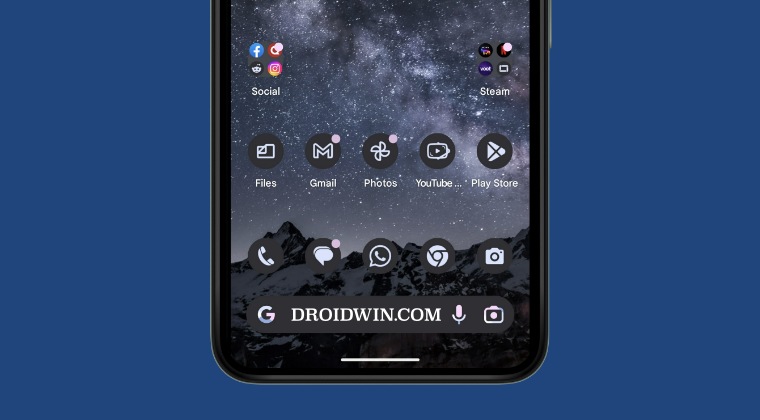
- Long press on an empty location on your home screen.
- Then select Wallpaper and Style from the menu that appears.
- Now scroll to the bottom and select App Grid.
- Finally, choose 5×5 [or any one of your choice].
For Pixel devices, you could only add a maximum of 5 apps vertically and horizontally. While one usually wouldn’t stack 5 vertical layers of the app on the home screen, but when it comes to horizontal layout, there could have been room for a couple more. If you also echo this thought, then unfortunately the stock Pixel Launcher isn’t going to come in handy.
- How to Download and Install Nothing Launcher APK
- Google Pixel Launcher Universal Search Not Working [Fixed]
- How to Uninstall or Disable Pixel Launcher on Pixel Devices
- Recent Apps button not working with Custom Launchers [Fixed]

(Cancel Reply)
Δ
