How to Add Wireless Debugging Quick Settings Tile
In this guide, we will show you an interesting method using which you can add a Wireless Debugging Quick Settings tile on your Android device. For the past few years, I have interacted with the Wireless Debugging feature quite a lot. And one major reason for the same is the Shizuku app. For the unaware, Shizuku gives apps the ability to access system-level privileges and APIs to carry out their functionalities, without actually requiring root access.
For its functioning, Shizuku can run in three modes- via ADB Command [which requires a PC or a second Android device ], a rooted device [which would lead to quite a few issues, such as failing the Play Integrity tests, which would result in the inability to use banking and payment apps], and Wireless Debugging. While the latter one is the easiest among all three, but the steps to enable it require quite a lot of effort.
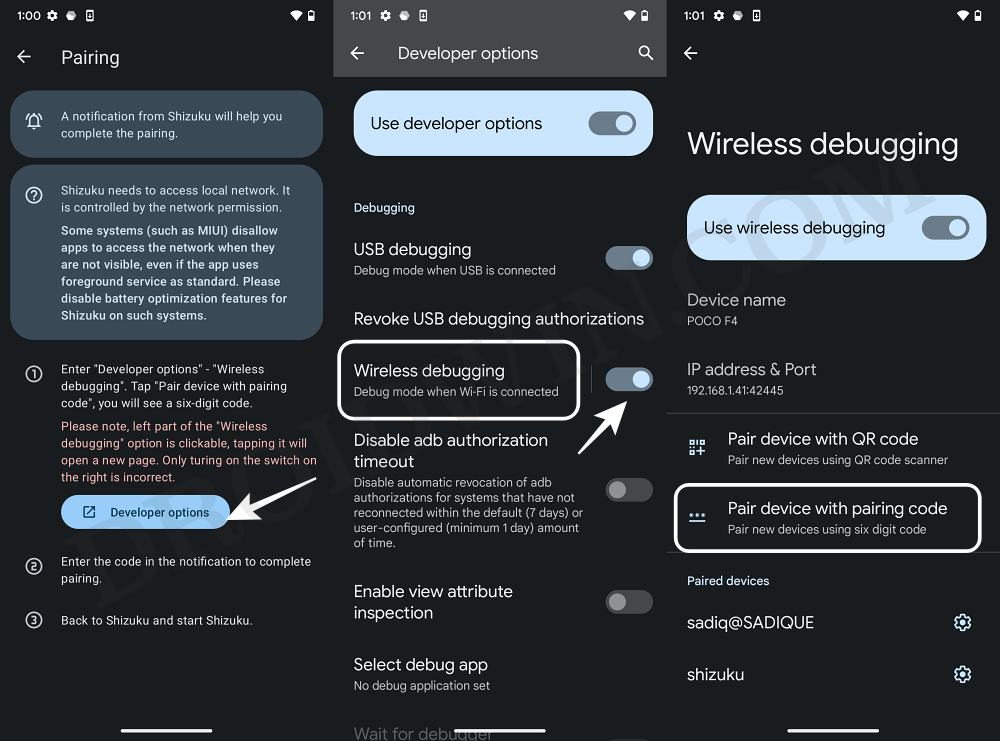
First off, you’ll have to go to Settings > About Phone and tap on Build Number 7 times. Then go to Settings > System > Developer Options > enable Wireless Debugging from there. And if you are among those sets of users who like to keep Developer Options disabled [banking apps like iMobile have this criterion], then you’ll have to carry out these steps every time you want to use Shizuku or an app that requires Wireless Debugging.
So, isn’t there any easy way out? Well, there is one! You just need to tap on the Quick Settings tile, and the feature will be up and running. You don’t even need to have the Developer Options turned on. So without any further ado, let’s show how this could be carried out.
How to Add Wireless Debugging Quick Settings Tile

- To begin with, download, install, and set up Shizuku on your device.
- Then download and install Wireless Debugging Switch from F-Droid.
- Next up, launch it and tap on Grant Permission next to Notifications.
- Tap Grant Permission next to Shizuku > Allow all the time > Continue.
- Now enable the Wireless Debugging switch as well as Enable on Boot.
- Then edit your Quick Settings tile, drag the Enable Debugging toggle to the top, and tap on Done.
- You may now tap on this tile to enable Wireless Debugging, without enabling Developer Options!
- How to Get Super Smooth in BGMI [With and Without Shizuku]
- Guide to Run Shizuku without Wireless Debugging, Root, or PC
- How to Set up and Run Shizuku [Wireless Debugging, Root, ADB]
- How to Install LSPosed Modules Without Root [Locked Bootloader!]

(Cancel Reply)
Δ
