How to Answer Call Handsfree without touching screen on Android
In this guide, we will show you a nifty method to answer calls handsfree on your Android device without touching the screen. There could be quite a few instances wherein you would want to pick up a call but at the same time couldn’t interact with your device. For example, when you’re driving, cooking, or even writing, then it might prove to be a great deal of inconvenience [and even risky in some instances to manually pick up the call]. So what else could be done?
Well, there exists a handy workaround using which you could easily answer a call in a handsfree mode without even touching your Android device’s screen. Moreover, you don’t even need to take the help of any third-party app, you could easily carry out this task directly via the built-in Google Assistant. So without any further ado, let’s show you the steps to get this job done right away.
How to Answer Calls Handsfree without touching screen on Android
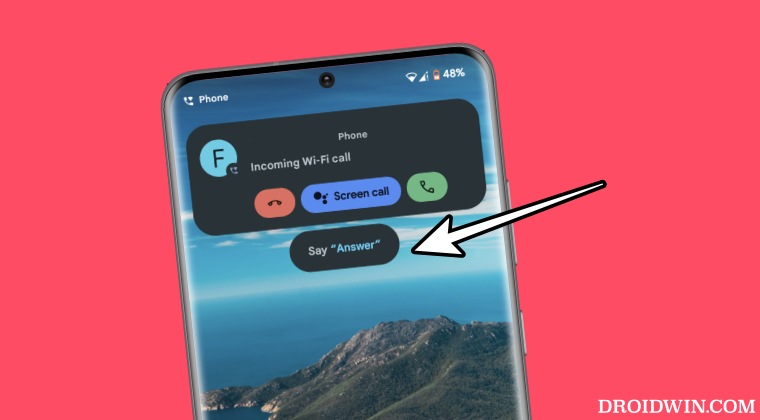
Before you enable this feature, let’s make you aware of how exactly this feature works and a minor [and obvious] inconvenience attached to it. As soon as you enable this functionality using the below-listed steps and someone calls you, then you just need to say Answer and the call will be picked up. So where’s the inconvenience?
Well, in rare cases, if you end up saying ‘answer’ without being aware that your phone is actually ringing [say it’s on silent] then the call will be picked up, whether you want it or not. Likewise, if you are in the crowd and someone else says the Answer keyword and your phone is ringing at that point in time, then also the call might get picked up.
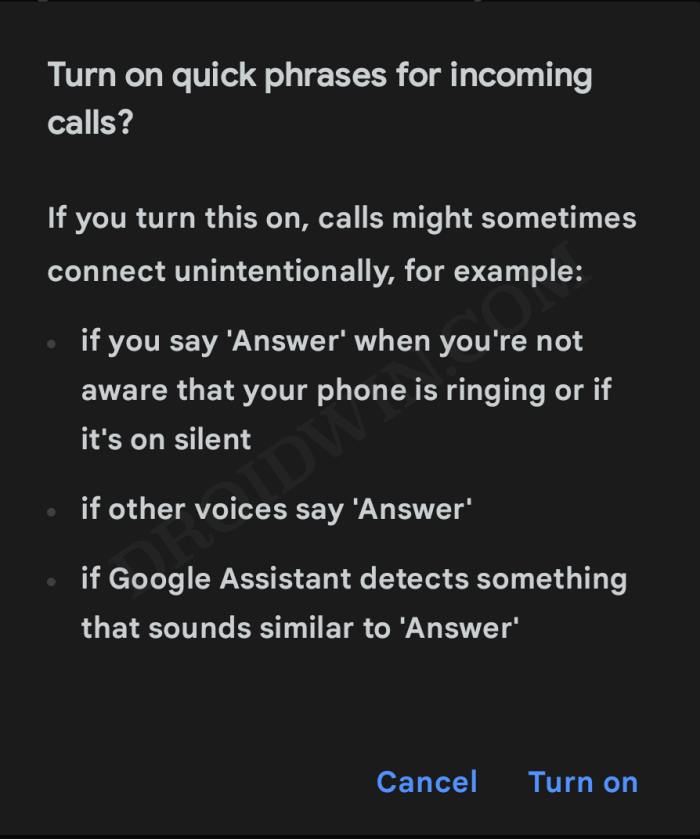
Not to mention the fact that if the Assistant hears something similar to the Answer, then it might pick up the call even in those instances. So if all these caveats aren’t a major cause of concern, then let’s proceed ahead with the steps to answer calls handsfree on your Android device without touching the screen.
- Launch the Google App, tap on your profile, and select Settings.
- Then go to Google Assistant and select Quick Phrases.
- Now turn on the toggle next to Incoming Calls.
- You’ll now get a prompt, tap on Turn On.
- Google Assistant ‘Your Assistant needs additional downloads’ [Fix]
- Google Assistant cannot find WhatsApp Contacts [Fixed]
- Assign Google Assistant to Power Button on Samsung
- Cannot Set Timer/Reminder via Google Assistant [Fix]
- Google Assistant Reminder Pull Down Menu Bug [Fix]

(Cancel Reply)
Δ
