How to Backup and Flash ocdt and persist partition on OnePlus
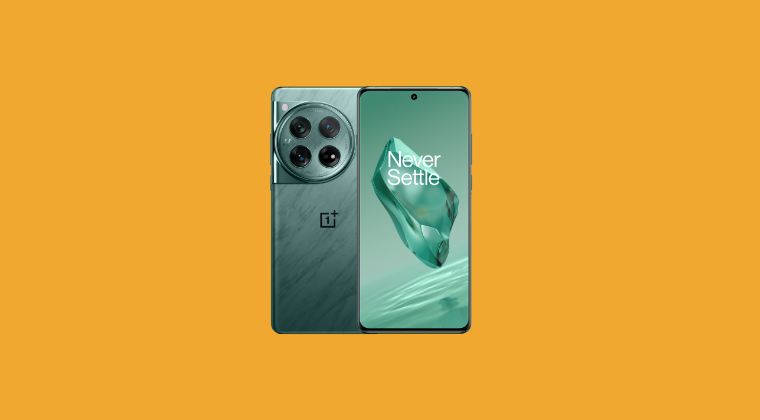
In this guide, we will show you the steps to backup the ocdt and persist partition on your OnePlus device. The newest addition to the OnePlus family beholds a power-packed specs sheet, tons of intriguing goodies, and some impressive features under the hood. Moreover, it houses ColorOS in China and OxygenOS in other regions of the world, though there’s hardly any differentiating factor as such.
Still, those with the ColorOS wish to break free from the shackles of the bloated OS and jump fences over to the less bloated and slightly more stable OxygenOS. But before doing so, it is highly recommended that you take a backup of the ocdt partition on your OnePlus 12/12R. If you don’t do so, then a slew of issues are on the cards, with the loss of Bootloader/Fastboot Mode being the most concerning one.
Likewise, if the persist partition gets corrupted, then the fingerprint might not work along the expected lines. So to avoid that from happening, it is highly recommended that you take a backup of both these parties beforehand. In case something goes wrong later on, you could easily restore these backed-up partitions. So on that note, let’s make you aware of the steps to get this job done right away.
- How to Backup ocdt and persist on OnePlus Via Fastboot Mode Via EDL Mode
- How to Restore OCDT and Persist When Bootloader/Fastboot is Missing Via FastbootD Mode Via EDL Mode
How to Backup ocdt and persist on OnePlus
Via Fastboot Mode

- To begin with, root your device via Magisk.
- Then enable USB Debugging and connect your device to PC via USB cable.
- Now download and extract Android SDK Platform Tools on your PC.
- Then open Command Prompt inside the platform-tools folder and type in: adb shell su
- You’ll get a Magisk request, tap Allow. Now execute the below command: dd if=/dev/block/bootdevice/by-name/ocdt of=/sdcard/Download/ocdt.img dd if=/dev/block/bootdevice/by-name/persist of=/sdcard/Download/persist.img
- Both the ocdt and persist file will be present in the Downloads folder on your device.
Via EDL Mode
Benefits: The best part about this method is that it will work even if your device's bootloader is locked. Well, you can even use it if the device is hard-bricked [granted, the Fastboot Mode is not corrupted].

Downside: It requires a working EDL Tool. At the time of writing, a free tool is available, but Oppo can patch it anyday. So make hay while the sun shines! [PS: It will only work on Qualcomm devices, specifically on OnePlus, Oppo, and Realme, so that's another downside of this tool].
- First off, boot your device into EDL Mode followed by Firehose mode .
- Then click on Read Partitions. It will bring up a list of all the partitions on your device.
- Select the OCDT partitions [around 128KB] and click Read Selected.
- Finally, choose a location where you need to save the file and hit OK. That’s it.
How to Restore OCDT and Persist When Bootloader/Fastboot is Missing
Via FastbootD Mode
In case you end up messing with the OCDT partition, it will straightaway have an adverse impact on the Bootloader Fastboot mode which in turn will become inaccessible. But fret not. Since we have the backup of that partition, we could easily restore it in the FastbootD Mode. Here’s how:
- First off, transfer the ocdt.img file to the platform-tools folder.
- Then enable USB Debugging and connect your device to your PC.
- Now type in the below command to boot your device to FastbootD Mode adb reboot fastboot
- Finally, execute the below command to flash the ocdt on your OnePlus fastboot flash ocdt ocdt.img
- Likewise, use the below command to flash the persist.img file fastboot flash persist persist.img
- Finally, reboot to OS via the below command: fastboot reboot
Via EDL Mode
How to Flash Files via EDL Tool [Supports Locked Bootloader]
- How to Install OTA Updates on Rooted OnePlus 12
- How to Install Viper4Android on OnePlus 12
- OnePlus 12 might actually be DSDS instead of DSDA!
- Uninstall Chinese Apps after Converting OnePlus 12 to OxygenOS

(Cancel Reply)
Δ
