How to Boot any MediaTek Device to BROM Mode
In this guide, we will show you various methods to boot your MediaTek device to BROM Mode. But before that, let’s make you aware of the plausible reasons why you would want to boot your device to this mode. Follow along.
- Why is there a Need to Boot MediaTek Devices to BROM Mode Flashing Files Bypassing Authentication Unbrick Device
- How to Boot any MediaTek Device to BROM Mode METHOD 1: Using Hardware Key Combination METHOD 2: Using Tool METHOD 3: Using Test Point METHOD 4: Automatic Approach
- How to Verify if the Device is in BROM Mode
- How to Fix Device Automatically Exits BROM Mode
Why is there a Need to Boot MediaTek Devices to BROM Mode
Here are some of the most important use-case scenarios for a BROM Mode:
Flashing Files
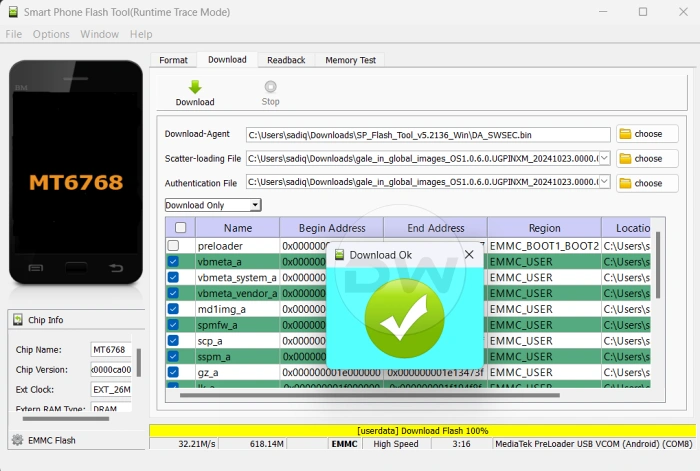
You can use the BROM Mode to flash files using tools like SP Flash Tool, MTKClient, mtk-su, among others. Apart from flashing the entire firmware, you can also flash individual partition files like patched boot.img for rooting, TWRP recovery in the recovery partition, and so on. Likewise, you can also directly install update files in this mode or do an OS downgrade [depending on device; for instance, in Xiaomi, you’ll have to keep in mind the Anti Rollback Rule.
Bypassing Authentication
Many secure boot devices require a DA file [DA_SWSEC.bin/MTK_AllInOne_DA.bin] to be flashed. However, you can use the BROM mode to bypass Secure Boot, Authentication, and SLA/DA checks using some exploits.
Unbrick Device
Even if your MEdiaTek device is hardbricked, the BROM Mode will still be accessible [it is like an EDL Mode on Qualcomm devices]. You can use that mode and flash compatible firmware using tools like SP Flash Tool, MTK Client, and mtk-su to unbrick your device.
Owing to all these reasons [and many more], this is undoubtedly the most important mode on any MediaTek device. So without any further ado, let’s make you aware of the steps to boot your device to this mode. Follow along.
How to Boot any MediaTek Device to BROM Mode

There are three different ways of booting your device to BROM Mode, two of which are in your control [Method 1, 2, and 3] and one isn’t [Method 3]. But before you proceed ahead, make sure to download and install the MediaTek VCOM USB Drivers . Some tools might also require you to install the libUSB Devel Filter Drivers as well. So make sure you install all the necessary drivers and only then refer to the below steps.
METHOD 1: Using Hardware Key Combination
Most MediaTek devices follow this approach: Power off the device. Then press and hold the Volume Up and Down Keys, and while holding both the keys, connect your device to the PC via USB cable.
However, if this method did not work for you, then choose this method: Power off the device. Then press and hold the Volume Up, Volume Down, and Power Keys, and while holding both the keys, connect your device to the PC via USB cable.
METHOD 2: Using Tool
Using AndroidUtility Tool, try a combination of “Disable Auth” and “Crash preloader into BROM”. This will enable access to BROM mode and you will be able to flash the stock firmware via SP Flash Tool.
METHOD 3: Using Test Point
You can also test point the PCB of the motherboard to enter the BROM Mode. However, it can prove to be an extremely risky approach, so it should be done with utmost caution, and only when all the other methods fail.
METHOD 4: Automatic Approach
If your device is hard-bricked, then in most cases, it will automatically fall back to the BROM Mode.
How to Verify if the Device is in BROM Mode
Right-click on the Windows icon in the taskbar and select Device Manager. If your device is shown as MediaTek USB Port/MediaTek USB VCOM/MediaTek Preloader USB VCOM, then your device is successfully booted to BROM Mode. [NOTE: While the third one is for Preloader Mode, still some users have claimed that they were able to flash the firmware in this mode using SP Flash Tool].

How to Fix Device Automatically Exits BROM Mode
In some cases, it might happen that the device exits the BROM Mode within a couple of seconds. To prevent that from happening, you’ll have to first execute the desired command or start the desired tool and then boot the device to BROM Mode.
- How to Download and Install MediaTek USB VCOM Drivers
- Download and Install libUSB Devel Filter Driver for MTKClient
- MediaTek Device Stuck in Preloader USB VCOM Mode: How to Fix
- How to Flash Mediatek Firmware via MTK Client

(Cancel Reply)
Δ
