How to Bring Back Launchpad on macOS Tahoe
In this guide, we will show you an interesting method through which you can bring back the Launchpad on macOS Tahoe. With the latest iteration of the OS, the Cupertino giant has taken some controversial decisions, but none bigger than the removal of Launchpad. As if the introduction of the chaotic glass theme wasn’t enough, the non-sensical removal of the Launchpad only adds more to the confusion.
Or, we should be accustomed to such decisions from Apple nowadays. While I have seen a few users outrightly rejecting the usage of Launchpad, but for me, and many others across the globe, still found this feature quite handy. And seriously, it was one of those features that never conflicted with any of the system services or caused any issues whatsoever to the OS, so its removal hardly made a iota of sense.
Moreover, its replacement, the Application window, is hardly anywhere close to Launchpad. After, the latter was able to checkmark the below-listed functionalities, something which might not be possible with the new App window.
- The ability for the user to customize the order of the apps
- The ability for the user to sort apps into folders for the most sensible organization for them
- The ability to see notification badges, like those on the Messages app
- The ability to uninstall apps from macOS (long-click, wiggle, click the X)
- The ability to see which apps are updating
- The ability to see all the apps in one single window.
So all this begs an important question- is there any workaround using which you can bring back the Launchpad in macOS Tahoe? Well, there is one, and in this guide, we will show you how to do just that. Follow along.
- How to Bring Back Launchpad on macOS Tahoe
- How to Go Back to Application | Remove Launchpad
- UPDATE: The Workaround Has Been Patched by Apple!
How to Bring Back Launchpad on macOS Tahoe
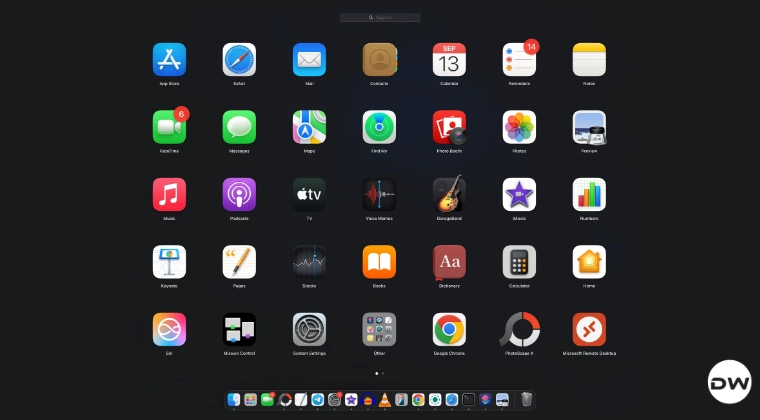
- To begin with, launch Terminal and type in the below command sudo mkdir -p /Library/Preferences/FeatureFlags/Domain
- Now type in your password and hit Enter.
- Then type the following command: sudo defaults write /Library/Preferences/FeatureFlags/Domain/SpotlightUI.plist SpotlightPlus -dict Enabled -bool false
- Finally, restart your Mac. That’s it.
How to Go Back to Application | Remove Launchpad
If you wish to revert the process, i.e. remove Launchpad and go back to Application, then just execute the below command in the Terminal window:
sudo rm /Library/Preferences/FeatureFlags/Domain/SpotlightUI.plistsudo rm /Library/Preferences/FeatureFlags/Domain/SpotlightUI.plist
UPDATE: The Workaround Has Been Patched by Apple!
- Internet/WiFi Not Working on macOS Tahoe: How to Fix this Issue
- Fix macOS Tahoe WindowServer crashing with endless loop/reboot
- The command to allow apps past Gatekeeper [Without Disabling it]
- Fix macOS Tahoe WindowServer crashing with endless loop/reboot

(Cancel Reply)
Δ
