How to Bring Back Missing File Explorer Options in Windows 11
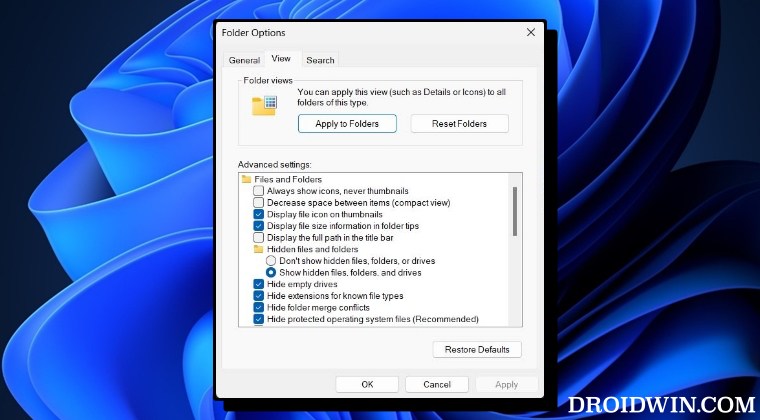
In this guide, we will show you the steps to bring back the missing File Explorer Options in Windows 11. The Redmond giant keeps on tweaking [aka adding and removing] functionalities from its OS in the testing phase. As far as the latest Windows 11 Build 24381 is concerned, it has removed quite a few menus from the File Explorer Options’ View tab. These include:
- Hide Folder Merge conflicts.
- Always show icons, never thumbnails.
- Display file icon on thumbnails.
- Display file size information in folder tips.
- Hide protected OS files.
- Show drive letters.
- Show popup description for Folder and Desktop items.
- Show encrypted or compressed NTFS files in color.
- Use sharing wizard.
Fortunately, there still exist a couple of Registry Editor tweaks that should help you bring back these features. And this guide, we will show you how to do just that. Follow along.
How to Bring Back Missing File Explorer Options in Windows 11
- Use Windows+R to open Run, then type in regedit, and hit Enter.
- Now copy-paste the below location in the Registry Editor address bar. HKEY_LOCAL_MACHINE\SOFTWARE\Microsoft\Windows\CurrentVersion\Explorer\Advanced\Folder
- Then under Folder, right-click on FolderSizeTip and select Rename.
- Rename it to FolderLegacySizeTip and hit Enter to save it.
- Likewise, carry out the following renaming as well FolderSizeTip => FolderLegacySizeTip HideMergeConflicts => HideLegacyMergeConflicts IconsOnly => IconsLegacyOnly SharingWizardOn => SharingLegacyWizardOn ShowDriveLetters => ShowLegacyDriveLetters ShowInfoTip => ShowLegacyInfoTip ShowTypeOverlay => ShowLegacyTypeOverlay SuperHidden => SuperLegacyHidden ShowCompColor => ShowLegacyCompColor
- Once done, launch File Explorer, click on … and select Options.
- All the missing features should now be back under the View tab.
- How to Reset Screenshot Number in Windows 11
- How to Enable Home Page in Settings Menu on Windows 11
- How to Enable End Task App in Windows 11 Taskbar
- Brightness Slider not working/missing in Windows 11 [Fixed]

(Cancel Reply)
Δ
