How to Bring Back the Old Google Dialer/Phone by Google UI
In this guide, we will show you the steps to bring back the old Google Dialer/Phone by Google UI. There are a few preinstalled apps that users generally have no issues in letting them have a permanent abode on their device. Likewise, they don’t even look for an alternative to those apps as they are just. made to checkmark a few basic tasks without much ado. The calling app from the Silicon Valley giant belongs to this category.
Having just the basic prerequisites without much fanfare, there wasn’t any need to tinker with any of its aspects. But Google thought otherwise. It has recently rolled out a new update which ended up tweaking the user interface and positioning a few functionalities, much to the disappointment of many. If you are also in the same boat, then this guide will help you bring back the old Google Dialer UI/Phone by Google. Follow along.
How to Bring Back the Old Google Dialer/Phone by Google UI
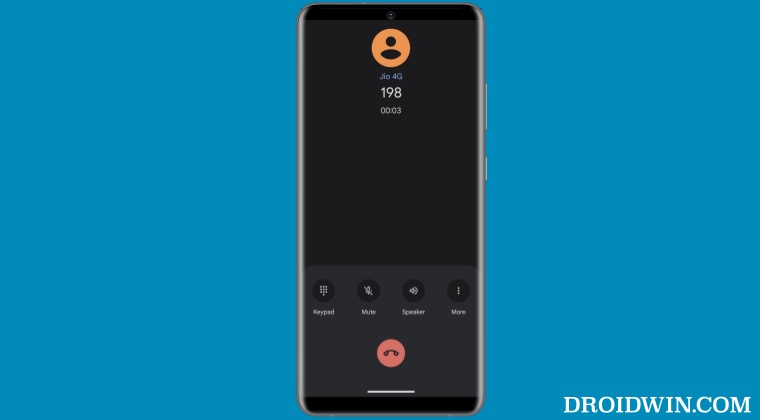
- First off, go to Settings > Apps > All Apps > Phone > tap on the overflow icon.
- Then tap on Uninstall Updates > OK in the confirmation prompt.
- Then install an older version of Phone by Google from a trusted third-party site .
- Finally, go to Play Store, search Phone by Google, tap on the overflow icon, and uncheck Enable Auto Update.
- How to Enable Call Recording in Google Dialer/Phone App
- How to Enable Magic Compose Bard AI in Google Messages
- Dual SIM Color Bug in Google Phone App on Pixel [Fix]
- Enable 5G in Google Pixel 7/Pro [Supported/Unsupported Regions]

(Cancel Reply)
Δ
