How to Cast Hotstar on TV without Chromecast
In this guide, we will show you the steps to cast Hotstar on TV without using a Chromecast. HotStar has quickly upscaled the popularity charts and has become the go-to choice for OTT platform lovers. The reason for the same is hardly a hidden secret. First and foremost, the fact that it broadcasts IPL is enough to give it the popular tag. Add to it, the fact that it has partnered with Disney+, and we couldn’t have asked for more.
- Fix An error has occurred DP-4040: Fire TV Live Stream
- How to Fix Netflix Error Code D7361-1253+
- How to Watch Netflix in HD on Rooted Devices [Get Widevine L1 Certificate]
How to Cast Hotstar on TV without Chromecast
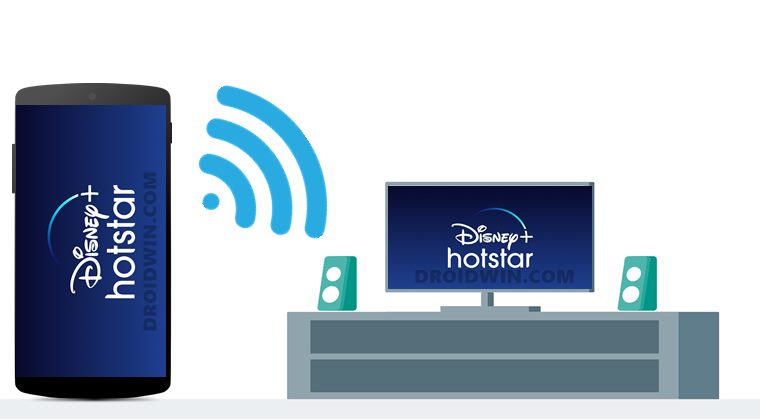
- To begin with, head over to Settings on your device.
- Then go to Apps and Notifications and tap on See all apps.
- Scroll to the Hotstar app and select it.
- Within that, tap on Advanced and go to Open by Default.
- Then tap on the Clear Default button (if the button is already greyed out, then there’s no default set and you may leave it as it is).
- Once that is done, again go to the Settings page on your device.
- This time go to Bluetooth and Device Connection and select Cast.
- Then turn on the toggle next to Enable wireless display.
- Now open any browser of your choice and go to the Hotstar website.
- Sign in with your account, (if needed) and all the contents will now appear on your TV.

(Cancel Reply)
Δ
