How to Change Folder Picture/Thumbnail Preview in Windows 11
In this guide, we will show you the steps to change the folder picture/thumbnail preview on your Windows 11 PC. While we had the option of changing the folder icon for ages, the Redmond giant has now finally added the ability to customize the folder picture as well. By default, it will pick up the last image that is a part of that folder and will show it as a thumbnail.
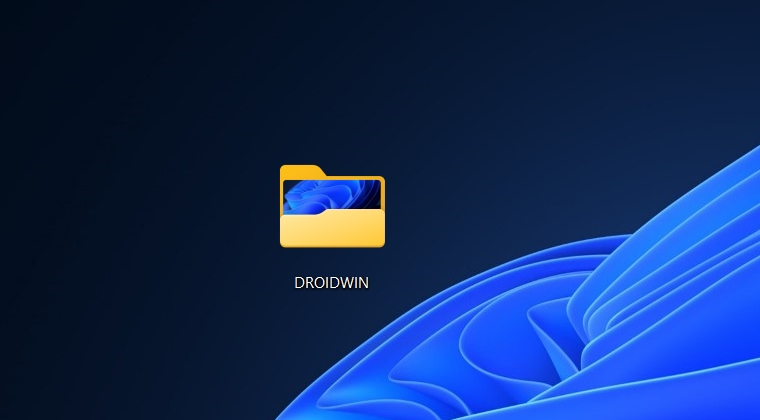
But you do have the option to change the folder picture/thumbnail preview on your Windows 11 PC. You could literally select any image and make it the thumbnail for that folder, even if that image is not inside that folder. So without further ado, let’s check out how this could be carried out.
How to Change Folder Picture/Thumbnail Preview in Windows 11
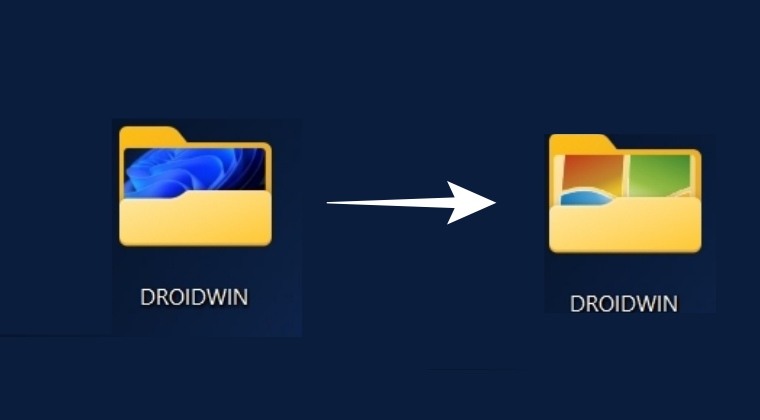
- Right-click on the desired folder and select Properties.
- Then go to the Customize tab and click on Choose File.
- Finally, select the desired picture and hit Open > OK.
- Windows Freezing/Crashing to Grey Screen: How to Fix
- Add Rich Text Document to Windows 11 Context Menu
- Control RGB Lighting in Windows 11 without third-party apps
- How to Enable the new Snap Layouts in Windows 11

(Cancel Reply)
Δ
