How to Change Name, Hostname and NetBIOS name on Mac
In this guide, we will show you the steps to change the Name, Hostname, and NetBIOS name on your Mac. Whatever name you assign to your Mac is subsequently assigned to your Hostname and NetBIOS as well, with just one exception the latter two don’t support special characters like apostrophes.
However, in some instances, it might happen that even after changing Mac’s name, the Hostname and NetBIOS names might not get updated. As a result of which, you will then have to manually do this task. In such cases, this guide could come in handy, wherein we will show you the steps to change all these three names on the latest macOS Ventura. So without further ado, let’s get started.
- How to Change your Name on Mac
- How to Change the HostName on Mac
- How to Change the NetBIOS Name on Mac
- How to Change Name, Hostname, and NetBIOS name on Mac via Terminal
How to Change your Name on Mac
- Click on the Apple logo situated at the top left and select System Settings.
- Then select General from the left-hand side and go to About.
- Finally, give it the name of your choice under the Name field.
How to Change the HostName on Mac
- Click on the Apple logo situated at the top left and select System Settings.
- Then select General from the left-hand side, scroll to Hostname, and click Edit next to it.
- Give it the desired name of your choice and hit OK to save it.
How to Change the NetBIOS Name on Mac
- Click on the Apple logo situated at the top left and select System Settings.
- Then choose Network from the left-hand side, select your Adapter, and click Details next to it.
- Now select WINS from the left-hand side and input the desired name under NetBIOS name.
How to Change Name, Hostname, and NetBIOS name on Mac via Terminal
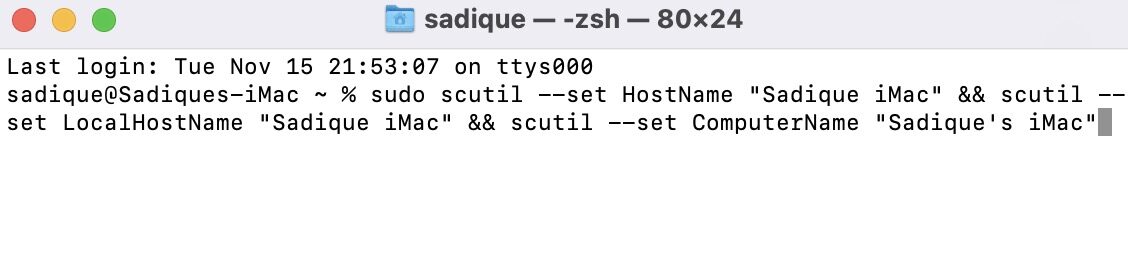
You could also change Name, Hostname, and NetBIOS name on your Mac directly via Terminal and that too using just one single line of command. Refer to the below command and change ‘Sadique’s iMac’ name accordingly. Also, keep in mind that Hostname and NetBIOS don’t accept special characters.
sudo scutil --set HostName "Sadique iMac" && scutil --set LocalHostName "Sadique iMac" && scutil --set ComputerName "Sadique's iMac"
- How to Launch Terminal in Current Folder on Mac
- Documents folder empty in Finder on Mac [Fixed]
- Schedule Shutdown missing in macOS Ventura: How to Fix
- How to repeat a key in Mac while holding it down?

(Cancel Reply)
Δ
