How to Change the Default Timer Sound in iOS 17
In this guide, we will show you the steps to change the default timer sound in iOS 17. Apart from a plethora of new features, there have been quite a few UI tweaks and UI changes in the seventeenth iteration of the OS. However, not all of these changes have been welcomed with open hands by the masses. Among them, it’s the changes made to the Timer that have gathered sharp criticism from the masses.
First off, you can no longer change the default timer by instructing the virtual assistant along the lines of “Hey Siri, set timer for x minutes”. So as of now, your only course of action is to take a long manual route of getting this job done. Adding to the misery, the new Radial tone that has been assigned to the Timer is way too low , and users more often than not end up missing it.
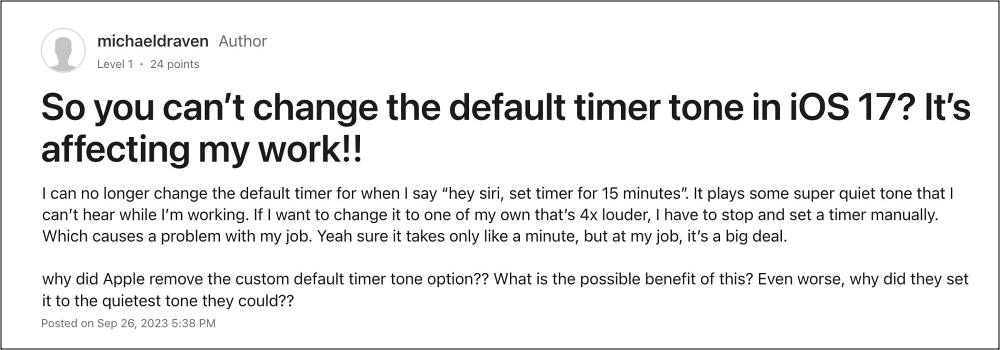
So can’t you simply change it to your liking by invoking the command to Siri? Unfortunately not, again all thanks to Apple! With that said, we did manage to find a nifty workaround that should help you change the default timer sound in iOS 17. So without any further ado, let’s check it out.
How to Change the Default Timer Sound in iOS 17

- To begin with, delete all the recent timers at the bottom of the timer app.
- Then create a new timer for 15 seconds or so (manually, not with Siri) and choose the default sound you want.
- Then put your phone to sleep while you wait for the timer to go off.
- After it goes off and you stop it, then ask Siri to set a new timer for 15 seconds and it should be set to the last sound you used above.
- App Notifications not working on iOS 17: How to Fix
- Screen Time Share Across Devices not working on iOS 17 [Fix]
- iOS 17 Lock Screen Weather Widget is buggy when it snows!
- iPhone Alarm not working or low sound on iOS 17: How to Fix

(Cancel Reply)
Δ
