How to Connect and Use Apple Magic Mouse in Windows 10/11
In this guide, we will show you the steps to connect and use your Apple Magic Mouse on your Windows 10/11 PC. There’s no denying the fact that Apple peripherals are probably the best in the business. To justify this claim, one shouldn’t look any further than its wireless mouse. Granted it is a tad more costly than its counterpart, but upon daily usage, you might be able to justify this high cost.
While the look and feel of this mouse play a part, but the major reason why users are inclined towards it is the built-in gesture support. Be it for switching between pages or tabs, performing zoom in/out, or scrolling through a page, all these could easily be carried out just by performing the specific gesture on the mouse itself.
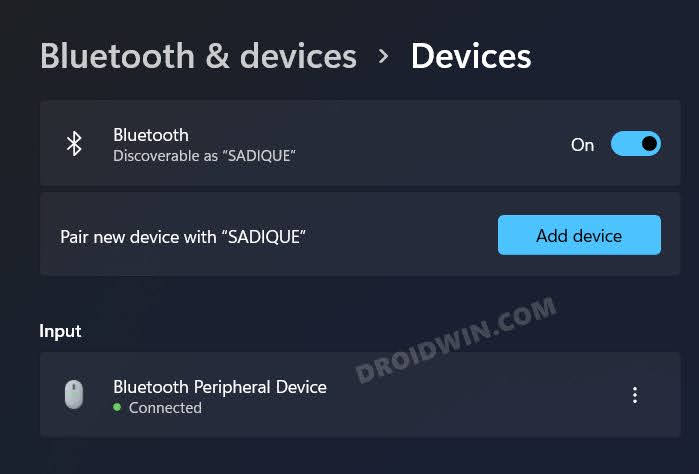
Apple Magic Mouse 2 connected to Windows 11
So on to all these benefits attached, many users are looking forward to connecting and using their Apple Magic Mouse on their Windows 10/11 PC. If you are also on the same page, then this guide shall help you out. Follow along for the instructions.
How to Connect and Use Apple Magic Mouse in Windows 10/11
- To begin with, download the official Boot Camp Support Software from Apple.
- Once downloaded, extract it to any convenient location on your PC.
- Then go to the extracted folder > BootCamp > Drivers > Apple.
- Now double-click on the applewirelessmouse64.exe file to launch the setup.
- Then proceed with the on-screen instructions to complete the setup.
- Once done, open the Settings menu via Windows+I shortcut keys.
- Then go to Bluetooth and Devices and click on Add Device.
- After that, select Bluetooth from the list.
- Now click on Mouse from the list of devices. That’s it. If your mouse doesn’t appear in the list, then restart it once
- Your Apple Mouse is now paired and connected with your Windows 10/11 PC.
- Apple Magic Mouse not working in Mac: How to Fix
- Mac Keyboard is Not Working: How to Fix
- How to Fix Mouse Not Working in Windows 11
- How to Open and Use macOS DMG Files in Windows 11

(Cancel Reply)
Δ
