How to Control the Video Recording Red LED on Nothing Devices
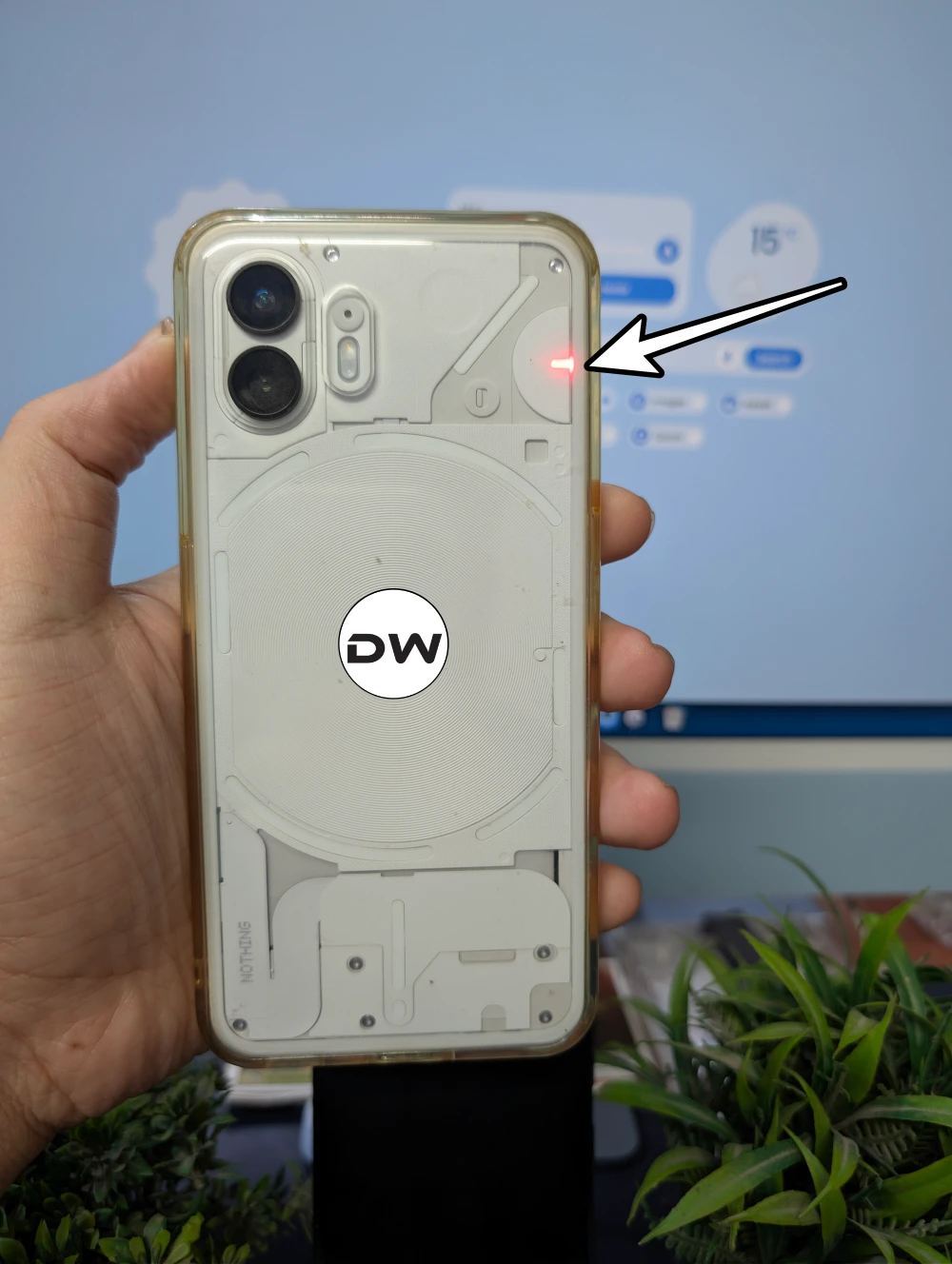
When you record a video, the back of your Nothing device will start blinking a red LED light. There’s no built-in setting that can be used to customize this light. However, I did some digging around and found a nifty workaround using which you can take control of this light. So without any further ado, let’s check it out.
- How to Control the Video Recording Red LED on Nothing Devices The Prequisites Controlling the Red LED on Nothing Phone 2 Via Module Via ADB Command Controlling the Red LED on Nothing Phone 3 Via Module Via ADB Commands
How to Control the Video Recording Red LED on Nothing Devices

The Prequisites
- To begin with, root your device Magisk / KernelSU / APatch .
- Then enable USB Debugging and connect your device to the PC via a USB cable.
- Now download and extract the Android SDK Platform Tools on your PC.
- Next, open Command Prompt inside the platform-tools folder.
- Then enable the rooted shell via the following commands: [If you’re using APatch/KernelSU, then first open the app, go to SuperUser, and enable the toggle next to Shell, and only then execute the below commands. Magisk users can skip this step]. adb shell su
- In case of Magisk, you’ll get a prompt, tap on Allow/Grant.
Controlling the Red LED on Nothing Phone 2
Via Module
Benefit: It is the shorter and easier of the two methods

Drawback: I have made it to increase and decrease the brightness value in 10s. So using a specific value might not be possible.
- Download NP2_Red_LED_Brightness_Control_by_Droidwin and flash it via Magisk / KernelSU / APatch .
- Then press the Volume p key to increase the brightness value by 10 or use the Volume Down key to lower the value by 10.
- It will start from the default value of 128 and can go till the maximum value of 255. On the lower side, the minimum value attainable is 8.
- Once you have made the choice, hit the Power key to confirm it. Finally, restart your device for the change to take place.
Via ADB Command
Benefit: Gives you more granular control over the brightness value.

Drawback: This is the lengtheir and a tad complicated of the two methods.
- First off, type in the below command to turn on the controller echo 1 > /sys/class/leds/led_strips/operating_mode
- You may now take control of the Red LED via the below command: echo 13 128 > /sys/class/leds/led_strips/single_brightness
- Here, 13 is the LED ID, and 128 is the brightness. You may change the latter as per the requirement.
- For example, to increase the brightness to 255, the above command will transform to: echo 13 255 > /sys/class/leds/led_strips/single_brightness
If the aforementioned commands don’t work out, then use the below ones: [If you’re using APatch/KernelSU, then first open the app, go to SuperUser, and enable the toggle next to Shell, and only then execute the below commands. In case of Magisk, you’ll get a prompt after executing the below command, so make sure to hit Grant]. Also, replace 128 with the desired brightness value.
adb shell su -c 'echo 1 > /sys/class/leds/led_strips/operating_mode'

adb shell su -c 'echo 13 128 > /sys/class/leds/led_strips/single_brightness'
Controlling the Red LED on Nothing Phone 3
Via Module
The best part about his module works even without root [using Shizuku]. Moreover, it allows you to control the LED light on your Nothing Phone 3 as follows:
- Static: Constant On (0-100% Brightness).
- Blink: Rhythmic blinking (Adjustable Speed & Brightness).
- Breathe: Smooth, glowing animation.
To use it, simply download and install the app from GitHub , launch it, and give it root/Shizuku access.
Via ADB Commands
- Type the below command to turn on the LED: echo 255 > /sys/class/leds/red/brightness
- Then use the below command to turn it off: echo 0 > /sys/class/leds/red/brightness
- If the above command doesn’t work, then use this one: adb shell su -c ’echo 255 > /sys/class/leds/red/brightness’ adb shell su -c ’echo 0 > /sys/class/leds/red/brightness'
- ‘Log Tool keeps stopping’ error on Nothing OS 4 Android 16 [Fixed]
- Install OTA Updates on Rooted Nothing Phone 3 [Magisk/KernelSU]
- How to Unbrick Nothing Phone 3A/Pro via EDL Mode
- Flash Android 16 Nothing OS 4 via Fastboot Commands

(Cancel Reply)
Δ
