How to Convert Japanese Pixel 6 to Global Version
In this guide, we will show you various methods to convert the Japanese Pixel 6 to the Global variant. The newest addition to the Pixel family has created quite a buzz and the hype is yet to settle down. Brought in plenty of ‘firsts’ such as the in-house Tensor chipset, in-display fingerprint sensor, Android 12 out of the box, and a major hardware re-design (finally!), and the reasons for its rise to fame are there for everyone to see. Though there are a few dents, such as fingerprint and proximity sensor issues and slow charging , they are slowly being ironed out with each new update.
However, the users in Japan who have got their hands on this device are having trouble in a few aspects. These include the inability to turn off the camera shutter sound as well as the screenshot-captured sounds, both of which are present in the Global variants. So to overcome this issue, all you need to do is convert the Japanese Pixel 6 to the Global variant. And in this guide, we will show you how to do just that. So without any further ado, let’s get started.
- How to Convert Japanese Pixel 6 to Global Version STEP 1: Note the Pixel 6 Model Numbers and their Regions STEP 2: Install Android SDK STEP 3: Enable USB Debugging STEP 4: Root your Pixel 6
- Method 1: Manually Convert Japanese Pixel 6 to Global Version
- Method 2: Convert Japanese Pixel 6 to Global Version via Magisk Module
- Verify if Pixel 6 is Converted to Global from Japanese Version
How to Convert Japanese Pixel 6 to Global Version

There exist two different methods through which you could carry out the said task. And we have listed both of them below. You may refer to the one that is in sync with your requirements. Moreover, the below-listed requirements are universal for both these methods.
So no matter which of the two approaches you opt for, you will first have to checkmark all these prerequisites. Droidwin and its members wouldn’t be held responsible in case of a thermonuclear war, your alarm doesn’t wake you up, or if anything happens to your device and data by performing the below steps.
STEP 1: Note the Pixel 6 Model Numbers and their Regions
First and foremost, please keep a note of the Pixel 6/6A Model Numbers and their corresponding regions, it will come in handy later on.
Pixel 6
- G9S9B – Verizon and AT&T US carriers
- GB7N6 – US Unlocked, US Google Fi, US TMO, Canada, Taiwan, Australia, European countries, and carriers
- GR1YH – Japan and carriers
Pixel 6A
- GX7AS: Canada, USA, India, Singapore, Taiwan
- G1AZG: International (Unlocked)
- GB17L: Japan
STEP 2: Install Android SDK
First and foremost, you will have to install the Android SDK Platform Tools on your PC. This is the official ADB and Fastboot binary provided by Google and is the only recommended one. So download it and then extract it to any convenient location on your PC. Doing so will give you the platform tools folder, which will be used throughout this guide.

STEP 3: Enable USB Debugging
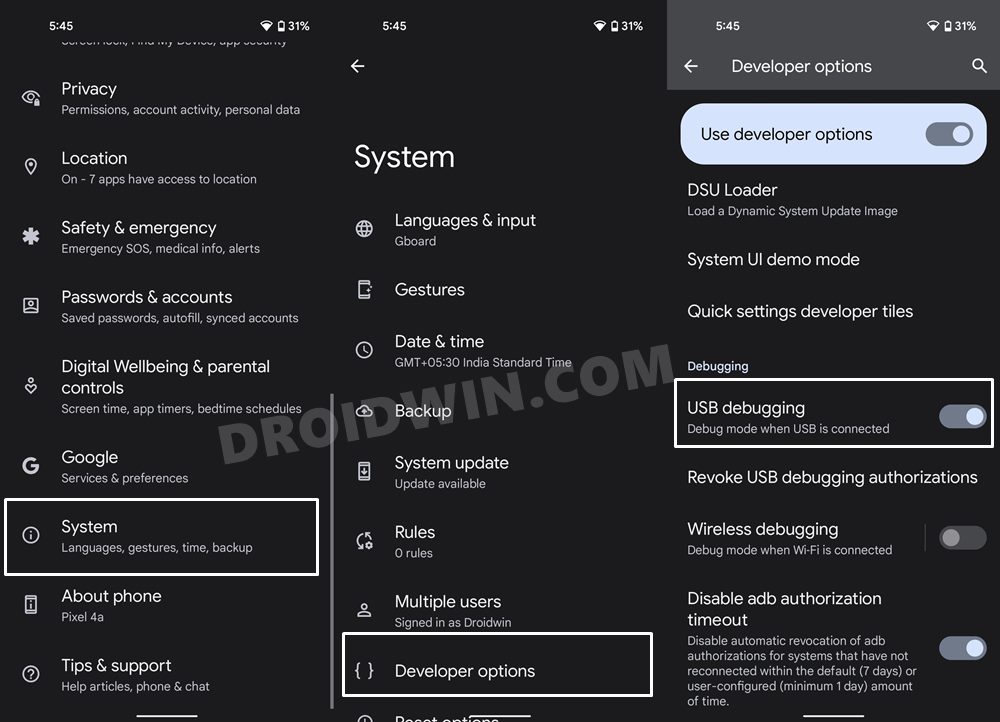
Next up, you will have to enable USB Debugging. This will make your device recognizable by the PC in ADB mode and hence allow you to execute the required ADB Commands. So head over to Settings > About Phone > Tap on Build Number 7 times > Go back to Settings > System > Advanced > Developer Options > Enable USB Debugging.
STEP 4: Root your Pixel 6
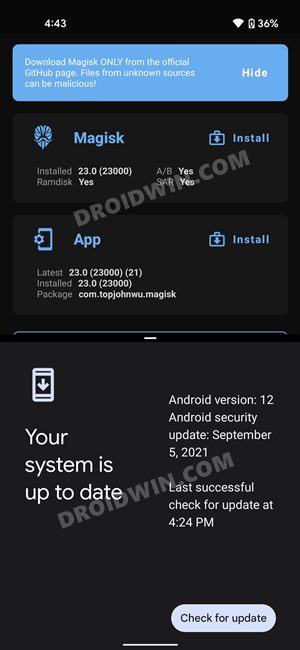
First and foremost, you need a rooted Pixel 6. If you haven’t done so yet, then please refer to our guide on How to Root Google Pixel 6/Pro via Magisk Patched Boot.img . If you have already rooted via any other method, then please verify that you have disabled the verity checks as well, by flashing the vbmeta file (instructions could be found in that linked guide itself).
Method 1: Manually Convert Japanese Pixel 6 to Global Version
- To begin with, connect your device to the PC via a USB Cable. Make sure USB Debugging is enabled.
- Then head over to the platform-tools folder, type in CMD in its address bar, and hit Enter. This will launch Command Prompt.
- Now type in the below command to open the ADB shell environment adb shell
- After that, execute the following SuperUser command (you should now see your device codename ‘oriole’) su
- You will now get a pop-up from Magisk, tap on Grant.
- Now execute the below command to copy the devinfo.img file from its original directory to the device’s internal storage: dd if=/dev/block/by-name/devinfo of=/sdcard/devinfo.img
- Now open a new CMD window inside the platform-tools folder and type in the below command to transfer this file from the internal storage over to your PC: adb pull /sdcard/devinfo.img
- You will now get the devinfo.img file inside the platform-tools folder (to be on the safe side, create its copy that will act as a backup).
- Now use a Hex Editor and open this devinfo.img file. Find the GR1YH value, it should be in 0x000000F7. [Credits: XDA Member harryshan ].
- Then change this value to GB7N6 and save the file as devinfo.img.
- It’s now time to put the file back to your device’s original location.
- First off, let’s transfer this file to your device’s internal storage via the below ADB Push command: adb push ./devinfo_modified.img /sdcard/
- After that, open the shell environment via the below command: adb shell
- Then bring up the SuperUser request via the following command and grant access to Magisk if asked su
- Finally, execute the below command to transfer the devinfo.img file from the Internal Storage back to its original location dd if=/sdcard/devinfo.img of=/dev/block/by-name/devinfo
- Now just reboot your device and that’s it. You have successfully converted your Pixel 6 from the Japanese to the Global version.
Method 2: Convert Japanese Pixel 6 to Global Version via Magisk Module
- To begin with, download the MID Changer Magisk Module: MID_Changer_v2.06-MAGISK.zip [Credits: XDA Senior Member ziand ]
- Then launch the Magisk App, go to its Modules section, and select Install from Storage.
- Navigate to the downloaded module and select it. It will now be flashed onto your device.
- Once done, hit the Reboot button. When your device boots up, the module will be active.
- After that, head over to the platform-tools folder, type in CMD in its address bar, and hit Enter. It will launch the Command Prompt.
- Now execute the below command to open the shell environment: adb shell
- After that, execute the following command to get SuperUser access. You will now get a Magisk prompt, tap Grant. su
- Then execute the below command to launch the module MID_Changer.sh
- It will now bring up the model numbers corresponding to the region, one at a time.
- Keep on replying N until you get the preferred one (such as GB7N6). Once you get the desired one, type in Y and hit Enter to confirm it. Credits: XDA Senior Member ziand
- You will now have to flash the Global region’s Factory Image. So download it from the official site. [The flashing process will reset your device, so take a backup before proceeding ahead].
- Then open a new CMD window inside the platform-tools folder and type in the below command to boot your device to Fastboot Mode adb reboot bootloader
- Now head over to the folder where you have downloaded the firmware. Then double-click on the flash-all.bat file to initiate the flashing process.
- Your device will undergo a reset and the latest global firmware will subsequently be flashed. Once your Pixel 6 boots up, it would have been successfully converted from Japanese to Global firmware.
Verify if Pixel 6 is Converted to Global from Japanese Version
Now that you have successfully carried out the steps, it’s time to put it to the test. If the change was successful, then you should see the following changes:
- New Model ID in bootloader – Barcode -SKU.
- New Model ID in Settings – About phone – Regulatory Labels.
- You should now see the option to switch off the sound in the settings of the stock Camera app.

- Faizan memon 1 year ago Reply What if I reset device the model number will change or not
- Mikhail 2 years ago Reply Can I disable root after switch to global version?
- Almas 4 years ago Reply Will there be communication problems after flashing?
- Andre 4 years ago Reply This guide and the guide to root the device, both worked as a charm. Thanks a lot. I bought a P6 from USA amazon an received a japanese version. Thanks to this guide I was able to change the SKU and turn off the camera sound.
- Ikhsan 4 years ago Reply Thank you, Sadique, for this helpful guide. After completing the converting, I have one question: how do I lock the bootloader? Thanking you in advance. Sadique Hassan 4 years ago Reply Thanks Ikhsan for the appreciation. In order to relock the bootloader, boot your device to Fastboot Mode and then execute the following command (it will wipe off all the data from your device): fastboot flashing lock
- Adrian Serban 4 years ago Reply Hi there, this is a very detailed and useful guide but I was wondering whether after the final step when you flash the Global region’s Factory Image is the phone returned to its factory state? I.e. is the bootloader still unlocked and the phone rooted? I ask because I use some apps which don’t work with rooted phones.
- Ahmad 4 years ago Reply Can I lock the bootloader after that until I use bank apps?
- Ahmad 4 years ago Reply Do bank apps work after the copy is converted?
- Nirudha 4 years ago Reply Does this trip any safeguards like Samsung devices have some software fuse? After the region switch is it possible to go back to everything else stock other than the region by doing a factory reset or something like that?
(Cancel Reply)
Δ
Pixel 6 Fingerprint Sensor Not Working: How to Fix
In this guide, we will show you various methods to fix the Pixel 6 fingerprint sensor not working issue. The latest offerings from the Silicon Valley giant have bought in a plethora of new goodies. Right out of the box, you will notice a completely revamped design, which was literally the need of the hour for this series. Then there are quite a few nifty camera tweaks as well which is generally along the expected lines for this lineup.
Apart from that, you will now also be getting three years of OS upgrades and five years of security patches. Moreover, the sixth iteration has welcomed an in-display fingerprint scanner, which is a first for any Pixel device. However, as opposed to other flagships that have straightaway opted for the 3D ultrasonic scanner, Google decided to stick with the old 2D optical scanner. And this isn’t proving to be the right decision.
A slew of complaints are getting accrued where users have voiced their concerns that the under-display fingerprint scanner isn’t working along the expected lines. Considering the money being spent on purchasing these flagships, and the issue gets all the more worrisome. Well, if you are also getting bugged with this issue, then fret not. In this guide, we will make you aware of various methods that shall help you fix the Pixel 6 fingerprint sensor not working issue.
- How to Pixel 6 Fingerprint Sensor Not Working Add the Same Fingerprint Twice Give it An Additonal Second Apply Optimal Pressure Use Dry Hands Clean your Screen Use a compatible screen protector Re-Add Your Fingerprint Install Pending Updates Give AI some time! Contact Google
How to Pixel 6 Fingerprint Sensor Not Working
Do note that there’s no universal fix as such. You will have to try out each of the below-mentioned workarounds and see which one works best in your favor. So keeping that in mind, let’s get started.
Add the Same Fingerprint Twice
An old trick out of the books, adding the fingerprint of the same finger twice or thrice will make the job of the scanner a little bit easier in reading those fine prints. So head over to Settings > Security and fill up two-three slots of fingerprints using the same finger. Then check out if it manages to fix the Pixel 6 fingerprint sensor not working issue.
Give it An Additonal Second
Optical under the hood fingerprints are a tad bit slower than the ultrasonic scanner. So bearing that fact in mind, consider giving an additional second to the scanner so that it is able to efficiently scan your prints.
Apply Optimal Pressure
While it isn’t documented anywhere as such, but these in-display fingerprints (especially the 2-D ones) work best when you apply the pressure in an increasing manner. However, the increase should be done gradually and lightly. So try it out and then see if it is able to fix the Pixel 6 fingerprint sensor not working issue.
Use Dry Hands
It’s no hidden secret that the scanner wouldn’t be able to read the fingerprints if your hands are wet. This is because the moisture would end up creating an additional layer between the scanner and your fingerprints, thereby preventing a successful scan. So make sure to remove such roadblocks before proceeding ahead.
Clean your Screen
Not only your hands but the screen should be cleaned as well, especially the bottom half of the screen where the scanner is located. Even the slightest of dust particles are enough to create hurdles in successful scans. So clean your screen via a cloth or fabric and then verify if the Pixel 6 fingerprint sensor not working issue has been fixed or not.
Use a compatible screen protector
Not all screen protectors are created equally! While they might cause any issues in the normal usage of the device, but they sure could cause conflict with the in-display fingerprint scanner. So if you ever plan to replace your Corning Gorilla Glass Victus protection with a third-party one, make sure to go for a tried and trusted name.
Re-Add Your Fingerprint
Since the optical scanner flashes a bright light underneath to read your fingerprints, it might not have been able to register your fine prints correctly during the setup process. So consider removing the registered fingerprint via Settings > Security and then perform a re-scan to re-add your fingerprints. Check if this gives out any favorable results or not.
Install Pending Updates
While the software upgrades might not necessarily add new features to your device, they surely optimize and improve the overall functioning of the OS as well as your device. Along the same lines, they also iron out all the bugs and issues. So make sure to download and install all pending updates via Settings > System > System Update and then verify if it ends up rectifying the issue or not.
Give AI some time!
Well, Artificial Intelligence does take some time to adapt and adjust, after all. So on continued usage of these scanners, they will ultimately learn and optimize themselves according to the use case scenario. So consider letting go of the initial hiccups for a better journey ahead!
Contact Google
If none of the aforementioned tweaks managed to work out in your favor, then you should consider contacting Google and then chalk out the best route forward. We aren’t still implying that it’s a hardware issue, it’s just that contacting the manufacture will give you a clearer picture.
- Scrolling Screenshot Not Working in Android 12: How to Fix
- How to Change Icon Shapes in Android 12?
- Can we change the Lock Screen Clock Size in Android 12
- Bring Back the WiFi toggle in Quick Settings on Android 12
(Cancel Reply)
Δ
