How to Convert Nubia Red Magic 8 Pro from China to Global
In this guide, we will show you two methods to convert your Nubia Red Magic 8 Pro from China to Global. Whenever there is a discussion about the flagships, then you are most likely to hear the names of Samsung, Pixel, and OnePlus. However, there is another player in this segment who is highly underrated. Yes, as you might have guessed, we are talking about none other than the offering from Nubia. Its Red Magic series beholds quite an impressive specs sheet and is quite a powerhouse when it comes to the hardware aspect.
However, the same might not be said about its software, especially for those who reside in China. According to those set of users [who infact form a majority of this device owner], the underlying OS experience is bloated and sub-par when compared to its Global counterpart. If you also echo the same thought process, then your best bet is to convert your Nubia Red Magic 8 Pro from China to Global. And in this guide, we will show you how to do just that. Follow along.
- How to Convert Nubia Red Magic 8 Pro from China to Global
- Convert Nubia Red Magic 8 Pro from China to Global via Local Update
- Convert Nubia Red Magic 8 Pro from China to Global via ADB Sideload
How to Convert Nubia Red Magic 8 Pro from China to Global
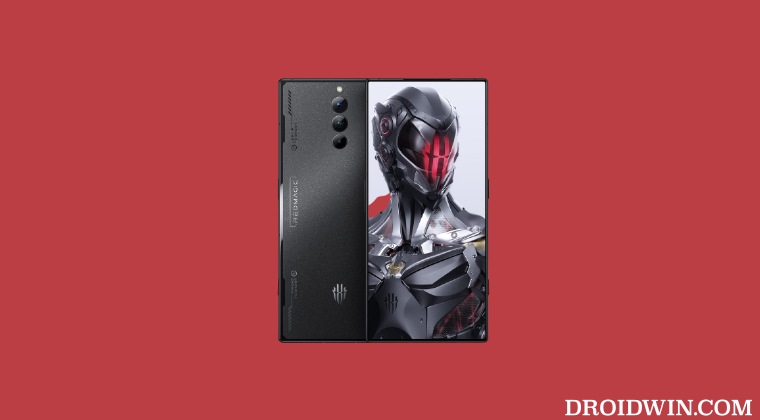
There exist two different methods to get this job done and while both of them will require a reset, the first method could be carried out on a locked bootloader whereas the second method requires an unlocked bootloader. However, if you are looking for the safer of the two methods, then it is highly recommended to opt for the second method [the unlocked bootloader method]. Nevertheless, whatever method you opt for, please take a complete device backup beforehand.
Droidwin and its members wouldn’t be held responsible in case of a thermonuclear war, your alarm doesn’t wake you up, or if anything happens to your device and data by performing the below steps.
Convert Nubia Red Magic 8 Pro from China to Global via Local Update
- To begin with, download and install an advanced text editor like Notepad++
- Then download the stock firmware for your device from below: V2.21 China: Download V2.18 China: Download V3.18 (V318) Asia: Download V4.18 (418) Europe: Download
- Once downloaded, extract it to any convenient location on your PC.
- Now right-click on payload_properties and select Open With > Notepad++.
- Now delete the _un from the value of NUBIA_SUBVERSION [last line]. The new value should now look like NUBIA_SUBVERSION_nx729j
- Once done, hit Ctrl+S to save the changes. Now repack the firmware ZIP.
- Then transfer this firmware ZIP file to your device’s Internal Storage.
- Now head over to settings/system update and tap on the overflow icon.
- Then select Local Update, choose the Global ROM ZIP, and hit Install.
- Once the flashing is done, long-press the power key to power off the device.
- Then press and hold the volume up and power keys to boot into recovery.
- Now choose Wipe/Factory Data Reset and wait for the process to complete.
- Once done, you may now reboot your device to the Global OS. That’s it.
Convert Nubia Red Magic 8 Pro from China to Global via ADB Sideload
- To begin with, unlock the bootloader on your Nubia Red Magic 8 Pro .
- Then download the stock firmware for your device from below: V2.21 China: Download V2.18 China: Download V3.18 (V318) Asia: Download V4.18 (418) Europe: Download
- Make sure to download the same version that is currently installed on your device.
- Once downloaded, extract it to any convenient location on your PC.
- You will now get the payload.bin file. Load it to the Fastboot Enhance Tool , select the recovery, and hit Extract Image.
- The tool will now extract the recovery from the payload.bin. Once done, transfer this file to the platform-tools folder.
- Likewise, transfer the entire Global firmware ZIP file to the platform-tools folder. Also, rename it to rom, so that the complete name becomes rom.zip.
- Then download and extract the Android SDK Platform Tools on your PC.
- Now connect your device to the PC via a USB cable. Make sure USB Debugging is enabled.
- Then head over to the platform-tools folder, type in CMD in the address bar, and hit Enter. This will launch the Command Prompt.
- Type in the following command in the CMD window to boot your device to Fastboot Mode adb reboot bootloader
- To verify the Fastboot connection, type in the below command and you should get back the device ID. If you are not getting any serial ID, then please install the Fastboot drivers. fastboot devices
- Once done, execute the below command to flash the recovery file that we extracted from the Global firmware: fastboot flash recovery recovery.img
- Then execute the below command to boot your device to this recovery: fastboot reboot recovery
- Now type in the below command to boot your device to ADB Sideload mode: adb reboot sideload
- Then type in the below command to sideload the Global firmware ZIP: adb sideload rom.zip
- Once done, choose Wipe/Factory Data Reset and wait for the process to complete.
- Once done, you may now reboot your device to the Global OS.
- How to Unlock Bootloader on Nubia Red Magic 8 Pro
- Root Nubia Red Magic 8 Pro via Magisk Patched init_boot
- Fix Red Magic 8 Fingerprint not working after Bootloader Unlocking

- Faris 2 years ago Reply my red magic 8 pro is already the global version and only supports 65w charging, if i wanna move to China ROM, can it support 165w charging? Because I’ve already bought the original charger again which is 165W but doesn’t support 165W charging, maybe because the ROM is the global version
- Faris 2 years ago Reply Min, red magic 8 pro saya kn sdh versi global dan hanya support charging 65w, kalo pindah ke rom china bs support charging 165w g ya? Soalnya udh trlanjur beli charger orinya lg yg 165w tp g support charging 165w mgkim krm rom nya versi global
(Cancel Reply)
Δ
Fix Red Magic 8 Pro Fingerprint not working on Unlock Bootloader
In this guide, we will show you the steps to fix the issue of fingerprint not working in Nubia Red Magic 8 Pro after unlocking the bootloader. Removing the barrier to gain entry to custom development has its fair share of issues, most of which have already been documented beforehand. Among them, is the tripping of Knox on Samsung and voiding the warranty across a few OEMs that most of you might already be aware of.
But when it comes to Nubia, there is another major caveat attached. Fingerprint unlock might no longer work on your Nubia Red Magic 8 Pro after unlocking its bootloader. In some cases, you might not be able to use any security measures, including the likes of PIN and password. With that said, there does exist a nifty workaround that could help you mitigate this issue. So without further ado, let’s check it out.
- Fix Red Magic 8 Pro Fingerprint not working after Bootloader Unlocking FIX 1: Re-Calibrate Fingerprint FIX 2: ReFlash in FastbootD Mode
- UPDATE
Fix Red Magic 8 Pro Fingerprint not working after Bootloader Unlocking
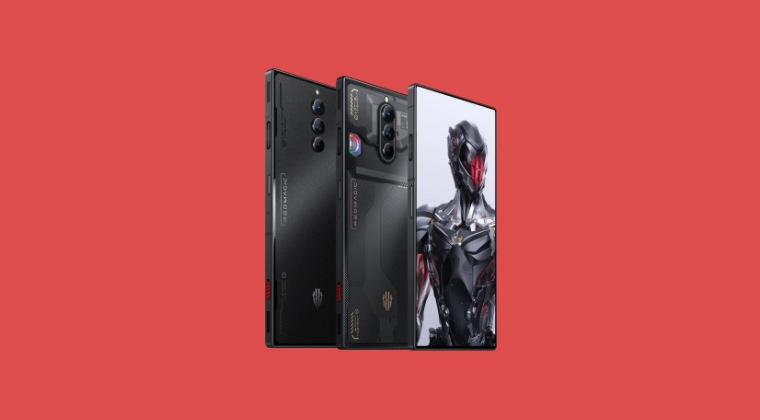
It is recommended that you go through each of the below-mentioned workarounds and then try the one which is in sync with your requirement. So with that in mind, let’s get started. Droidwin and its members wouldn’t be held responsible in case of a thermonuclear war, your alarm doesn’t wake you up, or if anything happens to your device and data by performing the below steps.
FIX 1: Re-Calibrate Fingerprint
Make sure to carry out the below steps in a dark room or under minimal light. Moroever, it is highly recommended that you carry out this fingerprint recalibration task wearing a lattice glove as it tends to give the maximum success rate.
- Delete the data of the In-Display FingerPrint system app.
- Then bring up the dialer and type in the below code: *#9959#
- Now checkmark Calibration and uncheck Performance. Then Tap on Start and wait till you get Pass.
- Then tap Next in the circle and wait for Pass [put anything black non-reflective and then retry if you are failing].
- Now press NEXT. Then place your thumb in a vertical position and press on the circle. Make sure that your thumb is covering the darker part of the circle
- Carry out this task until you see Pass in green [this could take even up to 50 tries!].
- Once done, check if it fixes the issue of Red Magic 8 Pro Fingerprint not working after Bootloader Unlocking.
FIX 2: ReFlash in FastbootD Mode
- To begin with, download the stock firmware for your device from below: V2.21 China: Download V2.18 China: Download V3.18 (V318) Asia: Download V4.18 (418) Europe: Download
- Make sure to download the same version that is currently installed on your device.
- Once downloaded, extract it to any convenient location on your PC. You will now get the payload.bin file.
- Load it to the Fastboot Enhance Tool , select the init_boot, system.img, and vendor.img and hit Extract Image.
- Once extracted, transfer system.img, and vendor.img to the platform-tools folder whereas transfer init_boot.img to your device.
- Now download and install the Magisk App on your device.
- Then launch it and tap on the Install button next to Magisk.
- After that, choose ‘Select and Patch a File’, and navigate to the stock init_boot.img file, and select it.
- Then tap on the Let’s Go button situated at the top right.
- The init_boot.img file will now be patched and placed under the Downloads folder on your device. Transfer it to the platform tools folder on your PC.
- Once done, reset your device from the Settings menu and then restart it.
- During the initial setup, it will ask to enter fingerprint/password, skip all of them.
- Now enable USB Debugging and connect your phone to your PC via a USB cable.
- Then download and extract Android SDK Platform Tools on your PC.
- Now type in CMD inside the platform-tools folder address bar and hit Enter:
- Then execute the below command to boot your device to the Fastboot Mode: adb reboot bootloader
- Now type in the below command to unlock the critical partitions on your device fastboot flashing unlock_critical
- Once done, type in the below command to boot your device to the OS: fastboot reboot
- Skip the initial setup, enable USB Debugging, and type in the below command to boot your device to FastbootD Mode adb reboot fastboot
- We will now have to flash patched init_boot, vendor, and system. So execute the below three commands in the CMD window: fastboot flash init_boot magisk_patched_init_boot.img fastboot system system.img fastboot vendor vendor.img
- Once done, use the below command to boot your device to the OS: fastboot reboot
- During the initial setup, skip the fingerprint/PIN/password.
- Now go to Settings > Password and Security and set the desired PIN/Password.
- The lock screen should now work without any issues.
UPDATE
If the aforementioned method didn’t work, then you could also buy an optical fingerprint calibration tool to get this job done.
- How to Root Nubia Red Magic 6/6 Pro/6R via Magisk
- Unbrick Nubia Red Magic 6/6 Pro/6R via Fastboot Commands
- How to Unlock Bootloader on any Nubia Device
- How to Root Nubia Red Magic 5G via Magisk
(Cancel Reply)
Δ
