How to Convert OnePlus 11 from ColorOS to OxygenOS
In this guide, we will show you the steps to convert your OnePlus 11 from ColorOS to OxygenOS. The newest addition to the OnePlus family is slowly taking the OEM back to its root of being a flagship killer. Offering top-of-end specs at an affordable price, we might be on the verge of witnessing the rebirth of this company. But there’s just one thing that might stop it from doing so- the software experience.
Ever since it decided to ditch its in-house OxygenOS in favor of Oppo’s ColorOS, things haven’t looked good at all, and every user’s feedback and criticism regarding the same have gone out for a toss. And if you have purchased/imported the device from China then you will get the true form of the bloated OS skin. Fortunately, you could convert your OnePlus 11 from ColorOS to OxygenOS. And in this guide, we will show you how to do just that. Follow along.
- How to Convert from ColorOS to OxygenOS on OnePlus 11
- METHOD 1: By Flashing the OTA Updates
- METHOD 2: By Flashing the OFP EDL Packages STEP 1: Install Android SDK STEP 2: Enable USB Debugging and OEM Unlocking STEP 3: Unlock Bootloader on OnePlus 11 STEP 4: Download OxygenOS 13 Firmware STEP 5: Boot to Fastboot Mode STEP 6: Flash Files in Fastboot Mode STEP 7: Flash Files in FastbootD Mode
How to Convert from ColorOS to OxygenOS on OnePlus 11
Both the methods listed below will wipe off all the data from your device, so take a complete device backup beforehand. Droidwin and its members wouldn’t be held responsible in case of a thermonuclear war, your alarm doesn’t wake you up, or if anything happens to your device and data by performing the below steps.
METHOD 1: By Flashing the OTA Updates
- To begin with, download and extract Android SDK Platform Tools on your PC.
- Then launch CMD inside platform tools and execute the below command to boot your device to Fastboot Mode adb reboot bootloader
- Then launch Fastboot Enhance and check “Ignore Unknown Partition”.
- Now extract the “latest” OxygenOS firmware ZIP, get the payload.bin, and load it to the Fastboot Enhance.
- Then flash this payload.bin file while your device is in the Fastboot Mode [Bootloader Mode].
- Once done, boot your device to FastbootD Mode [click on Reboot to FastbootD in the tool].
- Now once again check “Ignore Unknown Partition” and flash the latest payload.bin file.
- With this, we have now flashed the latest OxygenOS firmware [payload.bin] in both Fastboot and FastbootD Modes.
- Then download China ColorOS firmware [PHB110], extract it, and load this payload.bin to the tool.
- Now select the oplusstanvbk.img file and click on Extract. Once done, transfer the file to the platform-tools folder.
- Then boot your device to FastbootD Mode by clicking on Reboot to FastbootD in the tool.
- Now type in the below command to flash oplusstanvbk.img in the FastbootD Mode fastboot flash –slot=all oplusstanvbk radio/oplusstanvbk.img
- Once done, you may now reboot the device to the newly installed OS via the below command fastboot reboot
- If you are unable to set Lock Screen PIN or password, then check out this guide to fix this issue.
METHOD 2: By Flashing the OFP EDL Packages
STEP 1: Install Android SDK

First and foremost, you will have to install the Android SDK Platform Tools on your PC. This is the official ADB and Fastboot binary provided by Google and is the only recommended one. So download it and then extract it to any convenient location on your PC. Doing so will give you the platform tools folder, which will be used throughout this guide.
STEP 2: Enable USB Debugging and OEM Unlocking
Next up, you will have to enable USB Debugging and OEM Unlocking on your device. The former will make your device recognizable by the PC in ADB mode. This will then allow you to boot your device to Fastboot Mode. On the other hand, OEM Unlocking is required to carry out the bootloader unlocking process.
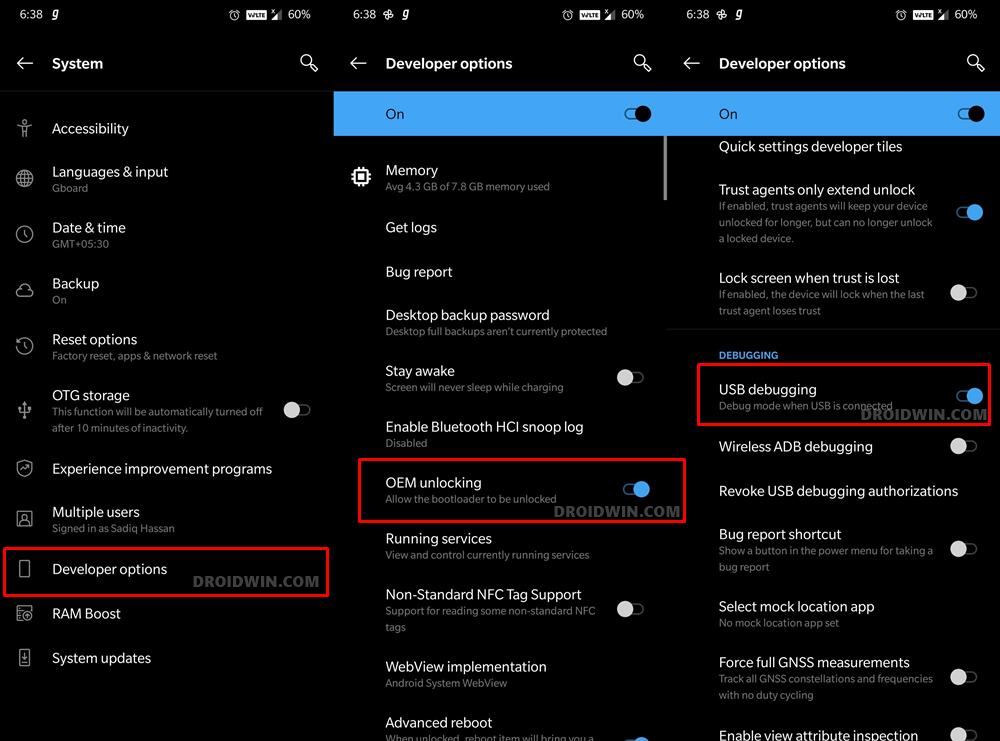
So head over to Settings > About Phone > Tap on Build Number 7 times > Go back to Settings > System > Advanced > Developer Options > Enable USB Debugging and OEM Unlocking.
STEP 3: Unlock Bootloader on OnePlus 11
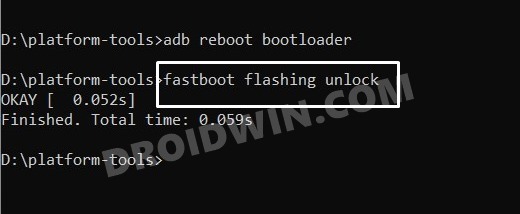
After this, you will have to unlock the bootloader on your device. Do keep in mind that this process will wipe off all the data and might nullify the device’s warranty as well. So if that’s all well and good, then refer to our comprehensive guide on How to Unlock Bootloader on OnePlus 11.
STEP 4: Download OxygenOS 13 Firmware
- Grab hold of the OxygenOS 13 ROM for your OnePlus 11 from below. Download Link
- Then extract the radio and images folder from the firmware to the platform-tools folder.
- Next up, download ColorOS 13.0.0 A.08 firmware, load it into Fastboot Enhance [ reference guide ], and extract only the oplusstanvbk.img file.
- Once extracted, transfer it to the platform tools folder as well.
STEP 5: Boot to Fastboot Mode
- Connect your device to the PC via a USB cable. Make sure USB Debugging is enabled.
- Then head over to the platform-tools folder, type in CMD in the address bar, and hit Enter. This will launch the Command Prompt.
- Type in the following command in the CMD window to boot your device to Fastboot Mode adb reboot bootloader Reference Image
- To verify the Fastboot connection, type in the below command and you should get back the device ID. fastboot devices
STEP 6: Flash Files in Fastboot Mode
- First off, execute the below command to reset your device fastboot -w
- Then type in the below command to set partition A as active: fastboot –set-active=a
- Now flash the rest of the files in Fastboot Mode [on some firmware, the modem.img file might be replaced with radio.img, so the first command listed below will change to fastboot flash –slot=all modem radio.img] fastboot flash –slot=all modem modem.img fastboot flash –slot=all boot boot.img fastboot flash vbmeta_system_a vbmeta_system.img fastboot flash vbmeta_system_b vbmeta_system.img fastboot flash vbmeta_a vbmeta.img fastboot flash vbmeta_b vbmeta.img fastboot flash vendor_boot_a vendor_boot.img fastboot flash vendor_boot_b vendor_boot.img fastboot flash vbmeta_vendor_a vbmeta_vendor.img fastboot flash vbmeta_vendor_b vbmeta_vendor.img
STEP 7: Flash Files in FastbootD Mode
You will now have to flash the remaining firmware files in the FastbootD Mode. So type in the below command to boot your device to this mode
fastboot reboot fastboot
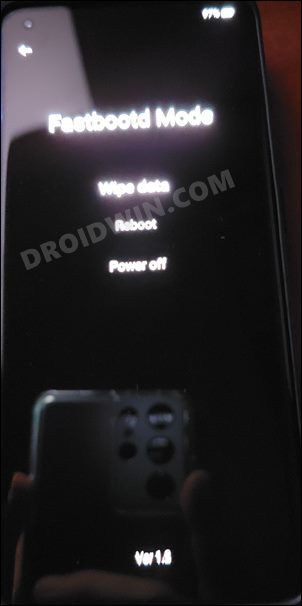
Now execute the below commands in the CMD window [one at a time] to flash the remaining files. When it comes to flashing oplusstanvbk.img, make sure to flash the one that you have extracted from ColorOS 13.0.0 A.08 firmware.
fastboot flash --slot=all abl abl.img

fastboot flash --slot=all aop aop.img

fastboot flash --slot=all aop_config aop_config.img

fastboot flash --slot=all bluetooth bluetooth.img

fastboot flash --slot=all cpucp cpucp.img

fastboot flash --slot=all devcfg devcfg.img

fastboot flash --slot=all dsp dsp.img

fastboot flash --slot=all dtbo dtbo.img

fastboot flash --slot=all engineering_cdt engineering_cdt.img

fastboot flash --slot=all featenabler featenabler.img

fastboot flash --slot=all hyp hyp.img

fastboot flash --slot=all imagefv imagefv.img

fastboot flash --slot=all init_boot init_boot.img

fastboot flash --slot=all keymaster keymaster.img

fastboot flash --slot=all oplus_sec oplus_sec.img

fastboot flash --slot=all oplusstanvbk oplusstanvbk.img

fastboot flash --slot=all qupfw qupfw.img

fastboot flash --slot=all recovery recovery.img

fastboot flash --slot=all shrm shrm.img

fastboot flash --slot=all splash splash.img

fastboot flash --slot=all tz tz.img

fastboot flash --slot=all uefi uefi.img

fastboot flash --slot=all uefisecapp uefisecapp.img

fastboot flash --slot=all xbl xbl.img

fastboot flash --slot=all xbl_config xbl_config.img

fastboot flash --slot=all xbl_ramdump.img xbl_ramdump.img


fastboot flash system system.img

fastboot flash system_ext system_ext.img

fastboot flash vendor vendor.img

fastboot flash product product.img

fastboot flash my_product my_product.img

fastboot flash odm odm.img

fastboot flash my_engineering my_engineering.img

fastboot flash vendor_dlkm vendor_dlkm.img

fastboot flash system_dlkm system_dlkm.img

fastboot flash my_stock my_stock.img

fastboot flash my_heytap my_heytap.img

fastboot flash my_carrier my_carrier.img

fastboot flash my_region my_region.img

fastboot flash my_bigball my_bigball.img

fastboot flash my_manifest my_manifest.img
Now perform a Factory Reset from the FastbootD screen [compulsory]. Once done, use the below command to boot to the OS
fastboot reboot

- Mehboob Jadoon 2 years ago Reply Bro you can’t tell before flashing oxygen firmware first we need to delete the cow partition then flash the rom without the cow partition delete firmware will be flashed but not convert the mobile. please share full knowledge.
- Saad 3 years ago Reply Hi I did al steps and all worked fine, but now after installing OxygenOS SIM card is not being regonized and can’t add a eSIM. any solution to that? Saad 3 years ago Reply imei sv is showing value “unknown”
- Robert 3 years ago Reply Hi, I followed Method 2 till Step 7, after executing ‘fastboot reboot fastboot’ command, I got this error on my terminal “ERROR: usb_write failed with status e00002ed fastboot: error: Failed to boot into userspace fastboot; one or more components might be unbootable.” and therefore I was unable to complete rest of the steps, any ideas? Thanks
- Greg 3 years ago Reply Hello Is it the same way if I would update my version? Exemple: Chinese version flashed with CPH2447_11_A.07 to CPH2447_11_A.09 It seems we can’t use the the update directly in Setting…
- USC 3 years ago Reply there is something unclear in method 1 step 9: “Then download China ColorOS firmware [PHB110], extract it, and load this payload.bin to the tool.” What exactly do you mean by load the payload? Is it a:use the payload dumper and browse to the payload file or is it to flash payload.bin. The 2nd last step went well giving me this confirmation: Sending ‘oplusstanvbk_a’ (1905 KB) OKAY [ 0.078s] Writing ‘oplusstanvbk_a’ OKAY [ 0.016s] Sending ‘oplusstanvbk_b’ (1905 KB) OKAY [ 0.078s] Writing ‘oplusstanvbk_b’ OKAY [ 0.016s] Finished. Total time: 0.234s but when I reboot the phone is stuck in a bootloop
- Chan 3 years ago Reply Is there a guide for Oxygen OS back to Color OS? I have Oneplus 11 from China flashed global rom and I cannot have software updates. Bad gaming performance so if ever I turn it back to Color OS these issues might be fix.
- flashnew 3 years ago Reply Once flashed to OxygenOS, if there is any OTA notification, can I choose to update or it will brick the phone?
- Michael 3 years ago Reply i’m stuck on infinite loop
- ven 3 years ago Reply I’m trying to convert ColorOs A.08 to CPH2449GDPR_11_A.06_2023010723370128 Sadique Hassan 3 years ago Reply You may try out using our updated Method 1 and share the results [take a backup beforehand].
- ven 3 years ago Reply I tried step by step of this page,but these error make the phone can’t boot up: D:\Op11\Pt34>fastboot flash –slot=all xbl_ramdump.img xbl_ramdump.img Sending ‘xbl_ramdump.img’ (811 KB) OKAY [ 0.022s] Writing ‘xbl_ramdump.img’ FAILED (remote: ‘No such file or directory’) fastboot: error: Command failed D:\Op11\Pt34>fastboot flash my_carrier my_carrier.img Resizing ‘my_carrier_a’ OKAY [ 0.016s] Sending ‘my_carrier_a’ (12 KB) OKAY [ 0.000s] Writing ‘my_carrier_a’ FAILED (remote: ‘Invalid argument’) fastboot: error: Command failed Sadique Hassan 3 years ago Reply We have updated the guide, try out our new Method 1 and share the results [take a backup beforehand].
- Bin 3 years ago Reply rom Oxygen oneplus 11 fastboot is here https://yun.daxiaamu.com/OnePlus_Roms/%E4%B8%80%E5%8A%A011/Fastboot_%E6%B0%A7OS%2013.0.0_A.06/CPH2451_11_A.06_230106_FASTBOOT.zip . Do you test to convert to oxygen from Color?? I saw many peopleo scare and your devices can brick
- IOAN 3 years ago Reply fastboot flash my_heytap my_heytap.img fastboot flash my_carrier my_carrier.img fastboot flash my_region my_region.img fastboot flash my_bigball my_bigball.img fastboot flash my_manifest my_manifest.img All ghet an eror ?
(Cancel Reply)
Δ
