How to Create SN File for Lenovo Bootloader Unlocking
Recently, I got my hands on the Lenovo Legion Y700 tablet for a few days for testing purposes. While it did manage to excel in most fields, there were two things that left me asking for more- the battery capacity and the lack of an SD Card. While the former could still be addressed by charging the tablet at frequent intervals, there was no way to address the latter. Apart from that, everything else was fine, and it was a more than decent offering from Lenovo. But what about from the tech enthusiast’s point of view?
Well, there were a few initial hiccups, but after that, it was smooth sailing. The roadblock that I am talking about is regarding the unlocking of the bootloader for my Lenovo tablet . After all, how can a tablet from China be easily unlocked? So I did a few research on it and got to know that we need an sn.img file which can be created using the 64-digit Serial Number. And for that, I managed to find 4 methods, all of which I will be listing here for you all. So without any further ado, let’s get started.
- How to Create an SN File for Lenovo Bootloader Unlocking STEP 1: Find the Serial Number Via ADB Mode Via Fastboot Mode STEP 2: Create sn.img Method 1 Method 2 Method 3 [Official] Method 4 [Via Sample SN File] STEP 3: Unlock Bootloader
How to Create an SN File for Lenovo Bootloader Unlocking
Given here are four different methods that will help you get this job done. Go through each of these methods once and then try out the one that is in sync with your requirement. Moreover, before starting, please take a complete device backup. Droidwin and its members wouldn’t be held responsible in case of a thermonuclear war, your alarm doesn’t wake you up, or if anything happens to your device and data by performing the below steps.
STEP 1: Find the Serial Number
Before creating your sn.img file, you need to find your device’s 64-digit Serial Number. For that, there are two ways out:
Via ADB Mode
- First off, download and extract Android SDK Platform Tools on your PC.
- Then open Command Prompt inside this folder. All the commands will be executed here only.
- Then, enable USB Debugging and OEM Unlocking on your tablet.
- Connect your tablet to your PC, using the port for File Transfer and not Data Transfer.
- Now type in the below command to get the 64-digit serial number: adb shell getprop ro.boot.bootload_sn
- Note it down somewhere as it will be used to create your Lenovo device’s sn.img file. In my case, it is: d2a746c23a410256b1f4a94a299880f8f34a8bbc2dbc6d298d4d322e093a997c
Via Fastboot Mode
- First off, download and extract Android SDK Platform Tools on your PC.
- Then open Command Prompt inside this folder. All the commands will be executed here only.
- Then, enable USB Debugging and OEM Unlocking on your tablet.
- Connect your tablet to your PC, using the port for File Transfer and not Data Transfer.
- Now type in the below command and note down the SN1 and SN2 values: fastboot getvar all
- In my case, the SN1 and SN2 values are: SN1= d2a746c23a410256b1f4a94a299880f8 SN2= f34a8bbc2dbc6d298d4d322e093a997c
- Then join both the values to get your 64-digit Serial Number. In my case, it will be: d2a746c23a410256b1f4a94a299880f8f34a8bbc2dbc6d298d4d322e093a997c
STEP 2: Create sn.img
Now that we have the 64-digit Serial Number, we can use it to create our sn.img file, for which we have listed four methods below. Try out any one of them.
Method 1
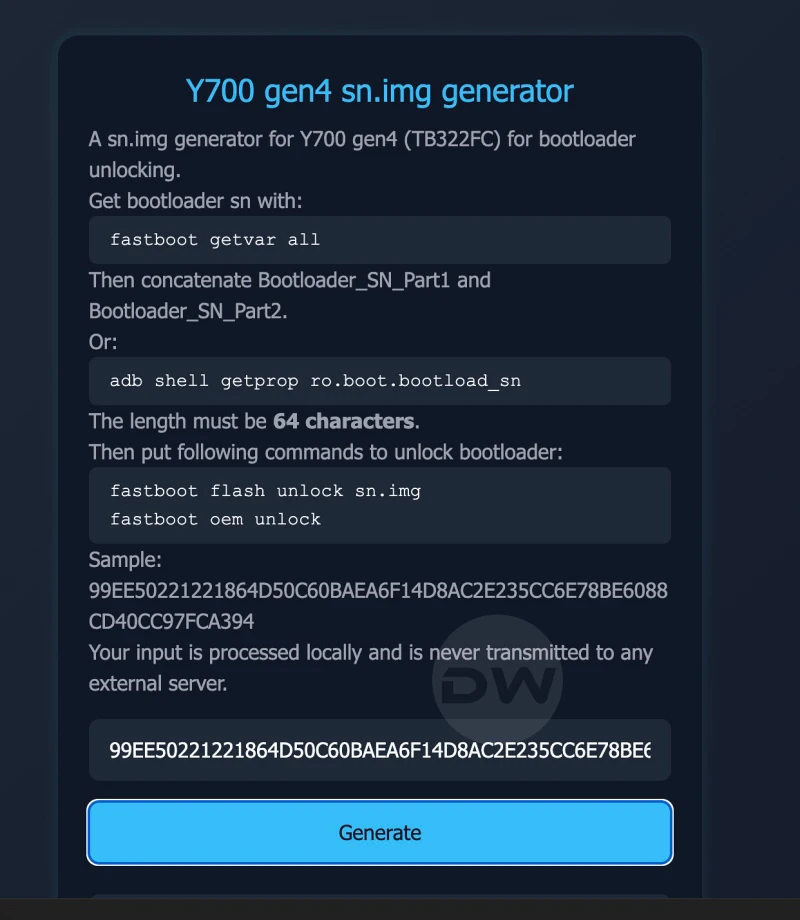
Go to this website , type your SN in the bottom right box, and click Generate. It will give you a sn.img file.
Method 2
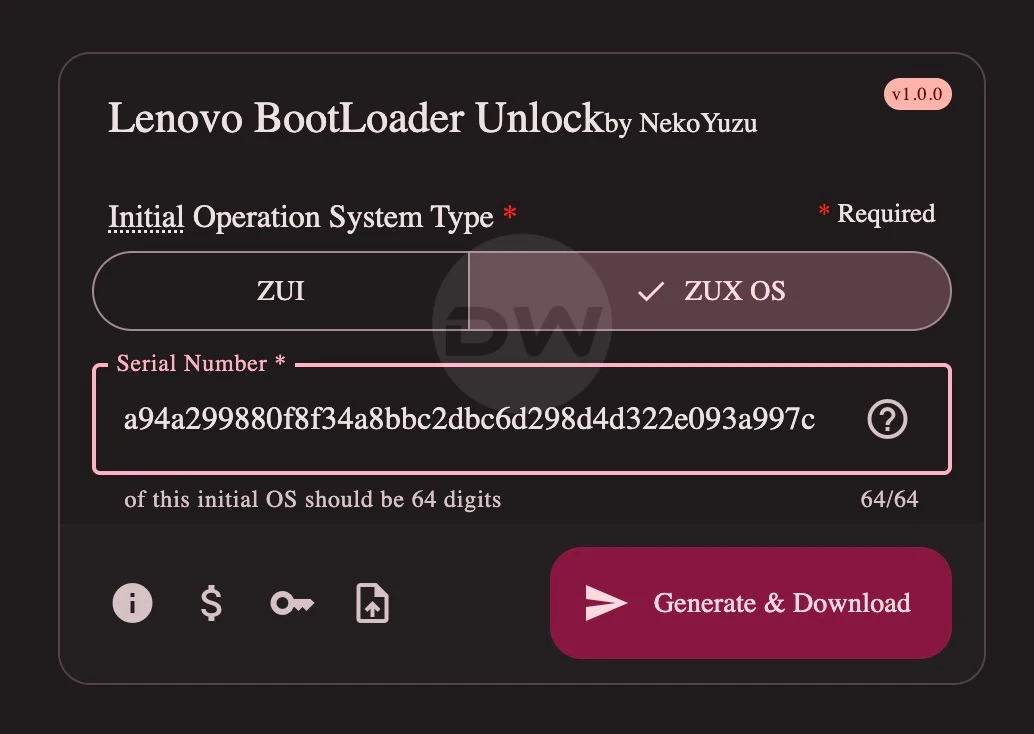
Go to this website , select ZUX OS, input your 64-digit SN number, and click Generate and Download.
Method 3 [Official]
While this is the official method, I have given it the third spot just because it asks for additional details [such as IMEI]. Moreover, the fact that you’ll have to send the details to Lenovo, who in turn will validate the information and then send you back the details, will definitely end up taking some unnecessary time.
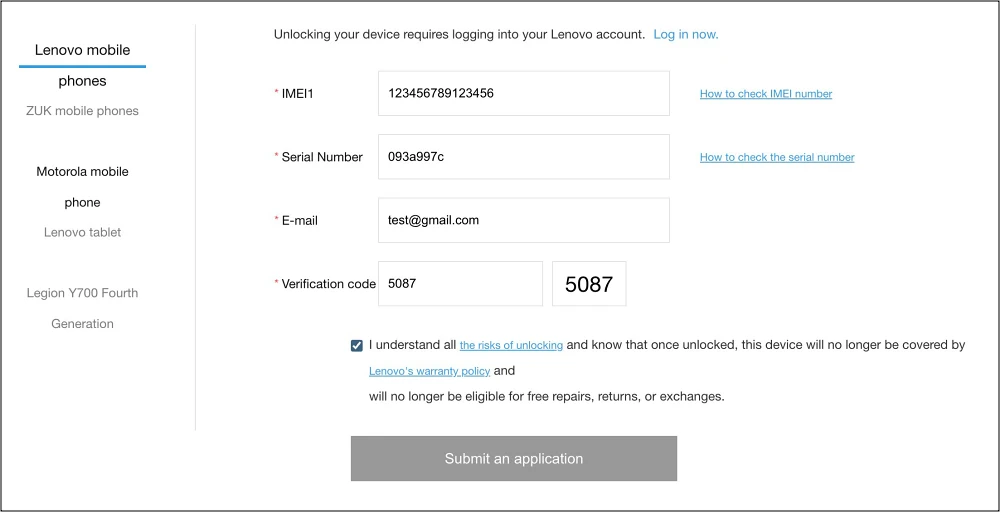
Still, if you wish to try it out, then go to the official Lenovo website , type in the last 8 digits of your serial number [in my case, it will be 093a997c], along with your IMEI 1 [you can refer to your tablet’s box or boot to the OS and type *#06#] and Email, and click Submit Application. You’ll receive the file shortly in your email.
Method 4 [Via Sample SN File]
In this method, there’s a sample sn.img file [Credits: XDA Member LoGen0110] that you need to open via the Hex Editor. There you’ll see a region where 64 times 5 is written [it’s acting as a placeholder], just replace all those 5 with your device’s Serial Number and save the file via Ctrl+S.

STEP 3: Unlock Bootloader
Now that you have got the sn.img file, you can use it to unlock the device’s bootloader. For that, you may refer to the below guide [while it is aimed at Lenovo Legion Y700, it will work across all Lenovo devices and tablets that use the sn.img file].
How to Unlock Bootloader on Lenovo Legion Y700
- Flash Stock ROM via Lenovo Rescue and Smart Assistant
- How to Flash Global Firmware on Lenovo Legion Y700
- How to Flash Stock ROM on Lenovo Xiaoxin Pad Pro
- Unlock Bootloader on Lenovo Xiaoxin Pad Pro without Unlock File
- How to Unbrick Lenovo Legion Y70 via QFIL

(Cancel Reply)
Δ
