How to Delete Finder Go To Folder History
In this guide, we will show you a couple of handy methods that should help you delete Finder’s Go To Folder search history. There are quite a few ways through which you could access a particular directory on your Mac, among which using the Shift+Command+G shortcut is the most preferable one. But what if you are using a shared PC and end up visiting a folder that you shouldn’t have in the first place [we all know it was “unintentional”, right?].
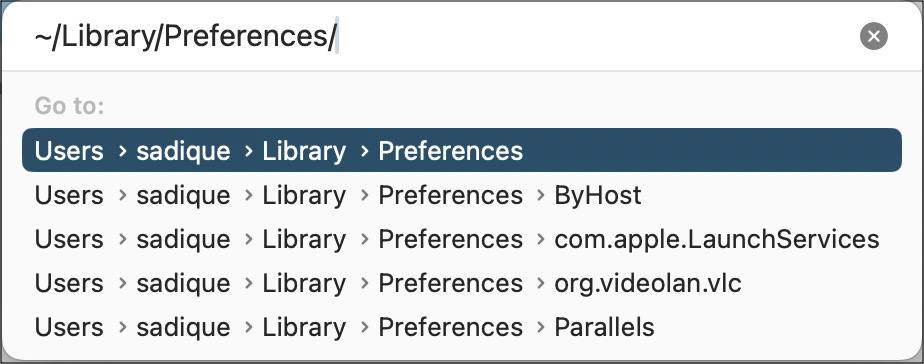
Finder Go To Folder Search History
Or you have stored some crucial files in a directory that you want to hide from the prying eyes of the other users. Unfortunately, that might prove to be easier said than done because as soon as the other user opens Go to Folder, the search history will be right in from of them in a drop-down menu.
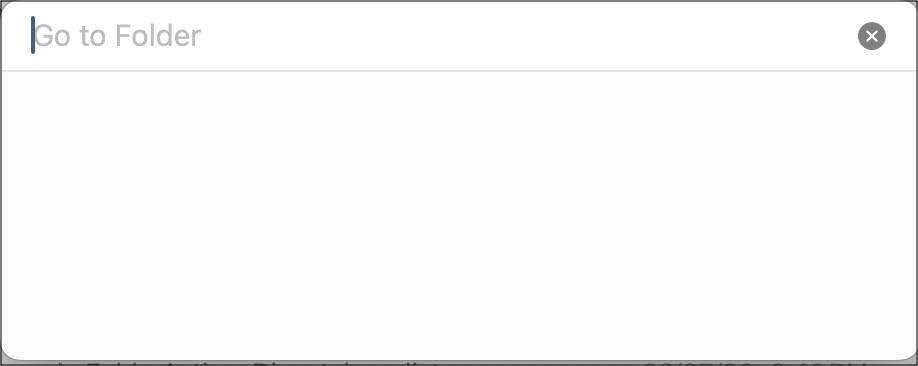
Finder Go To Folder History Deleted
As you might have noticed, macOS doesn’t offer any native and straightaway method to delete Finder’s Go To Folder search history. But upon digging a little bit deeper we managed to get hold of two nifty workarounds that will help you get this job done. So without further ado, let’s check them out.
- How to Delete Finder’s Go To Folder History METHOD 1: Via Terminal METHOD 2: Via XCode
How to Delete Finder’s Go To Folder History
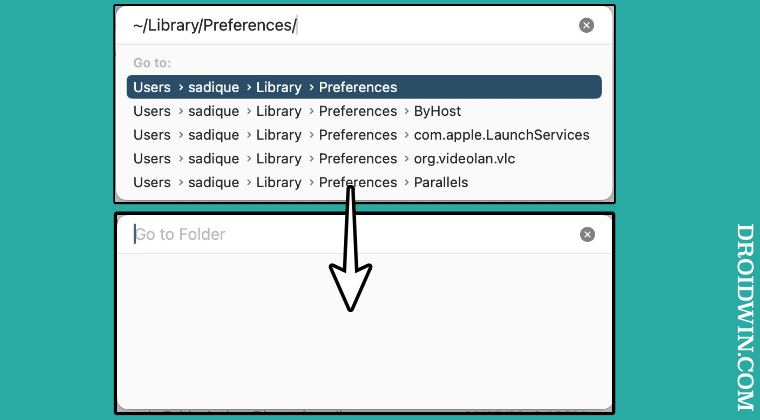
It is recommended that you try out each of the below-mentioned workarounds and then see which one spells out success. So with that in mind, let’s get started.
METHOD 1: Via Terminal
- Launch Terminal and execute the below command defaults delete com.apple.finder GoToField; defaults delete com.apple.finder GoToFieldHistory
- This will delete the GoToField and GoToFieldHistory entries in the com.apple.finder.plist file.
METHOD 2: Via XCode
- First off, download and install Apple XCode on your PC.
- Then open Finder and go to the below location:
/Library/Preferences/com.apple.finder.plist - Now open this com.apple.finder.plist file via XCode.
- Then search for the entry labeled ‘GoToFieldHistory’.
- Now delete all its subitems called ‘Item 0’, ‘Item 1’, etc.
- Finally, launch Activity Monitor and Force Quit Finder.
- Finder not working on macOS Sonoma: How to Fix
- Finder not working when logged in as root user in Sonoma [Fix]
- Documents folder empty in Finder on Mac [Fixed]
- Keep Folders on Top When Sorting by Name in Mac Finder

(Cancel Reply)
Δ
