How to Disable a Particular App from Auto Updating on Android
In this guide, we will show you the steps to disable a particular app from auto-updating on your Android device. There are quite a few reasons why you wouldn’t want the Play Store to automatically update the apps on your device. For example, the updated version of the app might be buggy, have removed some crucial features, or have changed its UI/UX, which is not in sync with your requirements.

Play Store Does Not Have the option for a Single App
In this regard, the Play Store does have an option to prevent the apps from being auto-updated [Settings > Network Preferences > Auto-update apps]; however, that feature works across all the apps installed on your device instead of a particular one. But fret not. We found a nifty workaround using which you can easily get this job done on a single app. So without any further ado, let’s show you how this could be carried out.
How to Disable a Particular App from Auto Updating on Android
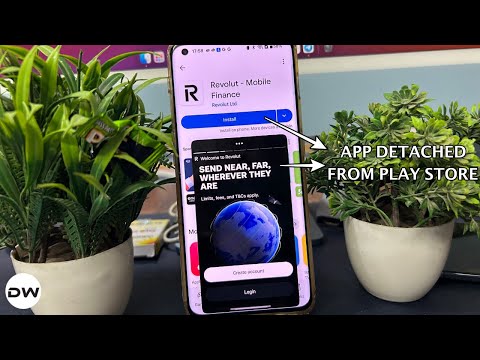
- To begin with, root the device via Magisk / KernelSU / APatch .
- Now, if you are on Magisk, then enable Zygisk from Settings.
- KernelSU & APatch users need to install Zygisk Next module.
- Next up, flash the zygisk-detach module via your rooting app.
- Now, restart your device and choose any one of the below-listed methods to launch the module: Install the Termux app, launch it, type in the below command detach However, if you are not using Termux, then use the command: su -c /data/adb/modules/zygisk-detach/detach Or you may also use the zygisk-detach-app to get this job done. If you are on KernelSU, then you may also use the KSU WebUI .
- Finally, select the apps that you want to “detach” from the Play Store.
- That’s it. Those apps will no longer be auto-updated from the Store.
- How to Check Play Integrity Test from the Play Store
- Guide to Enable the Google Play Store on OnePlus 12
- Play Store Transaction was declined: OR- FGEMF-20
- How to Install Multiple Apps at Once from Play Store

(Cancel Reply)
Δ
