How to Disable Camera Shutter Sound on Samsung [3 Methods]
In this guide, we will show you a couple of methods to disable the camera shutter sound on your Samsung device. There could be quite a few instances wherein you would want to get this job done. For instance, if you are in the middle of a meeting and you come across an important point in the presentation being shown, then you could easily take a photo of the same without disturbing the rest of the audience.
However, not many OEMs allow you to disable the camera shutter sound, and Samsung is one of them. Fortunately, it’s mostly done on a software level, and it isn’t hardware-backed, so this translates to the fact that we could easily bypass this restriction. And in this guide, we will show you how to do just that. So without further ado, let’s get started.
- How to Disable Camera Shutter Sound on Samsung METHOD 1: Via ADB Commands Automating the Process using Modes and Routines METHOD 2: Via Module METHOD 3: By Modifying Build.Prop
How to Disable Camera Shutter Sound on Samsung

We have listed two different methods to get this job done. Go through both of them once and then try out the one that is in sync with your requirements. But before starting with the below process, make sure that it is legal in your region to disable the camera sound. Droidwin and its members wouldn’t be held responsible in case of a thermonuclear war, your alarm doesn’t wake you up, or if anything happens to your device and data by performing the below steps.
METHOD 1: Via ADB Commands
Benefit: Does not require root.

Drawback: Requires some additional effort if you want to automate this process.
- Head over to Settings > About Phone > Tap on Build Number 7 times.
- Then go to Developer Options > enable USB Debugging > tap OK.
- Now connect your device to the PC via a USB cable.
- Then download and extract Android SDK Platform Tools on your PC.
- Now type in cmd in its address bar and hit Enter. This will launch the Command Prompt.
- Finally, type in the below command in the CMD window: adb shell settings put system csc_pref_camera_forced_shuttersound_key 0
- The shutter sound will now only depend on the phone’s volume! So make sure to mute the device before launching the camera app.
However, lowering the device’s volume every time before launching the camera and then increasing it back after closing the camera isn’t the best way to deal with this problem. So let’s automate this process, using Samsung’s very own Modes and Routines. Follow along.
Automating the Process using Modes and Routines

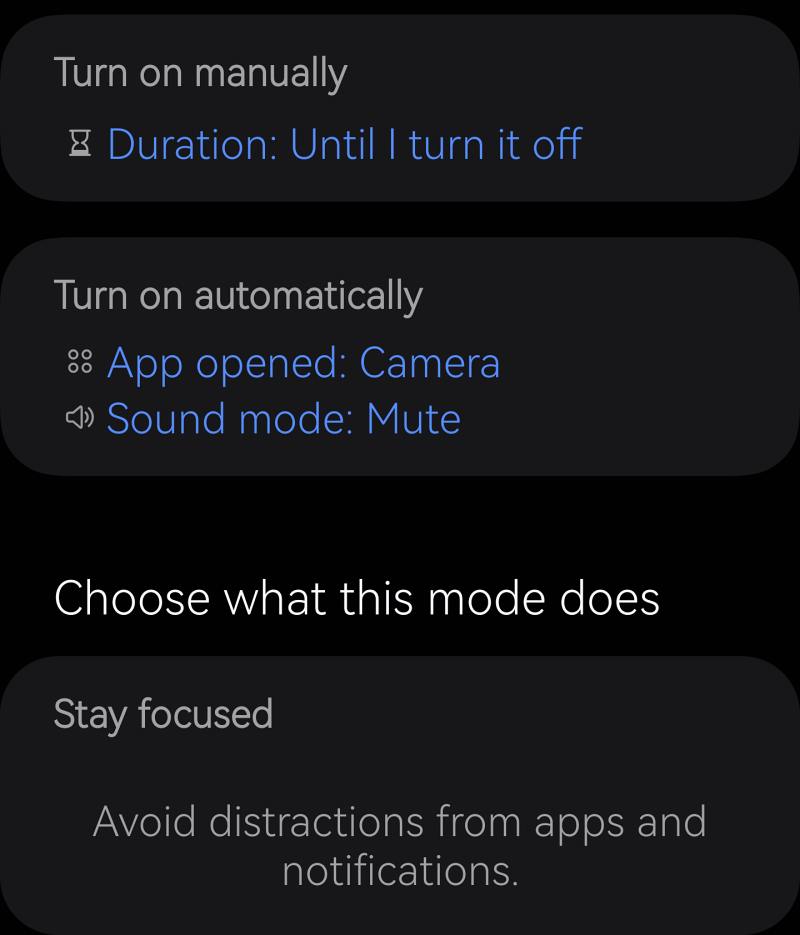
Using Modes and Routines, we will create a routine that turns the volume ‘temporarily’ off when the camera app is opened. Here’s how:
Turn on Manually

--Duration: Until I turn it off


Turn on Automatically

--App Opened: Camera

--Sound Mode: Mute


Choose what this mode does:

--Stay Focused
METHOD 2: Via Module
Benefit: Easy to carry out and only requires a couple of steps.

Drawback: Requires root.
- Launch your rooting app [ Magisk / KernelSU / APatch ].
- Now flash this module and restart the device. That’s it.
METHOD 3: By Modifying Build.Prop
Benefit: Seriously can't think of any apart from the obvious fact thatvit will get the intended job done.

Drawback: Requires root and is also a technical and time-taking process.
You can also disable the camera shutter sound by changing a few device properties and making it spoof to the US build. Here’s how it can be done:
- To begin with, root your device via Magisk .
- Then make your System RW via this guide.
- Now download and install Solid File Manager.
- Launch it, grant it the SU access, and open the build.prop file.
- Now add the below two values to the file: ro.csc.countryiso_code=USA ro.csc.country_code=USA
- After that, save the file and restart your device.
- Now launch Camera, go to its Settings > General.
- Finally, disable the toggle next to Shutter Sound.
- How to Force Disable Camera Sound on Pixel
- Samsung SmartThings Find not working: How to Fix
- Samsung One UI 6 Tethering Provision Check [Fixed]
- How to View WiFi Network Speed on Samsung One UI 6

(Cancel Reply)
Δ
