How to Disable Flashing on Taskbar Apps in Windows 11
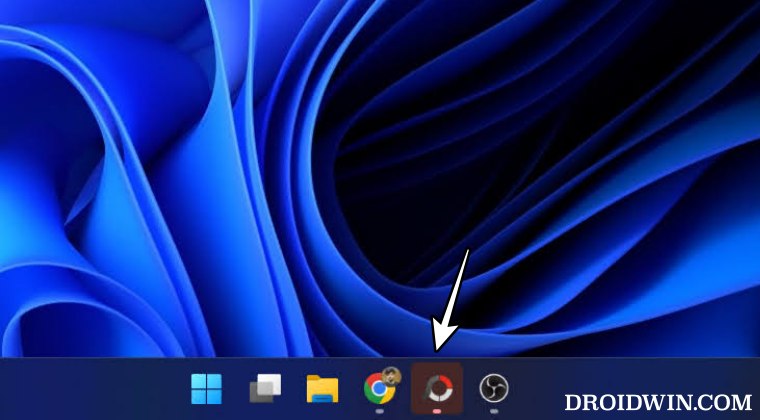
In this guide, we will show you a couple of methods to disable the flashing on Taskbar apps on your Windows 11 PC. If an app or service is running in the background but needs immediate attention [such as a User Account Control pop-up asking for admin-level access], then it will start to flash. The flashing will happen 7 times after which it will remain highlighted in orange/red color.
While it does its job pretty well in making us aware that an app is in need of a response from our end, however, the way in which it does so isn’t in sync with some users’ requirements. If you are also among those set of users, then this guide will make you aware of a couple of methods through which you could disable the flashing on Taskbar apps on your Windows 11 PC. Follow along.
- Disable Flashing on Taskbar Apps in Windows 11 via Settings
- Disable Flashing on Taskbar Apps in Windows 11 via Registry
- Re-Enable Flashing on Taskbar Apps in Windows 11
Disable Flashing on Taskbar Apps in Windows 11 via Settings
- Launch the Settings menu via Windows+I shortcut keys.
- Then go to Personalization > Taskbar > Taskbar Behavior.
- Finally, uncheck Show flashing on taskbar apps. That’s it.
Disable Flashing on Taskbar Apps in Windows 11 via Registry
- Right-click on the Desktop and select New > Text Document.
- Then copy-paste the below content Windows Registry Editor Version 5.00 [HKEY_CURRENT_USER\Software\Microsoft\Windows\CurrentVersion\Explorer\Advanced] “TaskbarFlashing”=dword:00000000
- Now go to File > Save as. Change Save As Type to All Files.
- Give the file any name of your choice but keep the extension .reg.
- Finally, run this file and your task stands complete.
Re-Enable Flashing on Taskbar Apps in Windows 11
If you wish to re-enable flashing on Taskbar apps on your Windows 11 PC, then you could take either of the two approaches:
Settings Menu: Settings > Personalization > Taskbar > Taskbar Behavior > Check Show flashing on taskbar apps.
Registry Editor: Follow the same steps as above, just change the word value from 00000000 to 00000001 in the last line.
How to Add MS Office Apps in Windows 11 Right Click Menu
Chrome opens Default App Settings on Windows [Fixed]
How to Enable End Task in Taskbar App Right Click on Windows 11
How to associate a file extension to an unlisted app on Windows 11

(Cancel Reply)
Δ
