How to Disable Gmail Notifications on your Pixel Watch
In this guide, we will show you the steps to disable the Gmail notifications on your Pixel Watch. The Silicon Valley giant has recently stepped into the smartwatch domain and its initial offerings are worthy of praise. Running the underlying WearOS based on Android, it is usually the first player to get blessed with the latest updates. However, some users are still having an issue or two in understanding the workflow and UI/UX of this smartwatch.
According to them, they are unable to disable the Gmail notifications on their Pixel Watch. If they head over to the Settings > Notification menu on their watch, there is an option to turn off the notification for messages, however, there isn’t any option as such for any of the email apps. If you are also facing this issue, then this guide will make you aware of the steps to get this job done with ease. Follow along.
How to Disable Gmail Notifications on your Pixel Watch
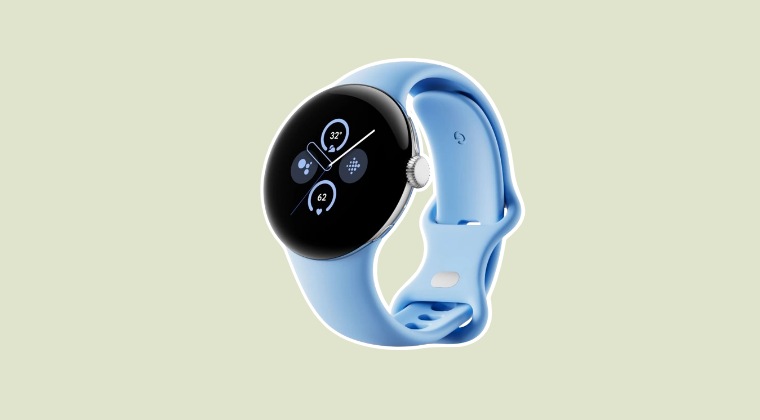
The reason behind this fiasco is the fact that there doesn’t exist any option to get this job done directly from your watch. Instead, you’ll have to take the help of the Watch Companion app installed on your device. Had this feature been simply incorporated into the watch, then there wouldn’t have been any issues to begin with. But since that is not the case, we have to remain content with Google’s rulebook and get this job done via the app itself. Here’s how:
- Launch the Google Pixel Watch Companion app on your device.
- Then go to Settings > Notifications > Apps & notifications,
- Now tap on Watch > Gmail > Toggle off Show notifications.
- Pixel Watch Unlock Not Working: How to Fix
- How to Fix Pixel Watch Unlock Missing
- Pixel Watch 2 not charging: How to Fix
- Google Pixel Watch Battery Drain: How to Fix

(Cancel Reply)
Δ
