How to Disable Location, Camera, Microphone Green Indicators
UPDATE: This trick to “Disable Location, Camera, Microphone Green Indicators” seems to have been patched with Android 16, though it is still working till Android 15. See the notes at the end of this article to know more.
In this guide, we will show you the steps to disable the Location, Camera, and Microphone green indicators on your Android device. With the launch of Android 12, one of the biggest talking points was the introduction of privacy indicators.
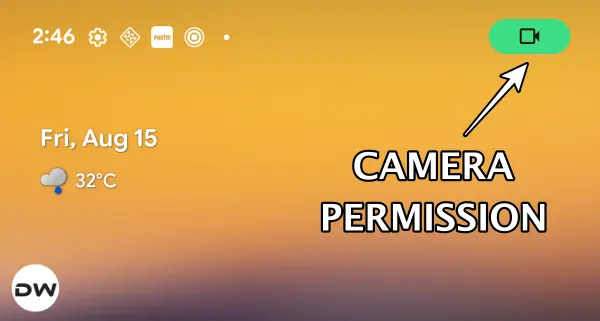
Whenever an app uses your device’s GPS, camera, or microphone, you’ll be notified of the same via a green indicator at the top right. This way, no app will be able to secretly access these sensitive system permissions.

However, some users are of the opinion that these green indicators are a great source of distraction in their normal usage of their device, mainly due to the fact that these indicators tend to appear after every 4-5 minutes. If you are also of the same opinion and wish to bid adieu to these indicators, then this guide will help you out. Follow along for the instructions.
- How to Disable Location, Camera, and Microphone Green Indicators
- How to Re-Enable Location, Camera, and Microphone Green Indicators
- NOTE: You might Not be able to Disable the Privacy Indicator on Android 16+
How to Disable Location, Camera, and Microphone Green Indicators
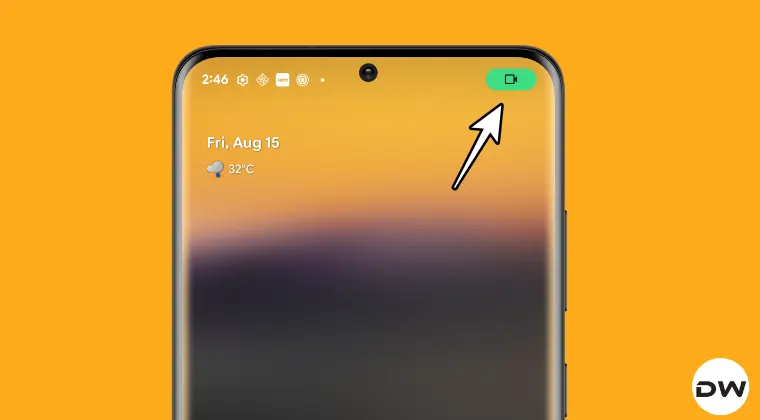
By carrying out the below steps, you’ll no longer be able to get a hold of the apps that are accessing the device’s camera, microphone, or location, which might prove to be a security and privacy risk in some cases. So if that’s all well and good, then let’s get started.
- To begin with, download and extract Android SDK Platform Tools on your PC.
- Then, enable USB Debugging and connect your device to the PC via USB cable.
- Now open the Command Prompt window in the platform-tools folder and type: adb shell cmd device_config put privacy camera_mic_icons_enabled false default //for microphone and camera adb shell cmd device_config put privacy location_indicators_enabled false default //for location or GPS
How to Re-Enable Location, Camera, and Microphone Green Indicators
- To begin with, download and extract Android SDK Platform Tools on your PC.
- Then, enable USB Debugging and connect your device to the PC via USB cable.
- Now open the Command Prompt window in the platform-tools folder and type: adb shell cmd device_config put privacy camera_mic_icons_enabled true default //for microphone and camera adb shell cmd device_config put privacy location_indicators_enabled true default //for location or GPS
NOTE: You might Not be able to Disable the Privacy Indicator on Android 16+
Beginning with Android 16, the aforementioned commands no longer work. IF you try to execute those commands, you’ll get the following error message:
Exception occurred while executing ‘put’: java.lang.SecurityException: Permission denial for flag ‘privacy/camera_mic_icons_enabled’; allowlist permission granted, but must add flag to the allowlist at com.android.providers.settings.SettingsProvider.enforceDeviceConfigWritePermission(SettingsProvider.java:2611) at com.android.providers.settings.SettingsProvider.mutateConfigSetting(SettingsProvider.java:1344) at com.android.providers.settings.SettingsProvider.insertConfigSetting(SettingsProvider.java:1206) at com.android.providers.settings.SettingsProvider.call(SettingsProvider.java:475) at android.content.ContentProvider.call(ContentProvider.java:2737) at android.content.ContentProvider$Transport.call(ContentProvider.java:639) at android.provider.Settings$NameValueCache.putStringForUser(Settings.java:3583) at android.provider.Settings$Config.putString(Settings.java:21380) at android.provider.SettingsConfigDataStore.setProperty(SettingsConfigDataStore.java:61) at android.provider.DeviceConfig.setProperty(DeviceConfig.java:1476) at com.android.providers.settings.DeviceConfigService$MyShellCommand.onCommand(DeviceConfigService.java:511) at com.android.modules.utils.BasicShellCommandHandler.exec(BasicShellCommandHandler.java:97) at android.os.ShellCommand.exec(ShellCommand.java:38) at com.android.providers.settings.DeviceConfigService.onShellCommand(DeviceConfigService.java:101) at android.os.Binder.shellCommand(Binder.java:1163) at android.os.Binder.onTransact(Binder.java:965) at android.os.Binder.execTransactInternal(Binder.java:1470) at android.os.Binder.execTransact(Binder.java:1404)
To test it out, I created an Android emulator with API 35 (Android 15) and was able to successfully use these commands. Then I made a new Android Emulator with API 36 [Android 16], and the commands are no longer working. So it definitely seems to have been patched by Google.
- Use this folder greyed out: To protect your privacy, choose another folder [Fix]
- Instagram Privacy Checks or Checkpoint Required Error [Fixed]
- How to Remove Friends from the Reels Tab
- No Unified Security and Privacy page after December Feature Drop

- Vranata 2 months ago Reply Do you have a solution to get rid of this green dot icon on android 16?
(Cancel Reply)
Δ
