How to Disable or Remove Startup Apps on Mac
In this guide, we will show you the steps to disable/remove the startup apps on your Mac. Whenever you boot up your Mac, a few apps and services also start up alongside it. While most of them are quite useful and are required for the normal functioning of the OS, some are like uninvited guests. Not only will they end up hogging system resources but it would also slow down the bootup speed of your Mac.
What infuriates me even further is the fact that these developers think it is best to make their software automatically boot at startup- without even taking the consent from its users in the first place. Fortunately, macOS comes with a few nifty methods that shall help you disable/remove the startup apps on your Mac. So without any further ado, let’s check them out.
- Disable Startup Apps on Mac via Dock
- Disable Startup Apps on Mac via System Preferences
- Temporarily Disable Startup Apps on Mac
- How to Hide Startup Apps on Mac
Disable Startup Apps on Mac via Dock
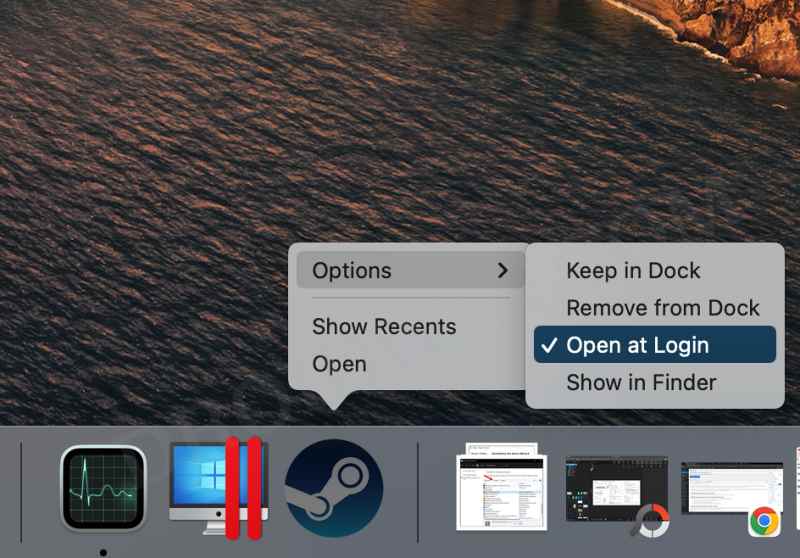
This is the easiest and shortest method to get the job done. Just right-click on the app of your choice and uncheck Open at Login. That’s it.
Disable Startup Apps on Mac via System Preferences
If you want to take a slightly longer route to disable/remove the startup apps on your Mac, then refer to the below instructions.
- Click on the Apple logo situated at the top left and select System Preferences.
- Then click on Users & Groups and go to the Login Items tab.
- Now select the app from the list and click on the minus sign situated at the bottom left.
Temporarily Disable Startup Apps on Mac
You could also temporarily disable the startup apps on your Mac for a one-time login basis. This means that the chosen apps will only be disabled for the next time you log into your Mac. As soon as you log out, the apps will again start up at boot. This method usually comes good in scenarios when you wish to debug and troubleshoot issues.
- To try it out, press and hold the Shift key while you log in.
- Then release the Shift key when you see the Dock.
- The startup will be disabled on your Mac just for this session.
- However, if you don’t see the login screen, then restart your Mac.
- After that, press and hold the Shift key while you see the progress bar.
- Then release the Shift key once the desktop appears.
How to Hide Startup Apps on Mac
While the app will still run in the backend and hog the system resources, but it wouldn’t bring up its home screen at every boot-up. So if you wish to opt for this method, then refer to the below instruction steps
- Click on the Apple logo situated at the top left and select System Preferences.
- Then click on users & Groups and go to the Login Items tab.
- Now select the app from the list and check the Hide column next to it.
- Cannot Format External SSD using Disk Utility on Mac [Fixed]
- Time Machine: The backup disk image sparsebundle could not be accessed (error 16)
- How to Create a New Text File in a Folder on Mac
- Netbiosd High CPU Usage on Mac: How to Fix

(Cancel Reply)
Δ
