How to Disable Private Browsing/Incognito Mode in Safari on Mac
In this guide, we will show you the detailed steps to disable the Private Browsing/Incognito Mode option in Safari on Mac. Whether you want to keep a tab on your child’s daily browsing activity or check out whether your employees are going into unchartered territory during working hours, your best course of action would be to go through their browsing activity.
While we aren’t going to debate whether these practices are ethical or not, one thing that we can not deny is the obvious fact that they will browse in a private environment so that there’s no trace of their activity in the browser’s history section. Well, it turns out you could easily disable the Private Browsing/Incognito Mode feature in the Safari browser on your Mac and hence stay one step ahead of your counterpart. So without any further ado, let’s check out how this could be carried out.
How to Disable Private Browsing/Incognito Mode in Safari on Mac
- Open System Settings and select Screen Time from the left-hand side.
- Then enable the toggle next to Screen Time and go to Content & Privacy.
- After that, go to Content Restrictions > Access to Web Content.
- Finally, select L imit Adult Websites from the drop-down menu.
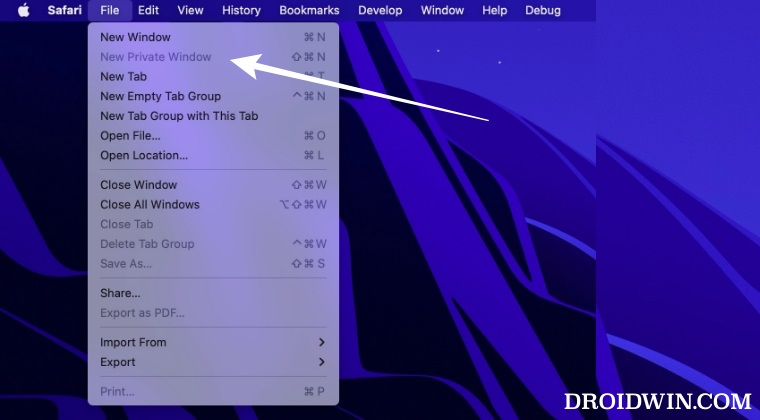
After performing the aforementioned steps, the Private Browsing/Incognito Mode option in Safari on your Mac stands disabled. Let’s now verify the same.
- First off, the Command+Shift+N shortcut key for opening a Private Browsing window will no longer work.
- Likewise, if you click on the Safari drop-down menu, then the Clear History option will be greyed out as well.
- How to Disable Clear History option in Safari on Mac
- Stutters and lags when scrolling in Safari: How to Fix
- Safari 16 in macOS cannot load multiple tabs at once
- Disable JavaScript in Safari [Also for Specific Website]

(Cancel Reply)
Δ
