How to Disable Service Provider Update on Samsung
In this guide, we will show you the steps to disable the Service Provider Update on your Samsung device. To access region as well as carrier-restricted features, many users prefer to change the Country Specific Code on their Samsung device and then subsequently flesh the firmware of that region via Sideload or Odin.
However, in the process of doing so, they are greeted with the Service Provider Update prompt on their Samsung device which tends to reset their entire progress. Moroever, the fact that you are prompted with alerts at regular intervals in itself doesn’t qualify as a handy user experience. So is there a way out? Yes, you could disable this notification by disabling or uninstalling its underlying process via ADB Commands. And in this guide, we will show you how to do just that. Follow along for the instructions.
- How to Disable Service Provider Update on Samsung STEP 1: Install Android SDK STEP 2: Enable USB Debugging STEP 3: Verify ADB Connection STEP 4: Disable/Uninstall CID Manager
- How to Re-Enable Service Provider Update on Samsung
How to Disable Service Provider Update on Samsung
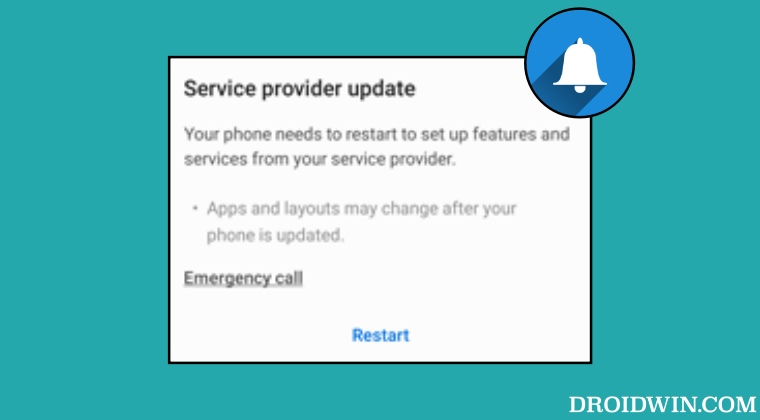
This prompt is being sent by the CID Manager system app. So to prevent it from happening, you will have to disable it [recommended] or take a nuclear route of completely uninstalling it from your device. Here’s how both these tasks could be carried out.
STEP 1: Install Android SDK

First and foremost, you will have to install the Android SDK Platform Tools on your PC. This is the official ADB and Fastboot binary provided by Google and is the only recommended one. So download it and then extract it to any convenient location on your PC. Doing so will give you the platform-tools folder, which will be used throughout this guide.
STEP 2: Enable USB Debugging
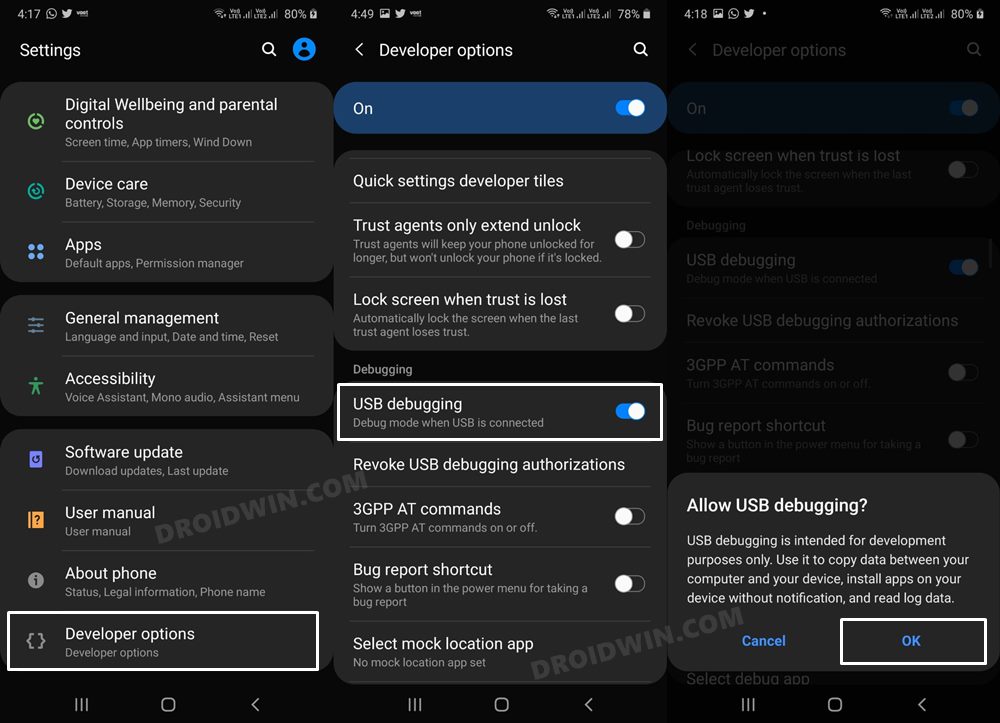
Next up, you will have to enable USB Debugging on your device so that it is recognizable by the PC in ADB mode. So head over to Settings > About Phone > Tap on Build Number 7 times > Go back to Settings > System > Advanced > Developer Options > Enable USB Debugging.
STEP 3: Verify ADB Connection
- To begin with, connect your device to the PC via USB cable. Make sure USB Debugging is enabled.
- Then head over to the platform-tools folder, type in CMD in the address bar, and hit Enter. This will launch the Command Prompt.
- Now in the following command in the CMD window to verify the ADB connection: adb devices
- If you get the device ID, then the connection stands successful. Now type in the below command to open the Shell environment: adb shell
- It will now list out your device codename, which means that the shell connection has been successfully established as well, and you are good to go ahead.
STEP 4: Disable/Uninstall CID Manager
- Execute the below command in the CMD window to disable the CID Manager app: pm disable-user – user 0 com.samsung.android.cidmanager
- On the other hand, type in the below command to uninstall the CID Manager app: pm uninstall –user 0 com.samsung.android.cidmanager
- You will now no longer get the Service Provider Update on your Samsung device.
How to Re-Enable Service Provider Update on Samsung
If at any point in time, you wish to revert the process or re-enable the Service Provider Update, then you just have to re-enable or reinstall the CID Manager.
- If you had disabled CID Manager, then use the below command to re-enable it: pm enable-user – user 0 com.samsung.android.cidmanager
- If you uninstalled CID Manager, then use the below command to re-install it. cmd package install-existing com.samsung.android.cidmanager
- Disable Adaptive Brightness when Camera is active in Samsung
- How to Use Google AutoFill in Samsung Galaxy S23 Ultra
- Samsung Secure Folder Crashing: How to Fix
- How to Activate AOD only when Samsung device is charging

- Kingsley 1 year ago Reply What’s the function of the Service provider update. If disabled/uninstalled, will it affect the phone in any way
(Cancel Reply)
Δ
