How to Disable Suggested Actions in Windows 11 [3 Methods]
In this guide, we will show you three different methods to disable the Suggested Actions on your Windows 11 PC. The Redmond giant has recently rolled out the latest 22H2 update and with that, there are a plethora of new features that you are about to welcome. Some of the noteworthy ones include the Taskbar overflow , the new Open With dialog box, Tabs in File Explorer, and Suggested Actions .

However, it is the latter one that is giving out a tough time to the end users. According to some of the users, whenever they double-click on any paragraph or sentence that has a phone number, or email, the Suggested Actions gets invoked, even though users weren’t even trying to interact with it. Rather they wanted to perform a right click and then select from one of the available options in the context menu.
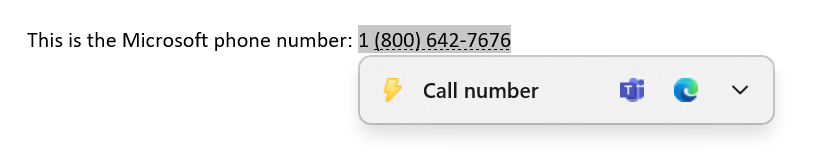
However, since the Suggested Actions kicks in, it tends to conflict with the right-click menu and ends up disrupting their normal workflow. If you also echo a similar thought process, then you will be glad to know that there exists three different methods through which you could easily disable the Suggested Actions on your Windows 11 PC. And in this guide, we will make you ware of just that. Follow along.
- How to Disable Suggested Actions in Windows 11 Via Settings Menu Using Command Prompt Via Registry Editor
How to Disable Suggested Actions in Windows 11
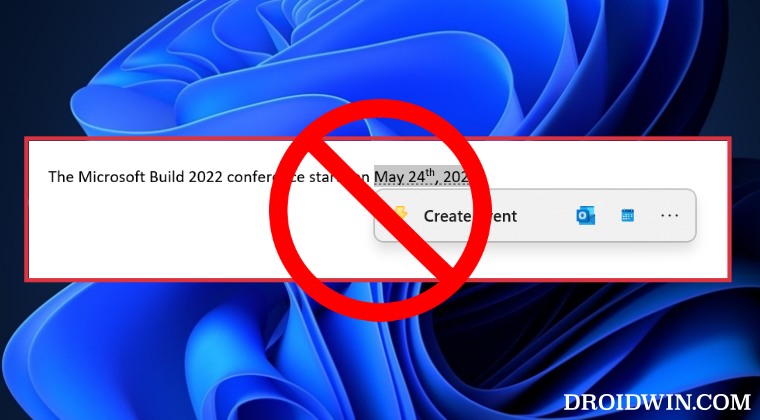
We have listed here three different methods that will help you get the job done. Go through each of these methods once and then try out the one that is in sync with your requirement.
Via Settings Menu
- Bring up the Settings menu via Windows+I shortcut keys.
- Then select System from the left-hand side and go to Clipboard.
- Finally, disable the toggle next to Suggested Actions. That’s it.
Using Command Prompt
If you have enabled the Suggested Actions using the open-source ViveTool , then you just need to disable its module using the below command. Here’s how:
- Launch Command Prompt as an administrator from the Start Menu.
- Then execute the below command in the CMD window and hit Enter: vivetool /disable /id:34592303
- That’s it. It will disable the Suggested Actions on your Windows 11 PC.
Via Registry Editor
- Open Registry Editor from the Start Menu and head over to the below location HKEY_CURRENT_USER\Software\Microsoft\Windows\CurrentVersion\SmartActionPlatform\SmartClipboard
- Then go to the right-hand side and open the Disable key [if it is not there, then create it first].
- Now change its value to 1 to disable the Suggested Actions in Windows 11.
- Cannot Open Apps from Taskbar in Windows 11: How to Fix
- Windows 11 Version 22H2 KB5017321: Download error 0x800f0806 [Fixed]
- This app can’t be activated when UAC is disabled: Windows 11 [Fix]
- How to Enable Taskbar Overflow in Windows 11 Right Away!

(Cancel Reply)
Δ
