How to Disable System Notifications on Android
In this guide, we will show you the steps to disable system notifications on your Android device. There are some aspects of a smartphone that stands right there at the top of the pecking order but doesn’t get the appreciation it deserves. Notifications surely fall into that domain. It is hard to imagine how difficult would our task have been if it weren’t for these handy popups. But in some instances, they could be a little bit hard to digest and rather end up infuriating the end-users.
Who wants these indications anyway?
These notifications could be broadly categorized into two segments. The first one is from the user-installed apps such as WhatsApp, Facebook, and the likes. On the other hand, the next set compromises of system notifications. Some of the most common ones in the latter segment could be the notification of the “battery is fully charged”, the “ screenshot taken “, the “ update is ready to be installed “, and the likes. And it is this second set of notifications that is generally a cause of the problem.
While you could easily disable or turn off the notifications from WhatsApp, Instagram, and the likes, the same isn’t possible for system-level prompts. But even then there does exist a handy way to disable these system notifications on your Android device. The option is baked so deep inside the device’s settings menu that it might take ages for some to find this option. But fret not, this guide is here to help you out. Given here are the detailed instructions along with the required screenshots that shall help you achieve this task. Follow along.
- Your device is continuously recording all your talks, here’s the proof!
- Were Google Servers Hacked that Day?
- How to Restore an Old WhatsApp Chats Backup
- Send Fake Live Location on WhatsApp
How to Disable System Notifications on Android
The best part about this is the fact that you don’t need to take the help of a third-party app. No matter which device you own, this option shall be present on your device. In other words, the below instructions are applicable across all OEMs. So without further ado, let’s get on with the steps to disable the system notifications on your Android device.
- To begin with, head over to the Settings page on your device.
- Within that, scroll to the Apps and Notifications section.
- Then tap on See all xxx apps (where xxx is the number of apps installed).
- You will be taken to the App Info page, which by default will only display the user-installed apps.
- To make it display the system-level apps as well, tap on the overflow icon situated at the top right and select Show system.
- This will bring up the system apps as well. Scroll to the System UI app and tap on it.
- Now go to its Notification section.
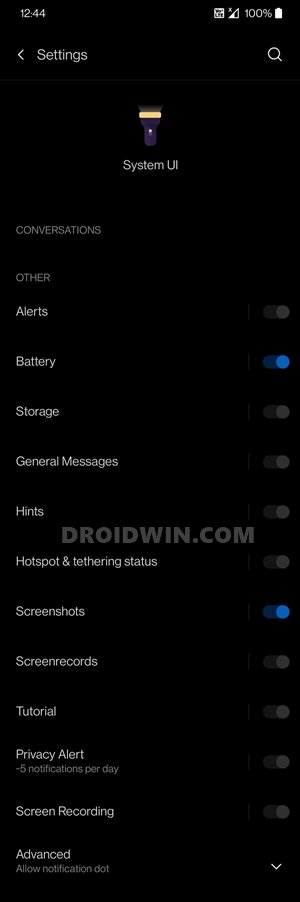
- Finally, disable the toggle next to the system notifications that you don’t wish to receive. That’s it.
- How to Take Screenshots in Restricted Apps on Android
- Replace Reels with the Search bar on Instagram
- How to Get a Temporary Blue Tick on Instagram
- Could You Change your Instagram Name Twice within 14 Days?

- 99 CLUB LOGIN 6 months ago Reply Great tips! I’ve been struggling with constant notifications and this guide made it super easy to disable them. Thanks for the clear instructions!
- 666 Lottery 7 months ago Reply Great post! Disabling those system notifications was exactly what I needed to declutter my phone. The step-by-step guide was super helpful. Thanks for sharing!
- TIRANGA GAME LOGIN 7 months ago Reply Great tips! I didn’t realize how easy it was to customize notifications on my Android. Thanks for breaking it down step by step!
- yt1s 1 year ago Reply Great guide! Disabling those pesky system notifications has made such a difference in my daily use of my Android device. Thanks for the step-by-step instructions!
- Lost Life Apk 1 year ago Reply Thank you for this detailed guide! I’ve been looking for a way to reduce distractions from notifications, and your step-by-step instructions made it so easy to follow. I really appreciate the tips on customizing notification settings for specific apps. Keep up the great work!
- INSTAGRAM APK 1 year ago Reply Great tips! Disabling those pesky notifications has made my phone experience so much smoother. Thank you for the clear instructions!
- Don’t ask i wont tell 2 years ago Reply This is basically just saying to turn if the notification like any other app. Which makes it clickbait. We’re trying to figure out how to remove notifications that are greyed out or blocked from the user’s control
- Jason 2 years ago Reply Useless article.. Can’t disable anything!
- Ed 2 years ago Reply Genius, you can’t deselect it
- Andrew 2 years ago Reply All toggles are disabled in my Android 13 UI
- Shahyan Abbas 3 years ago Reply the notification toggle button for system apps is greyed out
- david 4 years ago Reply I’ve tried this method with my Huawei P30 pro but it blocks me from disabling notifications from certain aspects, such as “do not distrub”. Is this a problem unique to Huawei phones?
(Cancel Reply)
Δ
