How to Disable Thermal Limit on Samsung [Fix Brightness Issue]
In this guide, we will show you a nifty method using which you can disable the thermal limit on your Samsung device. Recently, I got my hands on a Samsung Galaxy S24 Ultra for testing purposes. Once I took it out with myself during the day time when the temperature was hovering around 45 degree Celcius. Truth be told, this wasn’t the first phone I had taken out in this hot temperate, but this was the first one that started acting abruptly.
The brightess started dipping to around 200 nits/arround 30% and would just stay there, there was now way whatsoever to increase it [even Adaptive brightness didn’t do any good]. As a result of this low brightness, I wasn’t able to see most of the contents on my device. So when I went back home, the first thing I did was to search for ways to address this “issue”. And I did found one, however it wasn’t the best one.
You can fix this problem using the Alliance Shield and Notfiy RDS app. So what was the problem? Well, the former asked to shell out $2. While the amount wasn’t that much, but spending out bucks for rectifying an issue in which we had no role to play did sounded like the most viable thing to do.
So I started doing some research as to what exactly did this app did and can’t it be done using any other app/method. I found out that we need to open this activity with device owner mode – com.sec.android.sdhms and within that open the com.sec.android.sdhms.debugger.ui.ThermalLimitSettingActivity and disable the thermal limits.
And when it comes to dealing with system activties, I had already done similar tweaks using Shizuku and System UI Tuner . So I apllied similar tweaks here as well, and guess what, I was able to get the job done with ease! No need to spend any bucks or root your device! So without any further ado, let me show you how you can get this job done as well. Follow along.
How to Disable Thermal Limit on Samsung [Fix Brightness Issue]
- First off, download and extract Android SDK Platform Tools .
- Then enable USB Debugging and connect your device to PC.
- After that, download, install, and set up the Shizuku app.
- Now download and install System UI Tuner on your device.
- Now launch it and scroll to the screen where it asks for commands.
- Then open Command Prompt inside the platform-tools folder and type: adb shell pm grant com.zacharee1.systemuituner android.permission.WRITE_SECURE_SETTINGS adb shell pm grant com.zacharee1.systemuituner android.permission.DUMP adb shell pm grant com.zacharee1.systemuituner android.permission.PACKAGE_USAGE_STATS
- Now complete the setup and then go to System > Lock Screen > Lock Screen Shortcuts.
- You’ll now get a Shizuku prompt, tap Allow all the time. Now select either Left or Right Shortcut.
- Then search sdhms and select Samsung Device Health Manager service.
- Then select the second activity [SettingActivity] and hit OK [see NOTE].
- Now open that shortcut from the Lock Screen [left or right, depending on what you have set].
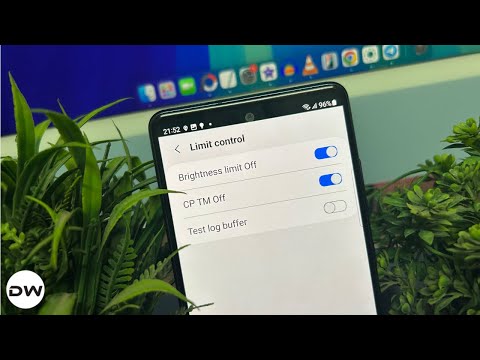
- Finally, enable the Brightness Limit Off and CP TM Off toggles. That’s it.
NOTE: If you choose the first activity [StatusActivity], then you’ll be taken tot he SDHMS History Viewer with all the required data. You may then tap on the overflow icon and select Limit Control. It will take you to the same screen where SettingActivity took us. From there, you may then enable the Brightness Limit Off and CP TM Off toggles [as discussed above].

- How to Disable Thermal Throttling on Galaxy S25 Ultra
- Notification Panel Bug on Galaxy S25 Ultra: How to Fix
- How to Fix Throttling Issues on OnePlus Devices
- Super HDR Mode Disabled in Galaxy S25 Ultra: Fixed

- Alice 5 months ago Reply Are there any updated workarounds for One UI 8.0? As the System UI Tuner have found the package and activity, but it doesn’t show on lock screen after changed to it.
- Jerry 5 months ago Reply It’s not working It does nothing
- Alex 9 months ago Reply Just tried this and it is not working. Had high hopes… I write the promts in adb but after I add the shortcuts and try to open them they do nothing….the funny fact is that system ui tuner is not asking for shizuku permission after promts in adb like the images under step 8. It is driving me mad… If you could provide some further asssistance it would be highly apreciated. I can’t stop thinking..maybe I did something wrong….. Please provide some further asssitance. Best Regards, Alex Maciu Sadique Hassan 9 months ago Reply Please launch Shizuku and tap on Authorized x Applications [x will be a number]. Then enable the toggle next to System UI Tuner. Then relaunch System UI Tuner and you should now get the Shizuku prompt.
(Cancel Reply)
Δ
