How to Disable/Remove Widgets from Google Search page
In this guide, we will show you two different methods to disable or remove all the widgets from the Google Search page. The start page from the Silicon Valley giant has always earned praise for offering a clean and minimalistic approach when it comes to its search page. However, the search giant is also notoriously infamous for carrying out A/B testing involving a random set of users who didn’t even ask to be part of this test in the first place.
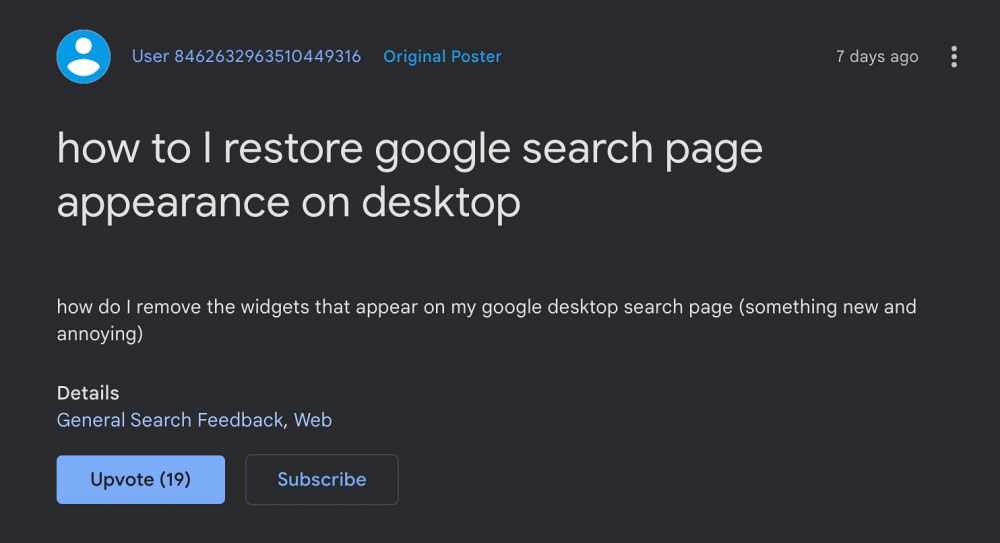
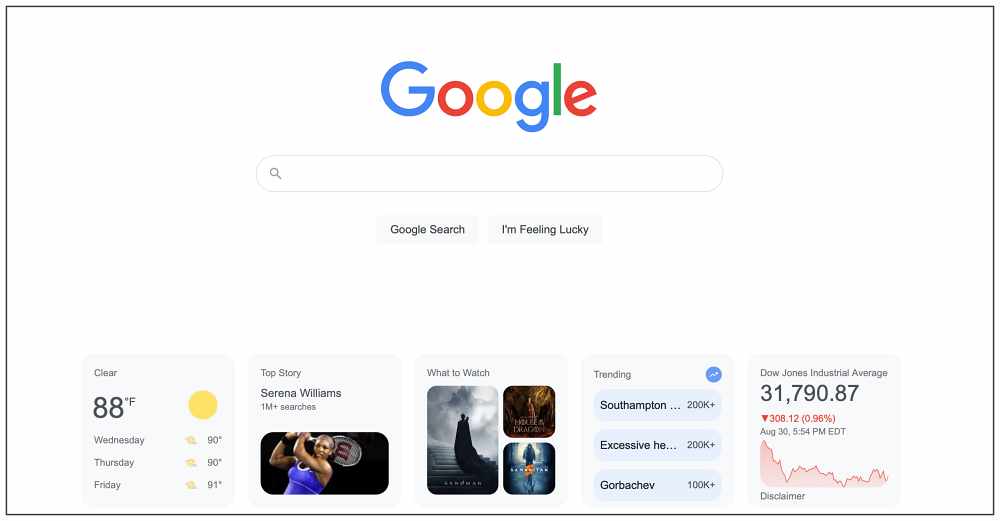
The few unlucky users who have got this update are having quite a tough time, more so due to the fact during the testing phase, Gooogle doesn’t give any option to disable/enable the implemented features. So is there any way out to break the shackles and come out of this bloated ecosystem? Well, there do exist two nifty workarounds that might help you. So without further ado, let’s check them out.
- How to Disable/Remove Widgets from Google Search page FIX 1: Disable Java FIX 2: Blocking the Elements
How to Disable/Remove Widgets from Google Search page
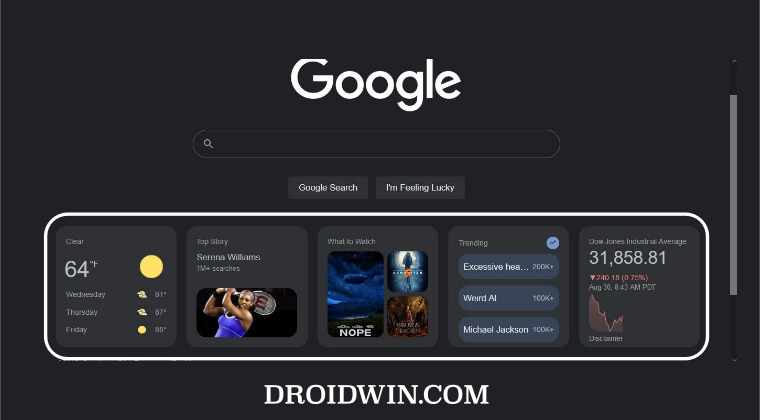
It is recommended that you try out each of the below-mentioned workarounds and then see which one spells out success for you. So with that in mind, let’s get started.
FIX 1: Disable Java
- Launch Chrome, click on the overflow icon situated at the top right, and select Settings.
- Then select Privacy and Security from the left menu bar and click on Site Settings.
- After that, go to Java Script and click on Add next to Not allowed to use JavaScript.
- Now type in www.google.com in the URL box and click on Add. That’s it.
- This will disable Java on the Google home page and will subsequently disable all the widgets.
FIX 2: Blocking the Elements
Since I’m not a part of the beta testing group, I wouldn’t be able to carry out the below steps on the widgets. So I will be taking a particular section of the site and will show you how to hide it. You just have to carry out the exact same steps on those widgets and they would be hidden for good. So on that note, let’s get started.
- To begin with, download and install the uBlock Origin extension in the browser.
- Then right-click on one of the widgets and select Block Elements.
- Now hover the mouse pointer over the widget so that it gets highlighted.
- Then right-click on it and select uBlock origin > Block Element in frame.
- A dialog box will now appear at the bottom right, click on Create.
- This will hide the selected frame [widgets]. Now repeat the steps for the rest of the widgets. Frame [Image] Hidden!
- This will disable/remove all the widgets from the Google Search page.
This trick survives a refresh of the page as well, so you shouldn’t worry about that. Moroever, there could be other ad-blocker extensions out there that come with the support for blocking elements. You may try out any one of your choices. uBlock Origin is just used for reference purposes.
As far as the official stance on this matter is concerned, the developers are aware of it, but they haven’t given out any ETA for the rollout of a “fix”. As and when that happens, we will update this guide accordingly. In the meantime, the aforementioned workarounds are your best bet.
- Right-Click not working in Chrome Elements tab [Fixed]
- How to Uninstall Widgets in Windows 11
- Widgets Not Working in Windows 11: How to Fix
- How to Disable Widgets in Windows 11

- Alessandro 3 years ago Reply Thanks for this, I use Safari so how do I disable Java just for google.com? Sadique Hassan 3 years ago Reply Well, that’s the issue with Safari. You cannot disable JavaScript just for one site, you could only disable it across the entire browser [from Safari > Preferences > Security]. But since disabling JavaScript throughout the browser wouldn’t be a great idea, I guess your only course of action is to use a third-party ad-blocker, such as the one I have listed in FIX 2 of this guide.
(Cancel Reply)
Δ
