How to Downgrade Google Play Store [Without Root]
There can be quite a few reasons why you would want to downgrade the Google Play Store to its older version. For instance, the License Check Verification failed due to an error in the Play Store. As a result of this, all the paid apps just refused to function because those apps were being tagged as downloaded from a third-party site and not legally purchased.
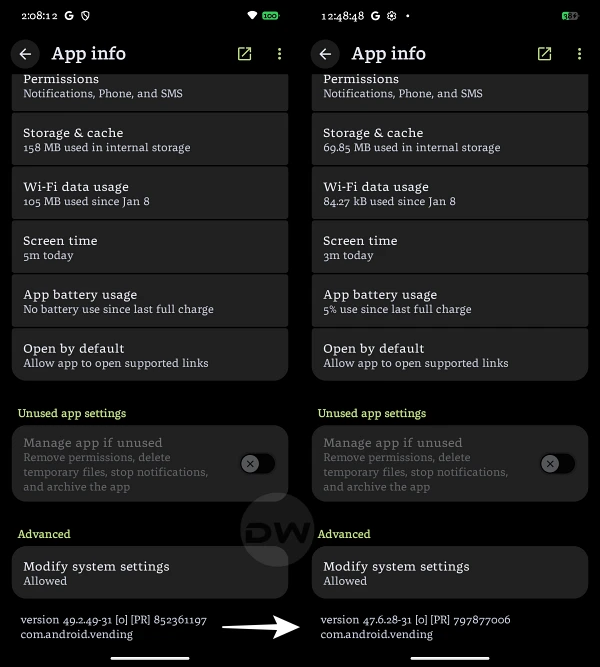
Likewise, those of you who deal with the keybox file to pass Strong Integrity would have come across the need to get this job done numerous times. Well, there can be a plethora of other reasons why there might be a need for this. So without any further ado, let’s make you aware of the steps to get this job done right away.
- How to Downgrade Google Play Store [Without Root]
- How to Go Back to the Latest Version of Play Store METHOD 1 METHOD 2
- Video Guide
How to Downgrade Google Play Store [Without Root]
- To begin with, launch the Play Store, tap on your profile, and select Settings.
- Then go to Network Preferences > Auto-Update Apps > Don’t auto update apps.
- Now go to Settings > Apps > Play Store > Tap on the overflow icon at the top right.
- Then tap on Uninstall Updates > OK. Now download an older version of the Play Store.
- Then install it. If it’s in APKM format, use the SAI Installer to install it .
- Once you have installed an older version of the Play Store, launch it and go to Settings > Network Preferences > Auto-Update Apps > Don’t auto update apps [although we did this earlier, however, after a downgrade, this setting gets reset, so we had to choose this option once again].
How to Go Back to the Latest Version of Play Store
If, for some reason, you wish to go back to the latest build of the Play Store, then you have two options at hand:
METHOD 1
Launch the Play Store and go to Settings > Network Preferences > Auto-Update Apps > Update over WiFi only.

METHOD 2
Launch the Play Store and go to Settings > About > Play Store Version > Update Play Store.

Video Guide

- How to Uninstall Google Play System Update [2 Methods]
- How to Fix Google Play Services Isn’t Supported Error
- Play Store Transaction was declined [OR- FGEMF-20] Fix
- Search Button Crashing the Google Play Store [Fixed]

(Cancel Reply)
Δ
