How to Download and Install iPadOS 17 on your iPad Right Away
In this guide, we will show you the steps to download and install the latest iPadOS 17 on your iPad. In the recently concluded Apple Worldwide Developer Conference, there was a slew of intriguing goodies to look forward to, across both the software and hardware domain. If we talk about the latter half, then the likes of the 15-inch Macbook Air, Vision Pro headset, and the new Mac Pro are the talk of the town.
On the other hand, when it comes to the software side, then the macOS Sonoma , tvOS 17, watchOS 10, and the seventeenth iteration of the iPhone and iPad OS upgrades managed to grab the attention of the masses. As far as the Cupertino giant’s beloved tablet is concerned, it has been blessed with a slew of noteworthy features. So without any further delay, let’s check them out. After this, we will show you the steps to install this update onto your tablet as well.
- What’s New in iPadOS 17?
- Which iPad Supports iPadOS 17?
- Download iPadOS 17
- How to Install iPadOS 17 on Your iPad For Devices running iPadOS 16.4 or later For Devices running iPadOS 16.3 or earlier
What’s New in iPadOS 17?
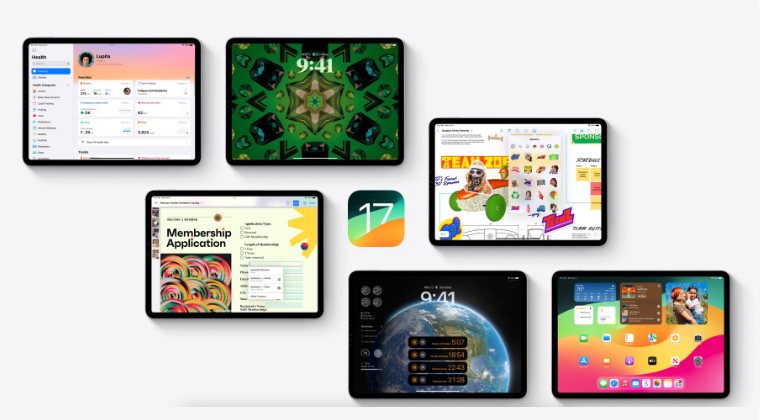
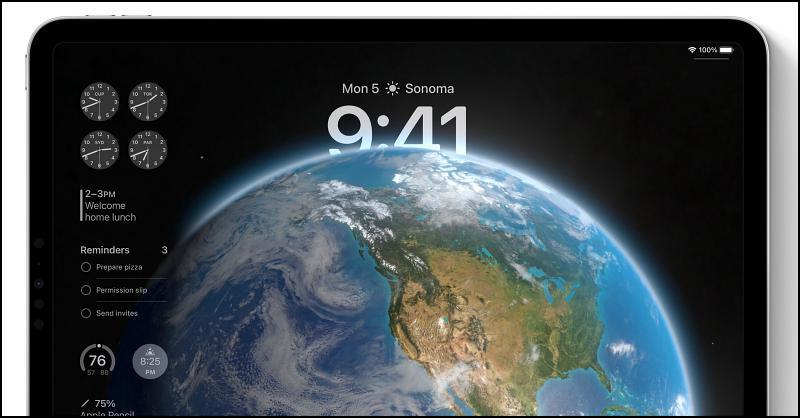
There are a plethora of new and intriguing goodies with the seventeenth iteration of the OS. For starters, the capabilities of Stage Manager have further been expanded, you could create multiple lock screens with different wallpapers, widgets, and font styles. Apart from that, you could now set personalized contact posts for others to see when you call them or make use of the Live Voicemail with voice-to-text transcription before answering.
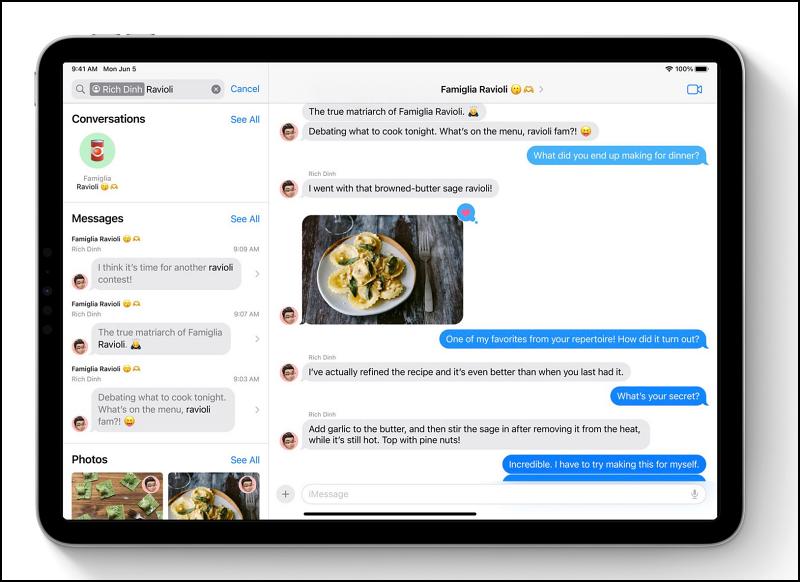
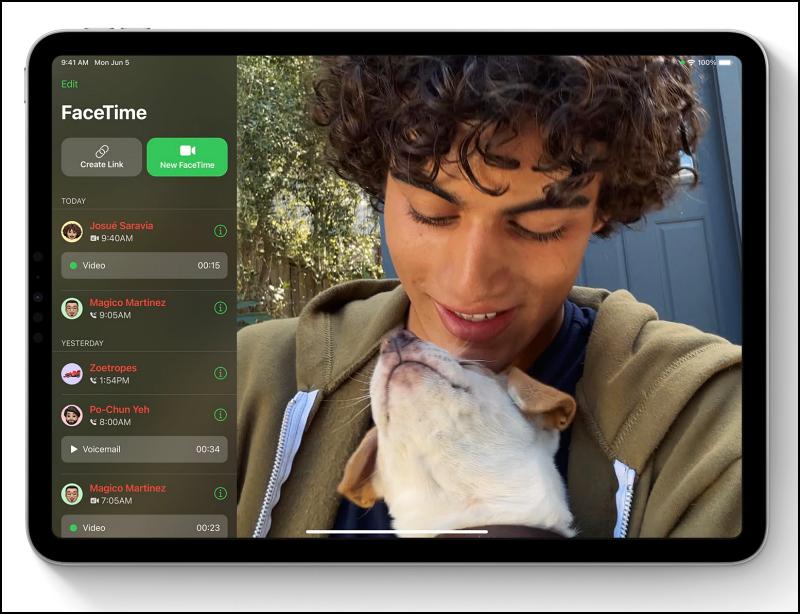
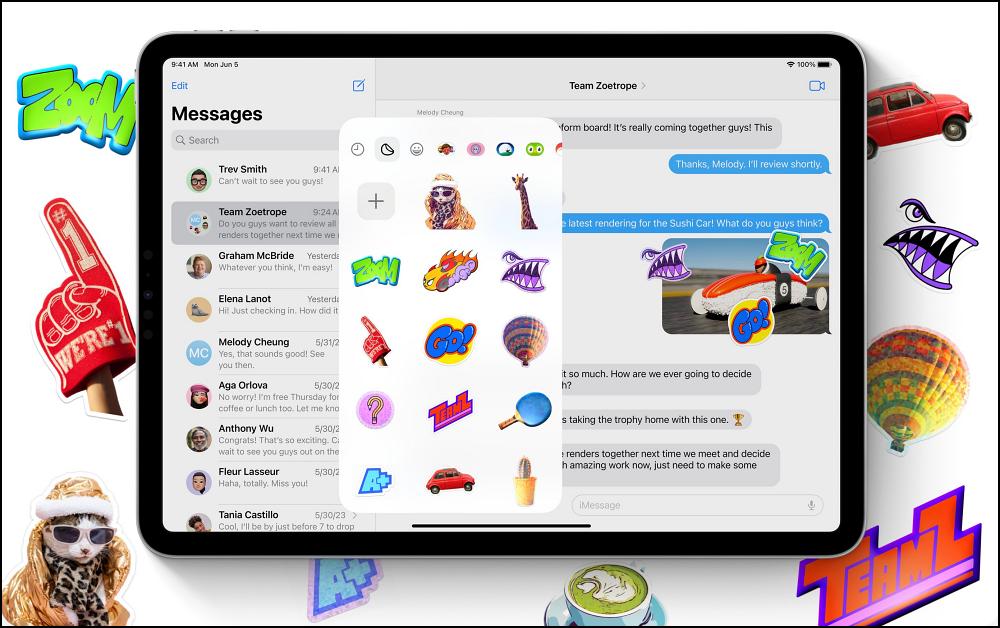
Likewise, FaceTime voicemail through a quick video recording, and Swipe to reply on the bubble are also a few new additions. NameDrop is a new way to share phone numbers and email sharing between nearby iPhones, and improved auto-correct, live stickers, and offline maps! If we talk about widgets, then the addition of StandBy coupled with SwiftUI, wherein the system adapts your widget’s color and spacing based on context, is surely going to be the talk of the town.
Apart from that, the likes of App Shortcut, Maps, In-App Purchases, SharePlay, Apple Pay, Passkeys, and TipKit have also been blessed with a few under-the-hood tweaks. Likewise, you. could now even check your health without the need for your iPhone. So without any further ado, let’s make you acquainted with the steps to welcome abode these functionalities onto your iPad right away.
Which iPad Supports iPadOS 17?
- iPad mini (5th generation and later)
- iPad (6th generation and later)
- iPad Air (3rd generation and later)
- iPad Pro (all models except 1st-gen 12.9-inch)
Download iPadOS 17
- 11-in. iPad Pro (4th generation), 12.9-in. iPad Pro (6th generation) 21A5248v
- 10.2-in. iPad (10th generation) 21A5248v
- iPad Air (5th Generation) 21A5248v
- iPad mini (6th generation) 21A5248v
- 10.2-in. iPad (9th generation) 21A5248v
- 11-in. iPad Pro (3rd generation), 12.9-in. iPad Pro (5th generation) 21A5248v
- iPad Air (4th generation) 21A5248v
- 10.2-in. iPad (8th generation) 21A5248v
- 11-in. iPad Pro (1st and 2nd generations), 12.9-in. iPad Pro (3rd and 4th generations) 21A5248v
- 10.5-in. iPad Pro (1st generation), 12.9-in. iPad Pro (2nd generation) 21A5248v
- iPad (5th generation), iPad (6th generation) 21A5248v
- iPad mini (5th generation), iPad Air (3rd generation) 21A5248v
- 10.2-in. iPad (7th generation) 21A5248v
How to Install iPadOS 17 on Your iPad
At the time of writing [6th June 2023], only the Developer Beta is available, with the public beta version slated for the month of July. Moreover, Developer Betas require a paid membership to Apple’s Developer Program ( this costs $99/year , though many users were able to get their hands on the update even without shelling out a single buck- simply by force closing the settings menu a couple of times!]. On the other hand, Public Betas are free but are released a couple of weeks after the Developer Beta.
For Devices running iPadOS 16.4 or later
- Head over to Settings > General > Software Update.
- Then go to Beta Updates and choose Developer Beta.
- You should subsequently receive the iPadOS 17 update.
For Devices running iPadOS 16.3 or earlier
- Download the iOS 17 update from the above section to your device.
- Then go to Settings > Privacy & Security and enable Developer Mode.
- Now restart your tab. Then go to Settings > General > Software Update.
- Then select the iOS 17 update file and it will be installed on your tablet.
- Cannot Hide Safari Tab Bar in iPadOS 16.4? It’s Removed!
- iPad missing in Universal Control Use keyboard and mouse [Fix]
- How to Activate Swipe Typing on iPad Keyboard
- Procreate Print not working on iPad: How to Fix

(Cancel Reply)
Δ
In this guide, we will make you aware of a potential method to mitigate the issue of Print not working in the Procreate app on your iPad. This raster graphics editor app for digital painting is among the most popular names in the smartphone and tablet domain. Based on the Valkyrie graphics engine, the software beholds a slew of intriguing features which when combined with the ease of usage on iPhone and iPad makes it the go-to choice for many.
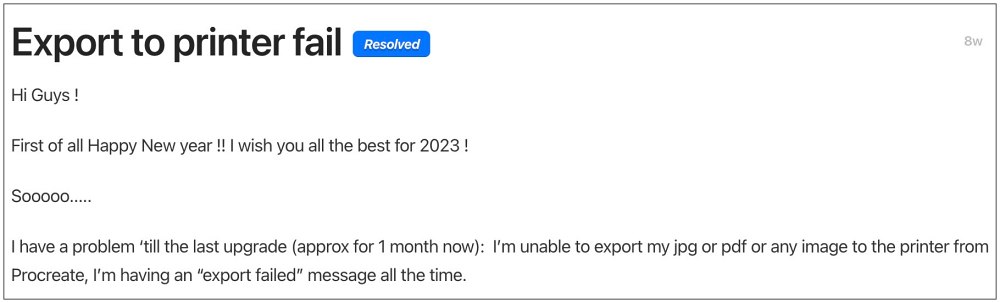
However, as of now, numerous users have voiced their concern that the Print feature is currently not working in the Procreate app on their iPad. Whenever they are trying to do so, they are instead greeted with the Export Failed error message. The issue first came to light after version 3.5.1 and hasn’t been patched in v3.5.2 either. With that said, there does exist a workaround that should help you bypass this issue. So without further ado, let’s check it out.
Fix Procreate Print not working on iPad
As of now, the only workaround that is spelling success for users involves saving the picture first to the gallery and then printing it from there. While it is definitely a lengthier approach but will at least get the job done for the time being.
So this was all from this guide on how you could mitigate the issue of Print not working in the Procreate app on iPad. As far as the official stance on this matter is concerned, the developers are aware of this issue, but they haven’t given out any ETA for the rollout of a fix. As and when that happens, we will update this guide accordingly.
- Procreate zoom not working in Liquify Mode [Fix]
- Cannot Import WEBP Images in Procreate
- Procreate App Crashing after using Layer Option: How to Fix
- Smart Sharpen in Adobe Photoshop Brings up Vertical Lines and Pixel Shift
(Cancel Reply)
Δ
