How to Download and Install SP Flash Tool | Flash Firmware Guide
In this guide, we will show you the steps to download, install and flash firmware using SP Flash Tool. MediaTek devices are growing in popularity with each passing day. Devices such as Tecno, Gionee, Infinix, have all managed to catch the attention of the masses. Moreover, during its initial phase, it wasn’t that much active in the custom development as compared with the likes of Snapdragon. But all that has changed, and for good.
Once you have unlocked the device’s bootloader, there are a plethora of tweaks waiting for a permanent abode onto your device. These include the likes of flashing custom ROMs, custom recoveries like TWRP or OrangeFox or gaining administrative access via Magisk . The latter is also known as rooting, which in turn will allow you to flash tons of mods. These include the likes of Magisk Modules , Xposed Framework , Viper4Android , Substratum Themes .
However, all these tweaks might prove to be quite risky. if you flash an incorrect mod or flash the correct mod to the incorrect partition, then things might go south. More often than not, a soft brick or bootloop device is on the cards. If things get worsened, then your device might even get hard-bricked. But on the fortunate side, all these issues could easily be rectified. And this guide shall help you with just that. Given here are the detailed steps to download, install and flash firmware using SP Flash Tool.
- What is SP Flash Tool Flash Stock ROM on MediaTek Devices Fix Bootloop/Brick MediaTek Devices Install TWRP on MediaTek Devices Root MediaTek Devices Support Various Chipsets Format Memory
- A Note About BROM Mode and Preloader File
- How to Download and Install SP Flash Tool | Flash Firmware Guide STEP 1: Download SP Flash Tool STEP 2: Download MediaTek Firmware STEP 3: Install MediaTek USB Drivers STEP 4: Set up the SP Flash Tool STEP 4: Boot Device to BROM Mode STEP 5: Start Flashing
What is SP Flash Tool
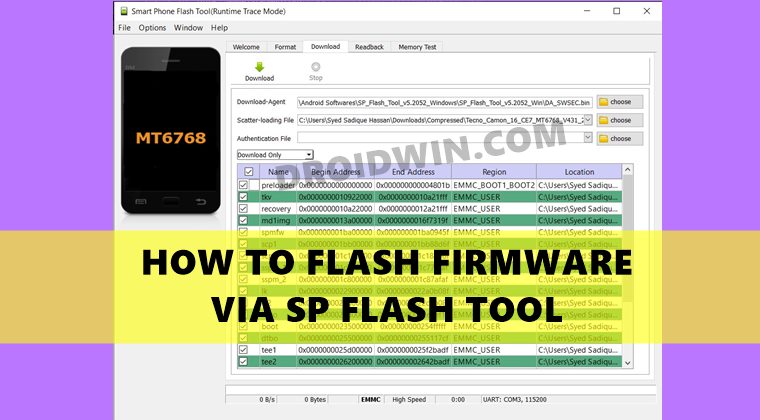
Smart Phone Flash Tool or more popularly known as SP Flash Tool is a one-stop tool for MediaTek devices. It comes baked in with a plethora of useful functionalities, here are some of the most important ones that deserve your attention:
Flash Stock ROM on MediaTek Devices
If you have yet to receive the OTA update, then you could manually flash the firmware file using this tool.
Fix Bootloop/Brick MediaTek Devices
Install TWRP on MediaTek Devices
Root MediaTek Devices
Support Various Chipsets
This tool supports various MTK chipsets, including MT62xx, MT65xx, MT67xx, and MT68xx.
Format Memory
You could also format NAND, EMMC, or SDMMC flash memory of your device.
A Note About BROM Mode and Preloader File
It seems that Xiaomi has disabled BROM Mode on a bunch of devices, such as the Poco C65 and Redmi 13C, and has instead enabled the Preloader Mode. The issue with this Preloader Mode is that the device cannot be simply flashed with SP Flash Tool, as the Preloader mode requires authorization from Xiaomi Server. So, we will first have to flash the Engineering Preloader file on the device to disable the Preloader Authentication.
- Download and extract the Android SDK Platform Tools on your PC.
- Then download the preloader.bin file and transfer it to the platform-tools folder.
- Next up, boot your device to Fastboot Mode using the below command: adb reboot bootloader
- Now open Command Prompt inside the platform-tools folder.
- Then, type in the command below to flash this preloader.bin [change the file name in the below command accordingly]: fastboot flash preloader gale_factory.bin
- Finally, boot your device to the OS using the below command: fastboot reboot
- You may now proceed and flash the firmware via SP Flash Tool.
How to Download and Install SP Flash Tool | Flash Firmware Guide

The below instructions are listed under separate sections for ease of understanding. Make sure to follow in the exact same sequence as mentioned. Droidwin and its members wouldn’t be held responsible in case of a thermonuclear war, your alarm doesn’t wake you up, or if anything happens to your device and data by performing the below steps.
STEP 1: Download SP Flash Tool
- To begin with, download the latest version of SP Flash Tool: SP_Flash_Tool_v5.2052_Windows.zip .
- Once downloaded, extract it to any convenient location on your PC.
STEP 2: Download MediaTek Firmware
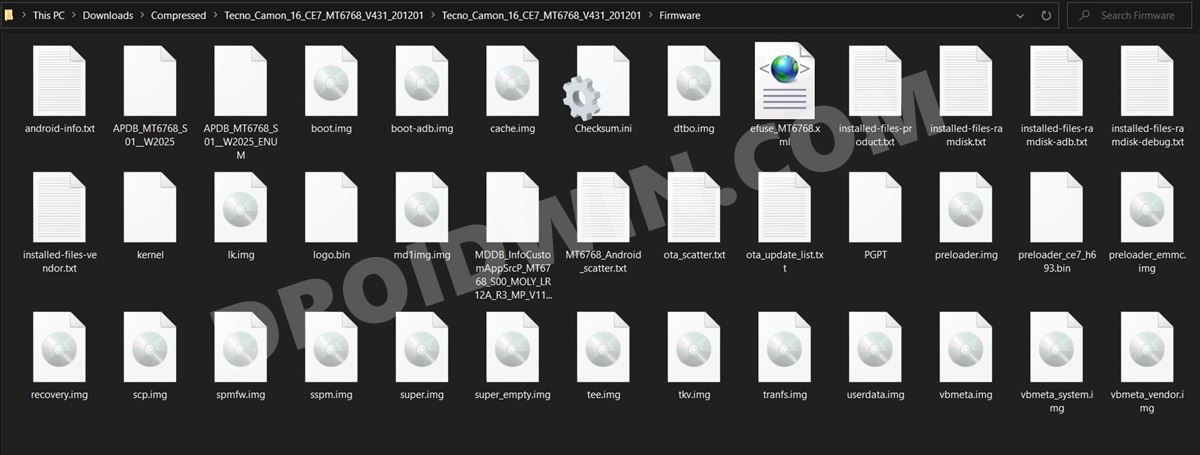
Next up, download the MediaTek firmware for your device. There isn’t any official site as such from where you could download this firmware. However, a Google search will be enough to bring up plenty of sites having the MTK firmware. So go ahead, download it and then extract it to any location on your PC
STEP 3: Install MediaTek USB Drivers
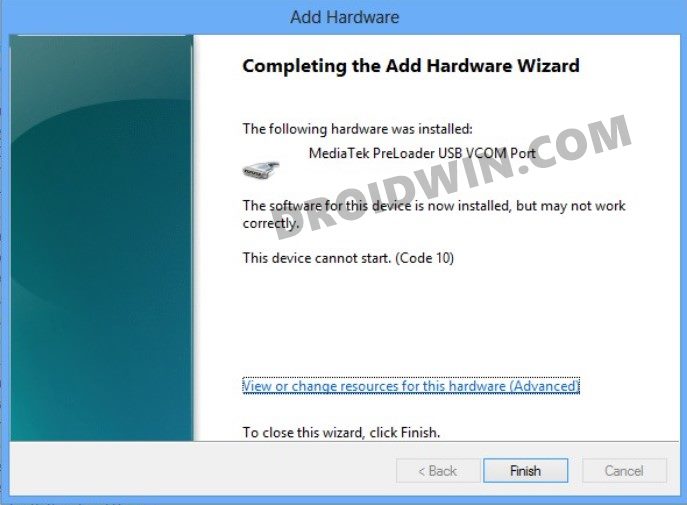
You will also have to download and install the MediaTek USB VCOM Drivers . This is needed so that your PC is able to identify the connected device.
NOTE: Now there are two ways that you could opt for for flashing the firmware via SP Flash Tool [we are opting for the first method]:
- Set up the SP Flash Tool with the necessary files and start it as well. After that, connect your device to the PC in BROM Mode. The tool will identify the device in BROM Mode, and the flashing will start.
- First, boot your device to BROM Mode and then set up the SP Flash Tool and subsequently start the flashing process.
STEP 4: Set up the SP Flash Tool
- Head over to the folder where you have extracted the SP Flash Tool.
- Then double-click on the flash_tool.exe file to launch it.
- Now, click Choose next to Download-Agent and select the DA_SWSEC.bin/MTK_AllInOne_DA.bin file from the SP Flash Tool folder.
- If it’s not there or if that file didn’t work out, usually in the case of non Secure Boot devices, then you may load the DA_SWSEC.bin/MTK_AllInOne_DA.bin file present in the firmware folder.
- After that, click on the ‘Choose’ button next to the Scatter-loading File section.
- Navigate to the extracted firmware file and select the Android Scatter Text file.
- The file will now be loaded to the tool and all the partition information will be subsequently filled in. NOTE: You should also verify that the flashing mode is set to “Download Only”.
- Then click Choose next to Authentication and select the auth_sv5.auth file from the firmware.
- Now uncheck the Preloader partition and then hit the Download button to start the flashing process.
STEP 4: Boot Device to BROM Mode
There are two different methods through which you could connect your device to the PC. The first method is for those devices that have a removable battery, whereas the second one is for non-removable battery smartphones. Proceed with the one that meets your requirements.
- Removable Battery: Power off your device and remove the battery. Then keep your device in this state for around 20 seconds. After that, reinsert the battery (but keep it turned off) and connect your device to the PC via USB cable.
- Non-Removable Battery: Power off your device. Then, press and hold the Volume Up and Down keys together and connect your device to the PC via USB cable.
STEP 5: Start Flashing
- As soon as the tool identifies your device in BROM Mode, it will start flashing the firmware to your device, which could take a couple of minutes. Once done, you shall be notified via the Download OK message.
- At this instance, you may unplug the device from the PC, close the tool, and reboot your device (if that doesn’t happen automatically).

- Akorede Akinfenwa 2 years ago Reply My gioneeS10b wont flash It will pop up a system notification that the laptop doesn’t recognize the device or something like that Please help me And also help me with auth file
(Cancel Reply)
Δ
