How to EDL Flash via DeepSmartTool and Unbrick OnePlus
It has been a great few weeks for tech enthusiasts as we are getting blessed with one EDL tool after another. After months of waiting, we were blessed with the OPLUS EDL Tool, which does a great job in flashing EDL/OFP/OPS firmware in the Qualcomm HS-USB QDLoader 9008 Mode and bringing your device back to life. Apart from that, it can also take a backup of the device’s partition, erase partitions, or flash individual partitions as well. And now, we have another player in this domain. So what exactly is the functionality of this tool, and is it really better than the one we already have? Let’s find out.
- What is DeepSmartTool? Core Functions for 9008 (EDL) Mode Qualcomm Partition Management Xiaomi-Specific Functions System Auxiliary and Driver Functions Partition Management
- Device Supported by DeepSmartTool
- What About ELF/MBN Files for Flashing
- Supported Chipsets Automatic OPPO (Qualcomm Series) OnePlus (一加) Xiaomi (小米) Oplus [OnePlus/Oppo/Realme] / OuJia (欧加) Black Shark (黑鲨)
- How to Flash EDL Firmware via DeepSmartTool and Unbrick Device
- Will I Use This Tool?
What is DeepSmartTool?

DeepSmartTool is a flashing tool for OnePlus, Realme, and Oppo that allows for flashing firmware in EDL Mode, taking partition backup, and reading and writing partitions. Apart from that, it also supports a few functionalities for Xiaomi devices, including the ability to download ROMs directly from the servers. On that note, let’s dive deep into all the features of this tool.
Core Functions for 9008 (EDL) Mode
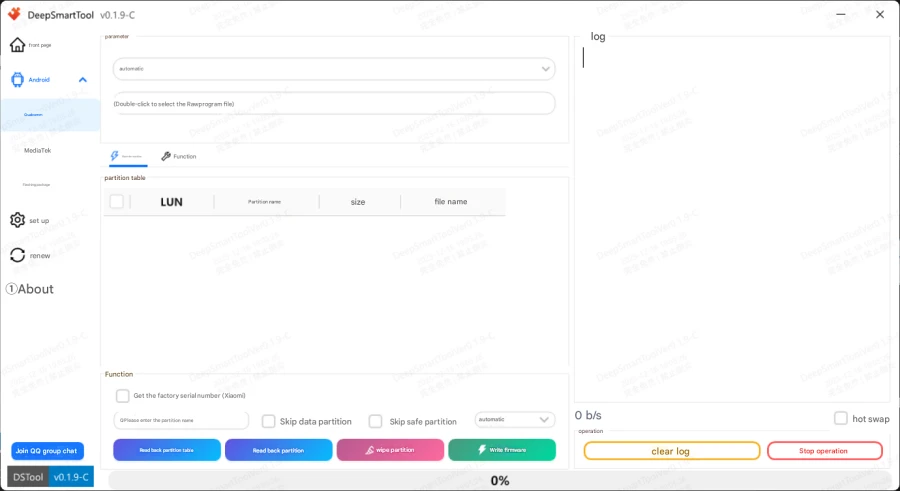
The entry is located in the “Android → Qualcomm” module in the left navigation bar, compatible with Qualcomm chip devices from OPPO, OnePlus, Realme, and Xiaomi series. It can force-activate the 9008 port without an official signature (the tool only supports automatic detection and does not provide a manual designation function), and supports underlying operations such as partition reading/writing and erasure. The module interface includes three core areas: “Parameter Configuration”, “Partition Table Display”, and “Log Monitoring”, with real-time visual operation status.
Qualcomm Partition Management
Integrated in the “Android → Qualcomm” module, the tool has pre-installed .elf/.mbn format boot files dedicated to OPPO, OnePlus, and Realme devices. For easy operation distinction, the tool uses evasive identifiers such as “OVVO”, “Transsion”, and “Yijia” (corresponding to OPPO and OnePlus models, respectively). It supports importing Rawprogram configuration files and DevPrg boot files, and the device information query function is embedded in the management page of this module.
Xiaomi-Specific Functions
The entry is in the “Android → Flashing Package” module in the left navigation bar, including three sub-tabs: “Phone Query”, “ROM Download”, and “Update Log”. It supports unlimited-speed download of official Xiaomi ROMs and IMEI/serial number query (the function is completely free, and data calls Xiaomi’s official API to ensure accuracy).

System Auxiliary and Driver Functions
Concentrated in the “Settings” module in the left navigation bar, covering the automatic installation of Qualcomm drivers and Android drivers, as well as debugging tools such as “Quick Open Device Manager” and “Quick Start Cmd”. The driver status can be automatically detected and repaired.
Partition Management
As an auxiliary function of 9008 mode, it supports partition backup (generating mobile phone image files, commonly in .bin and .img formats) and selective erasure, but does not provide data recovery capability. Core operation buttons include “Read Partition Table”, “Read Partition”, “Erase Partition”, and “Write Firmware”.

Device Supported by DeepSmartTool
- Oppo series (Qualcomm chip models)
- OnePlus series (Qualcomm chip models)
- Realme series (Qualcomm chip models)
- Xiaomi/Redmi series (Qualcomm chip models)
- Other brands (Some mainstream devices having a Qualcomm Chipset): See the compatible list in the tool.
What About ELF/MBN Files for Flashing
OPPO, OnePlus, and Realme devices do not need to download boot files separately. The “Android → Qualcomm” module has pre-installed corresponding models of .elf/.mbn format boot files (core components for 9008 flashing, not firmware). Options such as “OVVO”, “Transsion”, and “Yijia” in the tool are all alternative identifiers, corresponding to OPPO and OnePlus devices, respectively.
You can select them as needed during operation, and you only need to additionally prepare a firmware package matching the device model. For Xiaomi series devices, you can directly select the corresponding model in the tool to enjoy unlimited-speed download of official ROMs.
Supported Chipsets

Automatic
It should automatically pick up the chipset from your device.
- Automatic (The first option “自动”)
OPPO (Qualcomm Series)
- OPPO Qualcomm 778 – All Series
- OPPO Qualcomm 865-1 – All Series
- OPPO Qualcomm 865-2 – All Series
- OPPO Qualcomm 870-1 – All Series
- OPPO Qualcomm 870-2 – All Series
- OPPO Qualcomm 888 – All Series
- OPPO Qualcomm 8 Gen 1 – All Series
- OPPO 665-1 – All Series
- OPPO 665-2 – All Series
- OPPO 710 – All Series
OnePlus (一加)
- OnePlus 1 – Model
- OnePlus 3 – Model
- OnePlus 3T – Model
- OnePlus 5 – Model
- OnePlus 5T-DDR – Model
- OnePlus 6 – Model
- OnePlus 6T – Model
- OnePlus Nord N200 – Model
Xiaomi (小米)
- Xiaomi 439 – All Series
- Xiaomi 632 – All Series
- Xiaomi 636 – All Series
- Xiaomi 660 – All Series
- Xiaomi 665 – All Series
- Xiaomi 675 – All Series
- Xiaomi 710 – EMMC Storage – All Series
- Xiaomi 710 – UFS Storage – All Series
- Xiaomi 730 – All Series
- Xiaomi 835 – All Series
- Xiaomi 845 – All Series
- Xiaomi 855 – All Series
- Xiaomi 888-Lite – All Series
- Xiaomi 888 – All Series
- Xiaomi 865-DDR4 – All Series
- Xiaomi 865-DDR5 – All Series
Oplus [OnePlus/Oppo/Realme] / OuJia (欧加)
- Oplus 670 – All Series
- Oplus 835 – All Series
- Oplus 845 – All Series
- Oplus 855 – All Series
- Oplus 888 – All Series
- Oplus 8 Gen 1 – All Series
- Oplus 8+ Gen 1 – All Series
- Oplus 8 Gen 2 – All Series
- Oplus 8 Gen 3 – All Series
- Oplus SM7550 – All Series
Black Shark (黑鲨)
- Black Shark 1 – Model
- Black Shark 2 – Model
- Black Shark 2 PRO – Model
- Black Shark 3 – Model
- Black Shark 3S – Model
- Black Shark 4S – Model
- Black Shark 5 – Model
- Black Shark HELO – Model
How to Flash EDL Firmware via DeepSmartTool and Unbrick Device

Now that you are aware of the tool’s feature set, let’s put it to the test, shall we? But before that, please take a complete device backup [if possible]. Droidwin and its members wouldn’t be held responsible in case of a thermonuclear war, your alarm doesn’t wake you up, or if anything happens to your device and data by performing the below steps. NOTE: The entire tool’s UI is in Chinese. UPDATE: The latest version of the tool does has English language in most sections. Still, have the Google Translate/Lens/Circle to Search open while using the tool.
- First off, download the EDL firmware for your device.
- Next, download the tool and launch it via its EXE file.
- Now expand the second tab and choose the first option.
- Then choose the chipset from the first drop-down menu.
- Now double-click on the second drop-down and choose the rawprogram0.xml file.
- Click Load in the prompt that appears. It will load the partitions from all the XML files [0 to 5].
- By default, quite a lot of partitions will be unchecked. I keep the following partitions unchecked- persist- for Fingerprint fcs, fsg, modemst1, and modemst2- for IMEI ocdt- for Network [especially if you ever did the conversion from ColorOS to OxygenOS]
- Once you have made the desired selections, click on Write Partition. It will now wait for the device to boot to EDL Mode.
- So power off your device [by long-pressing the Power key for around 15-20 seconds]. Then press and hold both the Volume keys, and then insert the USB cable into it.
- If your device is shown as Qualcomm HS USB QDLoader 9008, then your device is in the EDL Mode and you’re good to go ahead. If it’s shown by any other name [such as QUSBBulk], then install EDL Drivers on your PC .
- As soon as the tool detects the device in EDL Mode, the flashing will start. This will take some time.
- You may check Reboot after flash at the bottom to boot the device to OS once flashing is complete.
- Or you may also go to the Tools tab, click on the first option [which translates to Reboot], and choose the first option [which translates to System].
- Or simply long-press the Power key 10-15 seconds and the device will boot to recovery from where you could boot to the OS.
Will I Use This Tool?
Well, as of now, I see no reason why I should try out this tool when the OPLUS EDL Flash Tool is already getting the job done with ease. Moreover, the entire UI being in the Chinese language with no option to switch back to English is another repelling factor for me. But if in the near future the OPLUS Tool stops functioning, then I will definitely give this tool a shot instead of paying $60-$100 to those online services.
- How to Unbrick OnePlus/Oppo/Realme via OPLUS EDL Tool
- How to Unbrick OnePlus via EDL Cable Deep Flash
- How to Flash EDL Firmware on OnePlus: MSM & Oppo Flash Tool
- How to Flash ROM & Unbrick OnePlus via Fastboot Enhance Tool

- Jawaz Ali 2 months ago Reply I Have Oneplus 10 Pro 5G NE2215 China Variant Can this Tool Support That Device it has FRP Lock
(Cancel Reply)
Δ
