How to Enable 120 FPS in BGMI/PUBG Without Root [3 Methods]
Well, I have been receiving numerous requests from users over the past few months on how they can enable 120 FPS in BGMI and PUBG without root. While I was already aware of the Active.Sav method, however, I was looking for at least one additional method because usually one single method doesn’t tend to work across all devices.
Fortunately, I ended up finding two more methods [apart from Active.Sav], one is using the PAK file, and the other is via Shizuku [the easiest of them all]. So in this guide, we will show you all three methods of getting this job done, along with a video outlining each of these methods in a detailed step-by-step manner. So without any further ado, let’s get started.
- How to Enable 120 FPS in BGMI/PUBG Without Root [3 Methods] Enable 120 FPS in BGMI/PUBG via Shizuku Enable 120 FPS in BGMI/PUBG via Active.Sav Enable 120 FPS in BGMI/PUBG via PAK File Enable 120FPS in BGMI/PUBG Version 4.0 Without Root
- How to Enable 120 FPS in BGMI/PUBG Using Root
How to Enable 120 FPS in BGMI/PUBG Without Root [3 Methods]

A Word of Caution: While none of these three methods have ever banned my BGMI/PUBG ID or that of anyone I know, still, you should always exercise caution before carrying out this tweak. Droidwin and its members wouldn’t be held responsible in case of a thermonuclear war, your alarm doesn’t wake you up, or if anything happens to your ID by performing the below steps.
NOTE: If you are on a low-end device that only supports up to 60 FPS, then check out this guide instead.
Enable 120 FPS in BGMI/PUBG viaShizuku

- Download, install, and set up Shizuku on your device. Likewise, also install FPS Unlocker v2.1 .
- Then delete the data of the Battery system app [recommended].
- Launch FPS Unlocker > You’ll get Shizuku Permissions- Allow all the time.
- Now go to FPS Unlocker > choose the variant- BGMI > then choose Apply > Shizuku as method > Swipe.
- Launch BGMI > Settings > Graphics > you’ll get Ultra Extreme Frame Rate, i.e., 120 FPS at all times!
Enable 120 FPS in BGMI/PUBG viaActive.Sav
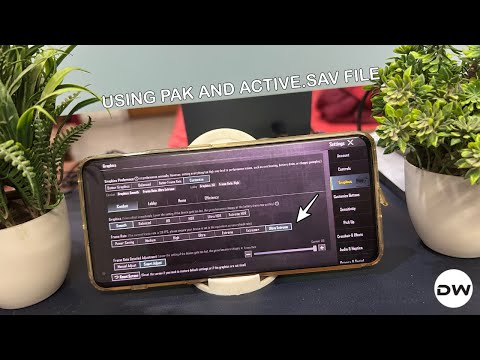
- Install Zarchiver , FPS Unlocker , and MT Manager on your device . NOTE: You’ll have to turn off Play Protect before you can install MT Manager.
- Then open FPS Unlocker > select SAV EDITOR > tap on Settings situated at the top right.
- Now select Use preloaded SAV > Choose Region India > search FPS > FPSLevel— change it to 8 NOTE: FPS Level 8 is 120, 7 is 90, 6 is 60
- Do the same for the rest of the three FPS as well > Swipe > YES > Choose ZArchiver.
- Go to Downloads > FPS Unlocker > SAV > Extract ZIP > You’ll get the Active.sav file.
- Then, open MT Manager > Downloads > FPS Unlocker > Active.Sa file [on the left].
- On the right, go to Android > data > com.pubg.imobule > Tap on Use this Folder.
- Now go to Files > UEA4 > Shadow Tracker Extra > Shadow Tracker Extra > Saved > Save Game.
- Then replace Active.Sav with the one that we have on the left [choose Copy > Copy and Replace] [also, check Apply to subsequent conflicts].
- Now open Settings > Apps > Manage Apps > All Apps > Battery and Performance > Clear Data and Uninstall Updates.
- Then launch BGMI > Go to Settings > Graphics > Choose Ultra Extreme Frame Rate > you’ll get 120 FPS at all times.
Enable 120 FPS in BGMI/PUBG viaPAK File
- Install Zarchiver , FPS Unlocker , Termux , and MT Manager apps.
- Then delete the data of the Battery system app [recommended].
- Now launch Termux and minimise it > launch FPS Unlocker > and go to its Settings.
- Enable Termux Permission > Hit the Info icon next to it > Copy all 3 commands and execute them in Termux >
- Now go to FPS Unlocker > FPS Unlocker option > choose the variant- BGMI > then choose SAV > Termux as method > Swipe.
- If you get errors, re-execute all three commands in Termux > Exit the app from Notifications > Relaunch Termux >
- Again, go to FPS Unlocker > choose the variant- BGMI > then choose SAV > Termux as method > Swipe > You will not get any errors now.
- Now tap YES > ZArchiver > You’ll get a file > Go to Downloads > FPS Unlocker > BGMI > Extract this file [it will be named after your model number].
- You’ll get a PAK file > Open MT Manager > go to Downloads > FPS Unlocker > BGMI > PAK file should be on the left.
- On the right, go to Android > data > com.pubg.imobule > Use this Folder > Files > UEA4 > Shadow Tracker Extra.
- Go to Shadow Tracker Extra > Saved > PAKs > Replace PAK with one of yours [Copy and Replace] [check Apply to subsequent conflicts].
- Now Launch BGMI > settings > graphics> you’ll get Ultra Extreme Frame Rate, aka the 120 FPS, throughout the game.
Enable 120FPS in BGMI/PUBG Version 4.0 Without Root

How to Enable 120 FPS in BGMI/PUBG Using Root

The biggest advantage of using the root method is that you can easily enable 120 FPS in BGMI/FPS in just a single tap. This is done by spoofing your device to one of the flagships, such as the OnePlus 13 or the Xiaomi 14/15 Ultra. From your end, you just need to flash a single module and that’s just it. Here’s what needs to be done:

- First off, root your device via Magisk / KernelSU / APatch .
- Then download the desired module from below: CPH2653 : Spoof your device to OnePlus 13 5G 25010PN30G : Spoof your device to Xiaomi 15 Ultra 24031PN0DC/24030PN60G : Spoof your device to Xiaomi 14 Ultra
- Now, flash the module via your rooting app and restart your device.
- Finally, launch BGMI/PUBG, go to Settings > Graphics, and you should see Ultra Extreme. Extreme = 60 FPS Extreme+ = 90 FPS Ultra Extreme = 120 FPS
- Fix PUBG/BGMI Touch Screen Issue on Android
- How to Change OnePlus Pad Screen Resolution for PUBG/BGMI
- PUBG PC Crashing Due to Wellbia Anti-Cheat: How to Fix
- How to Fix PUBG New State Not Working [All Errors Fixed]

(Cancel Reply)
Δ
