How to Enable 5G in OnePlus Phones [2 Methods]
In this guide, we will show you the steps to enable 5G on your OnePlus device. Two of the biggest players in the telecommunication industry, Jio and Airtel, have recently rolled out 5G services in India. And with that, we are witnessing a flock of users planning to join this 5G bandwagon. In this regard, many OnePlus devices support 5G or are 5G ready [more on that later].
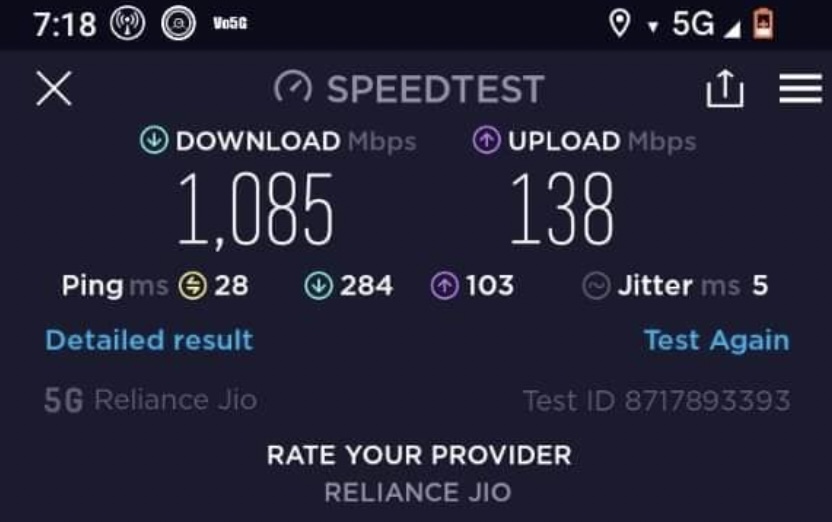
However, since it is still in the initial beta stages, enabling 5G on your OnePlus devices might be easier said than done. There are a few checks and requirements that you need to qualify for beforehand. And in this guide, we will make you aware of just that. Once you carry out all the listed steps, you will then be able to welcome 5G onto your OnePlus device [ColorOS/OxygenOS] right away. So on that note, let’s get started.
- Perform a few 5G Tests on OnePlus STEP 1: Make sure your Device is 5G Supported STEP 2: Check if your Phone is 5G Supported ‘or’ 5G Ready STEP 3: Get 5G Invitation Code [for Jio] STEP 4: Make sure you live in 5G Supported Regions STEP 5: Make sure you have a 5G Recharge Plan STEP 6: Verify Dual 5G SIM support STEP 7: Verify 5G Towers nearby [Optional]
- How to Enable 5G on OnePlus Phones Via Settings menu Using Dialer Code Enable 5G on OnePlus via QPST & carrier_policy.xml
- What is the Difference between NR Only and NR/LTE on OnePlus 5G
- UPDATE 1: 5G Support rolled out by OnePlus for 8/Pro/8T/9R
Perform a few 5G Tests on OnePlus

First and foremost, there are a few 5G prerequisites that your device needs to qualify. If your device doesn’t pass these tests, then you might have an issue or two in opting for the 5G network. So without further ado, let’s check out what exactly are these tests.
STEP 1: Make sure your Device is 5G Supported
As obvious as it may sound, you should double-check that your device supports 5G. For that, you could either have a look at the back of your device’s box or check out our comprehensive coverage on the list of all OnePlus 5G-supported and 5G-ready phones in India.
STEP 2: Check if your Phone is 5G Supported ‘or’ 5G Ready
Although both the 5G Supported & 5G Ready phones are 5G compatible, yet, there exists a small difference between them. 5G Supported phones mean the device supports 5G but is not yet enabled. It will be enabled by the OEM in the subsequent OTA update. Until then, you wouldn’t be able to use 5G even if Jio enables it on your phone number.
For example, the OnePlus 8 is 5G-supported but as of now, 5G isn’t enabled. So you will have to wait for Google to roll out an OTA update that will enable 5G on your device. On the other hand, 5G Ready devices come with 5G enabled out of the box. For example, the OnePlus 9 Pro is 5G Ready. So as soon as Jio activates 5G on your phone number, you will be able to use it straight away.
STEP 3: Get 5G Invitation Code [for Jio]
As of now, Jio is currently testing its 5G rollout with the beta testers. So you will first have to join this testing group via the My Jio app and then only you will be able to activate 5G on your phone number. So check out our guide on How to Get an Invitation for Jio 5G Welcome Offer .
STEP 4: Make sure you live in 5G Supported Regions
Next up, make sure that you live in a city where 5G is supported. When it comes to Jio, only Delhi, Mumbai, Kolkata, and Varanasi qualify as 5G-supported regions, at least for the time being. In the case of Airtel, 5G is currently available in Delhi, Mumbai, Chennai, Bengaluru, Hyderabad, Siliguri, Nagpur, and Varanasi. You could expect m ore cities to be added by the end of this year, for both Airel and Jio.
STEP 5: Make sure you have a 5G Recharge Plan
Some operators require you to have a 5G ready plan recharged beforehand. While there is no specific 5G recharge plan for Jio as of now, but you will atleast have to be on the Rs 239 4G plan to qualify. Similarly, Airtel 5G Plus will require you to be on an existing 4G SIM.
STEP 6: Verify Dual 5G SIM support
If your device has a dual SIM card slot, then double-check that both these slots support 5G. In this regard, if your device has any of the below-listed chipsets, then it supports Dual 5G SIM [you could check the device;s chipset using the CPUZ app or GSMArena website]
- MediaTek Dimensity 1000
- MediaTek Dimensity 1000+
- MediaTek Dimensity 820
- Snapdragon 865
If your device doesn’t have any of the aforementioned chipsets, then it might not have Dual 5G SIM support. Well, there’s nothing to worry about as such, because one of the SIM Slots would still support 5G. So what you need to do is switch your SIM card from one slot to another and then check out the results.
STEP 7: Verify 5G Towers nearby [Optional]
While it is an optional check, but we would still recommend you check that there exists a 5G network near your location. Here’s how it could be done:
- Download and install the Ookla Speed Test app from Play Store.
- Then launch it and give it the Location Permission.
- Now go to its map tab and it will start scanning for the 5G tower.
- All the locations marked in blue on the map signify the presence of 5G signals.
- You could further zoom in to get the exact precise location as well.
How to Enable 5G on OnePlus Phones
Once the 5G service is enabled for your phone number, you could then easily enable it on your OnePlus device. There are two different methods of doing so and we have listed both of them below. You may refer to the one that is in sync with your requirement.
Via Settings menu
- Head over to the Settings menu on your device.
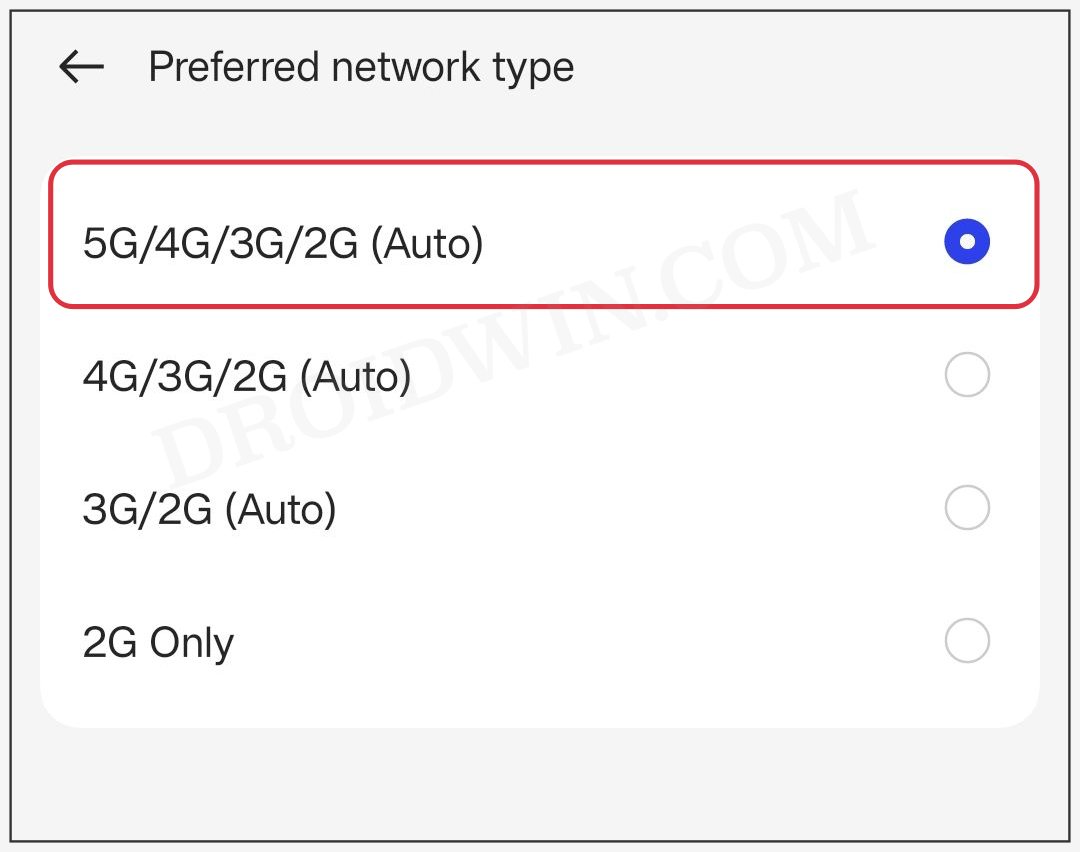
- Then go to SIMs > Preferred Network Type. Reference Image
- Now select either 5G or 5G/4G/3G from the list.
- 5G is now enabled and activated on your OnePlus device.
Using Dialer Code
- Bring up the dialer on your phone and input the below code: ##4636##
- Then go to Phone Information and scroll to “Set preferred network type”.
- Now tap on it and select “NR only” or “NR/ LTE” [recommended].
Enable 5G on OnePlus via QPST & carrier_policy.xml
Enable 5G on OnePlus 7/8/9 series via QPST & carrier_policy.xml
What is the Difference between NR Only and NR/LTE on OnePlus 5G
If you have opted for the dialer code method to enable 5G, then you mgit have noticed “NR only” and “NR/ LTE”, out of which, we recommended the latter one. Why is that so? If you select NR only, then your device will be forced to use only the 5G network. So in places where there are weaker 5G signals, you might not be able to make calls or send messages.
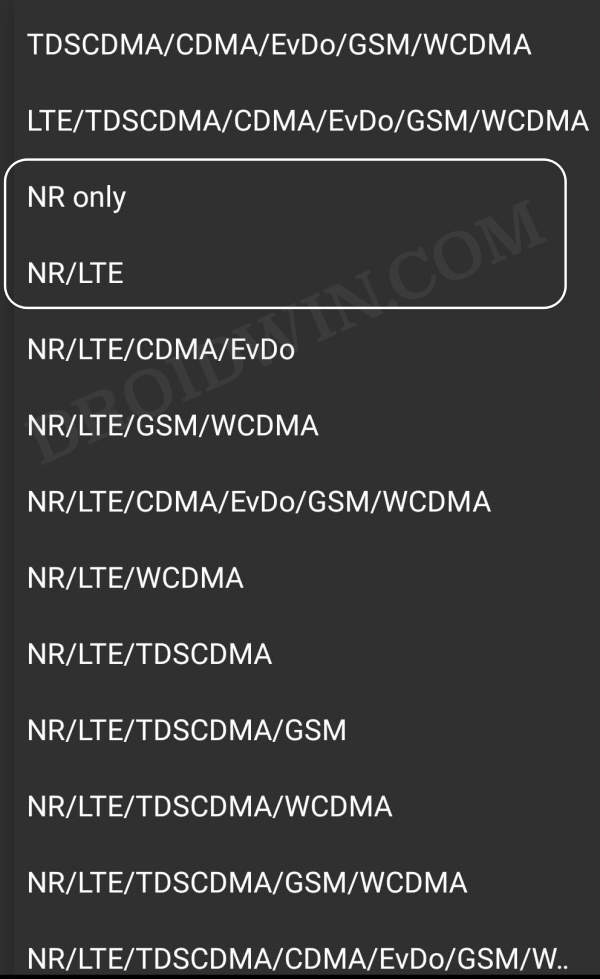
Therefore, it is recommended to opt for NR/LTE. This way if your device isn’t in a region that has stronger 5G [NR] coverage, then it will be able to automatically switch over to 4G [LTE]. For the same reason, if you get an option to choose between 5G or 5G/4G/3G, make sure to opt for the latter one [5G/4G/3G].
UPDATE 1: 5G Support rolled out by OnePlus for 8/Pro/8T/9R
OnePlus has recently released the Android 13 Open Beta 1 update for the aforementioned device s. Apart from the slew of UI changes in OxygenOS 13, it has also added support for 5G onto the OnePlus 8/Pro/8T/9R.
![How to Enable 5G in OnePlus Phones [2 Methods] - 7](https://droidwin.com/wp-content/uploads/2022/10/enable-5g-oneplus-android-13-1.jpg)
So head over to the Settings menu, search preferred Network Type, select 5G/4G/3G/2G [Auto] from the list, and enjoy the blazing fast 5G speed on your device!
- 5G missing from Preferred Network Type: How to Fix
- How to Enable 5G in Android in an Unsupported Country
- Guide to Enable Vo5G/VoNR on Android [2 Methods]
- How to Disable 5G when it is Blocked by Device or Carrier

- lucky 33 6 months ago Reply Thanks for the informative post! I found the methods to enable 5G on my OnePlus really helpful. It’s great to finally experience faster connectivity. Keep up the good work!
- d06 7 months ago Reply Great tips! I appreciate the step-by-step guides for enabling 5G on my OnePlus phone. It’s always helpful to have clear instructions. Can’t wait to try out the new speed!
- 99 club 9 months ago Reply Great post! The step-by-step guide was super helpful. I finally managed to enable 5G on my OnePlus phone. The two methods you provided were easy to follow. Thanks for sharing!
- Ytmp4.id 11 months ago Reply Great article! I followed the steps for enabling 5G on my OnePlus device, and it worked perfectly. I appreciate the clear instructions and screenshots. Thanks for sharing this!
(Cancel Reply)
Δ
