How to Enable Full-Screen Widgets in Windows 11
In this guide, we will show you the steps to enable Full-Screen Widgets on your Windows 11 PC. Widget is one domain that has always been the talk of the town- you will either love it or simply hate it- there’s no in-between. If you fall in the former segment, then there’s some good news in store for you. As you might be aware, the latest iteration of the OS has ditched the Live Tiles that was the USP of Windows 8 and traces of which could also be found in Windows 10.
They are now mini web apps that could directly fetch data from the online servers and represent the live results. And with the latest 22H2 update [ build 25201 to be precise] , it has been blessed with a major UI tweak- you could now view these widgets in the full-screen mode.
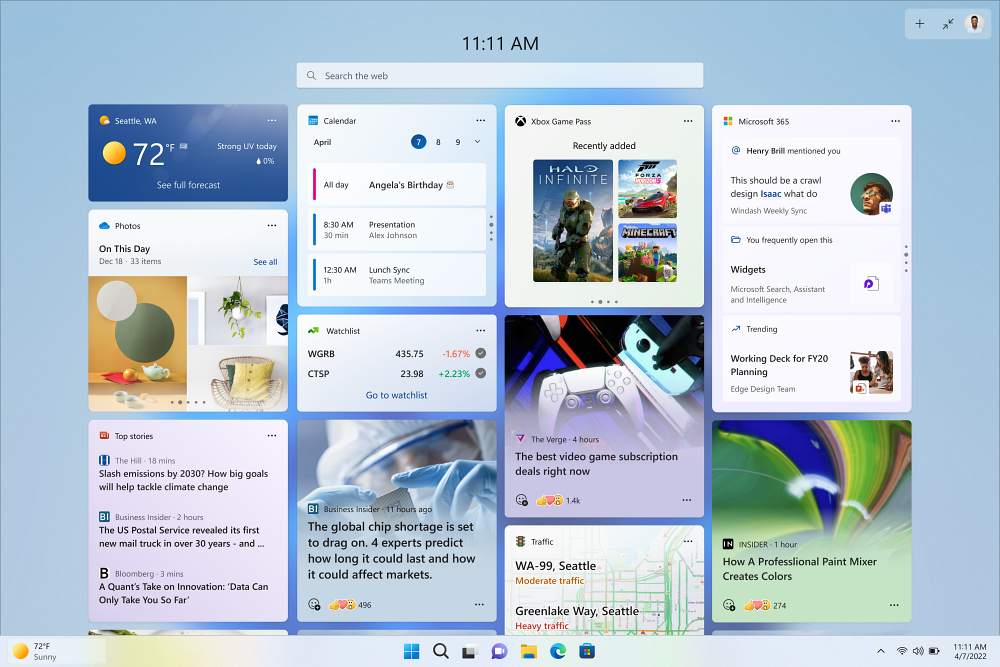
As of now, this feature is slowly rolling out and even the Insider Preview users haven’t received it. But using a nifty workaround, you could easily enable the Full-Screen Widgets on your Windows 11 PC right away. And in this guide, we will show you how to do just that. Follow along.
How to Enable Full-Screen Widgets in Windows 11
- To begin with, download the open-source ViveTool from GitHub.
- Then extract it to any convenient location on your PC.
- After that, right-click on it and select Copy as path.
- Now launch Command Prompt as an administrator.
- Then type in cd and paste the copied path via Ctrl+V.
- Finally, execute the below command to enable Full-Screen Widgets on your Windows 11 PC vivetool /enable /id:34300186
- Finally, click on the double-sided arrow present next to your profile to view the widgets on full-screen.
How to Disable Full-Screen Widgets in Windows 11
If full screen widgets aren’t in sync with your requirement or you simply no longer need it for some reason, then you could easily revert this change and switch back to the old widget style. Here’s how it could be done:
- Right-click on the ViveTool folder and select Copy as path.
- Now launch Command Prompt as an administrator.
- Then type in cd and paste the copied path via Ctrl+V.
- Finally, execute the below command to disable Full-Screen Widgets on your Windows 11 PC vivetool /disable /id:34300186
- How to Enable new Open with dialog box in Windows 11
- How to Enable Suggested Actions in Windows 11 Right Away
- Add Open in New Tab in Windows 11 File Explorer
- How to Enable Taskbar Overflow in Windows 11 Right Away!

(Cancel Reply)
Δ
