How to Enable gpedit.msc Local Group Policy Editor in Windows 10 Home
In this comprehensive guide, we will show you the steps to enable the gpedit.msc or commonly known as the Local Group Policy Editor in Windows 10 Home. Well, Windows hiding some important OS features are nothing new. Recently I covered how to Enable the Hidden Hardware and Devices Troubleshooter in Windows 10 . A few weeks passed and I needed to tweaks some settings of the Windows Update (it was related to configuring Windows Automatic Updates).
Upon doing slight research I found out the same could be carried out via the Local Group Policy Editor. Likewise, the resources also mentioned that there are around 7-8 different methods through which you could access this feature. These include using the Run dialog box, Search bar, Command Prompt/PowerShell Window, Windows Settings page, Task Manager, and File Explorer, among others. However, none of the methods worked out in my favor.
Then upon further inspection, I found out that the Local Group Policy Editor is only present in Windows 10 Enterprise, 10 Education, and 10 Pro editions and is absent from the Windows 10 Home Edition. However, for me, this was hard to digest. So my search didn’t stop there and I was on the lookout for the workarounds to enable the gpedit.msc Local Group Policy Editor in Windows 10 Home. Fortunately, I was able to get hold of one such method that hardly takes a few seconds to execute. And in this guide, I will be sharing with you just that, along with all the necessary screenshots. Follow along.
Microsoft Windows Latest Tips and Tricks [PART 1]
Fix: pip is not recognized as an internal or external command
Microsoft Windows Latest Tips and Tricks [PART 2]
How to Root any Android Device without PC
What is Local Group Policy Editor in Windows 10
Enable gpedit.msc Local Group Policy Editor in Windows 10 Home STEP 1: Create a GPEDIT Enabler BAT File STEP 2: Access the gpedit.msc Local Group Policy Editor on Windows 10 Home
What is Local Group Policy Editor in Windows 10
The Local Group Policy Editor or the gpedit.msc is used to change the various configuration on your Windows PC. They act at two different levels: the system level and the user level. The former takes hold of the Computer Configuration settings whereas the latter is responsible for User Configuration settings. So the administrator can use the Computer Configuration settings of the Group Policy Editor and make changes that will be implemented to all the users on that PC.
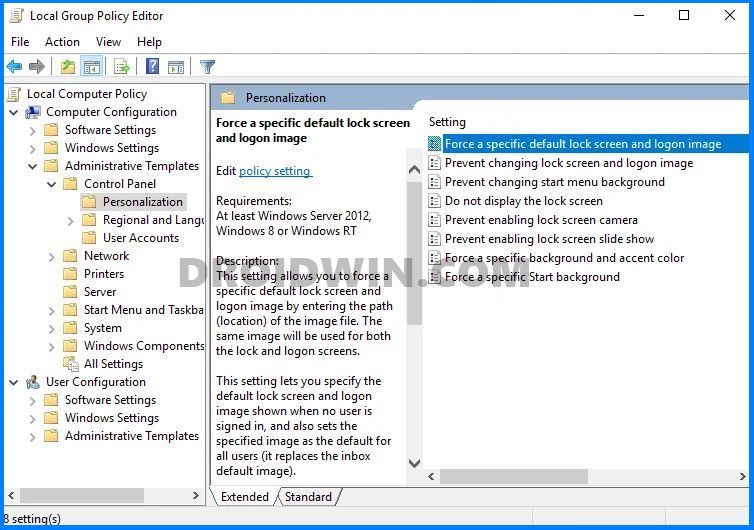
On the other hand, admins could also use the User Configuration settings to make changes that will only be implemented on some particular group of users on that system. As far as the default settings go, well, admins are given the system level configurations so that whatever policy they implement will come into effect for the entire system. So with this, you have got a perfect idea regarding the functionality of this tool. Let’s now check out the steps to enable the gpedit.msc Local Group Policy Editor in Windows 10 Home.
Enable gpedit.msc Local Group Policy Editor in Windows 10 Home
Just to reiterate the facts- if you are using theWindows 10 Enterprise, 10 Education, and 10 Pro editions, then you don’t need to carry out the below steps. You could easily access this tool by bringing up the Run dialog box (Windows+R), typing in gpedit.msc, and hit Enter. The below method will be useful for the Windows 10 Home users since Microsoft has decided to disable (?) this tool on this edition of Windows. So with that said, let’s get on with the guide to enable gpedit.msc Local Group Policy Editor in Windows 10 Home.
- How to Run ADB Fastboot Commands directly on Android without Root
- How to Use ADB and Fastboot Commands on Rooted Android Without PC
- Fix Unauthorized Device with ADB Commands [3 methods]
- How to fix FAILED (status read failed (Too many links))
STEP 1: Create a GPEDIT Enabler BAT File
The first step you need to do is create the GPEDIT Enabler BAT file. There’s not much required for that, just create a text file, paste the below-given commands, and launch the file. Here are the required instructions for the same (just make sure that you are logged in as an administrator):
- Right-click in an empty spot on your desktop and select New > Text Document.
- Now copy-paste the below command in that file: @echo off pushd “%~dp0″ dir /b %SystemRoot%\servicing\Packages\Microsoft-Windows-GroupPolicy-ClientExtensions-Package~3*.mum >List.txt dir /b %SystemRoot%\servicing\Packages\Microsoft-Windows-GroupPolicy-ClientTools-Package~3*.mum »List.txt for /f %%i in (‘findstr /i . List.txt 2^>nul’) do dism /online /norestart /add-package:”%SystemRoot%\servicing\Packages%%i” pause
- Then go to File > Save as. Change the Save as Type to All Files.
- Under the File name section, type in Enabler.bat and click Save.
- Now right-click on this Enabler.bat file and select Run as Administrator.
- The tool will now launch and will start adding the required packages.
- Once done, you should get the ‘ Operation Completed successfully, Press any key to continue’ message (see below image). You may now close this command window. The gpedit.msc Local Group Policy Editor has been successfully installed on your Windows 10 Home. It’s time to use it using the below-given instructions.
STEP 2: Access the gpedit.msc Local Group Policy Editor on Windows 10 Home
- Bring up the Run dialog box using Windows+R shortcut key combinations.
- Type in gpedit.msc in the box and hit Enter.
- It will now launch the Local Group Policy Editor on your Windows 10 PC. That’s it.
- Get a Temporary Blue Tick on Instagram!
- Fix: YouTube preview not showing in WhatsApp [Android, iOS]
- How to Edit any Webpage, Website, or even WhatsApp Chats (Both Sent and Received)!
- How to Restore an Old WhatsApp Chats Backup

- StarBaseONE2 1 year ago Reply First off, I want to take a moment to thank Mr. Sadique Hassan for your efforts that published this how-to-guide. Ironically, I recently (1/20/25) spent my whole morning (well, for the sake of honesty I’ll clarify that to aprx 4 hours) seeking this specific information. As I was at a loss on how to go about this task personally. I figured a good step by step tutorial would be easy to find, but my internet searching did not lead me here nor anywhere else greatly helpful at that time. About a week ago I gave the idea over, figuring it not worth anymore of my time as my main work horse is Mint. And now I have stumbled across the step by step guide I sought then, while researching an unbricking solution for an android device. I’m not too spiritual oriented personally, but I still couldn’t help but think about the old saying stating something to the effect of ‘God working in mysterious ways.’ Now I’m wondering if I have some evidence of that being accurate, or if this is the first example of a trio of statistical outliers, suggesting I might should consider a lottery ticket purchase today (but I digress). Like Mr. Alex Fonseca reported above, I too got a strange error, when I executed the bat file of pasted code. So I grabbed the ‘bat keyboard’ and manually retyped your code into my ‘bat computer’ LOL. Corny jokes aside, that did solve my error issue. So apparently your coding works perfectly, I just had to retype it instead of copy/pasting it, as some kind of an askii character anomaly was cited in the nag window of the error thrown (I don’t remember the nag’s wording well enough to speculate more). Thanks again Mr. Hassan for your willingness to share your research and coding work to the public. I admit I am now look forward to using it!
- Alex Fonseca 4 years ago Reply The “” and ‘ ‘ in your text cause an error. It needs to be corrected in order for the enabler to work. @echo off pushd “%~dp0″ dir /b %SystemRoot%\servicing\Packages\Microsoft-Windows-GroupPolicy-ClientExtensions-Package~3*.mum >List.txt dir /b %SystemRoot%\servicing\Packages\Microsoft-Windows-GroupPolicy-ClientTools-Package~3*.mum »List.txt for /f %%i in (‘findstr /i . List.txt 2^>nul’) do dism /online /norestart /add-package:”%SystemRoot%\servicing\Packages%%i” pause
(Cancel Reply)
Δ
