How to Enable Import Option and Install MTZ Theme in Xiaomi
In this guide, we will show you the steps to enable the Import option and install the MTZ theme of your choice in Xiaomi [MIUI and HyperOS]. There’s no denying the fact that this Chinese OEM is among the most customizable out there. Plus, its Theme Store only adds more brownie points to its already rich collection. However, there’s an asterisk involved.

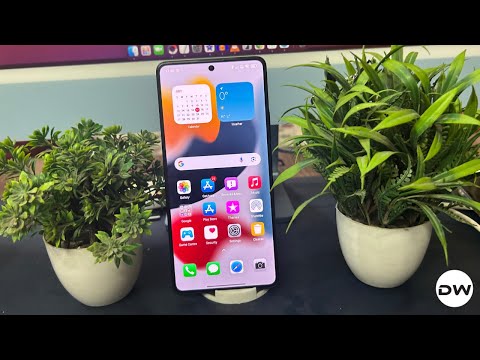
iOS Theme in Poco F5 HyperOS 2
As opposed to the Chinese version of its theme store, the Global one doesn’t have the option to add a third-party theme. So, if you stumble upon a great-looking custom theme, then you are out of luck if you are planning to install it across Global/EU/India or other similar regions. So, what else can be done apart from unlocking the bootloader and flashing the China ROM?
Well, there does exist a nifty method using which you can easily enable the Import option and then install the desired MTZ theme on your Xiaomi device, across both MIUI and HyperOS [without root or unlocking the bootloader!]. So, without any further ado, let’s show you how this could be carried out.
How to Enable the Import Option and Install MTZ Theme in Xiaomi
- To begin with, disable or turn off the Play Protect from the Play Store.
- Then, download and install the following APKs from any trusted sites: App Cloner | MT Manager | Xiaomi China Theme Store | MTZ Theme Download Pack [I have made a consolidated group of these APKS]
- Then, download and install the App Cloner and MT Manager apps.
- Once that is done, delete the data of the preinstalled Themes app.
- Now launch App Cloner, go to the APKs tab, hit Plus, select From a File, and choose the ThemeCN APK
- Then enable Cloning Mode, choose Manifest > OK.
- Then go to Cloning Options and enable Ignore Crashes, checkmark Ignore Crashes, and hit OK.
- Next up, enable No Kill, checkmark Enabled, hit OK.
- Now go back and hit the Clone icon at the bottom right > Don’t Show Again > OK.
- Once cloned, hit Install App. Now launch this new Themes app [having the clone icon]. It will ask for a device reboot. Do so.
- Once booted, launch the Cloned Themes app, go to My Account > Themes > tap Import.
- Choose the desired MTZ theme and hit OK. That theme will be added in the Themes section.
- Now launch MT Manager and go to Android > data across both left and right.
- The original theme app will have the app package name as com.android.thememanager whereas the new China one will have com.android.thememanages.
- On the left, open com.android.thememanages. On the right, open com.android.thememanager.
- If you see any folder named ‘file’ on the right [com.android.thememanager], then delete the data of the original Themes app. Make sure that there isn’t any folder on the right now.
- Now long-press on the ‘files’ folder on the left, select Copy, and paste it on the right.
- Finally, launch the original Themes app, go to Accounts > Themes. Your downloaded theme will be shown there. Select it and hit Apply.
- That’s it. The custom theme will now be applied to your device and will stay there upon reboots or even if you uninstall the installed apps.
- How to Disable Xiaomi Danger Screen: 10 Seconds Waiting Time
- How to Downgrade Xiaomi from HyperOS 2 to HyperOS 1: Android 15 to 14
- EDL Unbrick is now available for Xiaomi devices- Skip Authentication
- How to Install Different Region ROM on Locked Bootloader on Xiaomi

- Miemek 4 months ago Reply Siema zrobiłem wszystko jak pokazaliście i wyświetlacza mi się błąd że nie mam połączenia z siecią
(Cancel Reply)
Δ
