How to Enable MEMC or Motion Graphics Smoothing on OnePlus
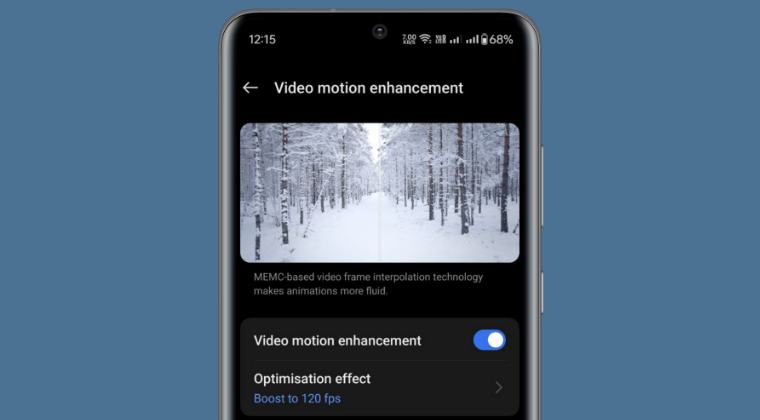
In this guide, we will show you the steps to enable MEMC or Motion Graphics Smoothing on your OnePlus device. Motion Graphics Smoothing provides a smoother video experience with reduced motion blur by taking the help of motion compensation. In this regard, there are two available modes: 60 FPS for motion graphics smoothing and 120 FPS for hypermotion smoothing.
Next up, if we turn our attention towards device compatibility, then the ones with Pixelwork’s integrated display processing chipset should be able to checkmark this requirement. But in some cases, even if your device beholds this chip, the feature might still be disabled on the software side. But fret not. You could still enable MEMC or Motion Graphics Smoothing on your OnePlus device using a nifty workaround. And in this guide, we will make you aware of just that.
How to Enable MEMC or Motion Graphics Smoothing on OnePlus
Droidwin and its members wouldn’t be held responsible in case of a thermonuclear war, your alarm doesn’t wake you up, or if anything happens to your device and data by performing the below steps.
- First off, root your device via Magisk.
- Then download the MEMC Module [credit: XDA Member Gairola].
- Now launch the Magisk app and go to Modules.
- Then tap on Install from Storage and select the module ZIP file.
- Finally, hit OK and it will be flashed. Once done, tap on Reboot.
- Now go to Display Settings and enable Video Motion Enhancement.
- Swipe Up Gesture Delay in Third-Party Launchers on OnePlus OxygenOS 14
- How to Flash Custom Boot Animation on OnePlus
- Downgrade OnePlus Pad: OxygenOS 14 to 13 Android 14 to 13
- How to Install /e/OS on OnePlus 9/Pro [De-Googled ROM] [Video]

(Cancel Reply)
Δ
